Clip studio Ver.1 release notes
Updates in Version 1.13.2 (released January 31, 2023)
Main improvements in Version 1.13.2
Improvements
The following features have been improved.
EX/PRO
- (Windows / macOS / iPad / Galaxy / Android / Chromebook) The Edit Set dialog, which manages auto action sets, can now be resized on non-smartphone devices.
Feature Changes
The following features have been improved.
All Grades
- In the text copied with the Version information dialog > Copy Diagnostics, text related to the license information has been changed.
Bug Fixes
The following bugs have been fixed.
All Grades
- Fixed an issue where 3D layers would not be compatible with other versions even when saved in compatibility mode in Clip Studio Paint.
- In the text copied with the Version information dialog > Copy Diagnostics , the Settings Path folder was incorrect.
- Fixed an issue where scrolling or rotating the canvas would become sluggish after switching to another tool while an object is selected with the Object sub tool.
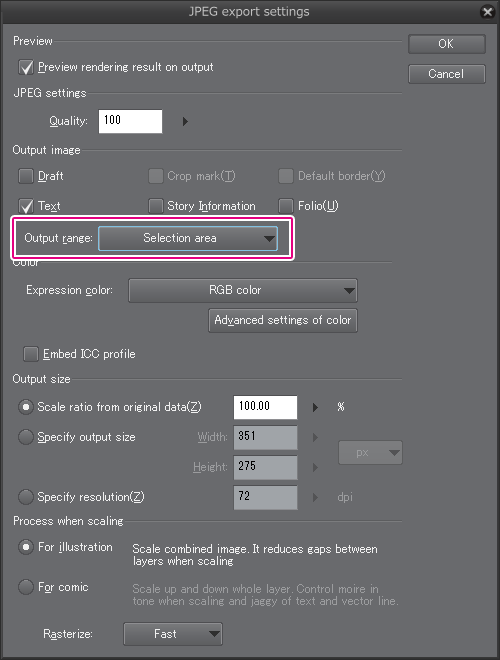
- (Windows / macOS / iPad / Galaxy / Android / Chromebook) Fixed an issue on non-smartphone devices where if Quality is not displayed in the JPEG export settings dialog, the Preview rendering results when exporting settings would not be used.
- (iPad) Fixed an issue where unintended lines may be drawn if using the single swipe gesture while double-tapping the canvas with the pen.
- (iPad) Fixed an issue where the “Getting Started” dialog could not be closed on iPad Mini.
- (iPad) Fixed an issue where the drawing result of the end of a line may be incorrect when Show Effects when using Pencil is turned on in the OS settings.
EX/PRO
- After recording an operation to create a new canvas with a template set in an Auto Action, if the Auto Action was used on a different OS than the one where it was recorded, it would sometimes not work correctly.
EX
- (macOS) Fixed an issue where checkboxes in the Convert to lines and tones dialog would sometimes not respond.
- Fixed an issue that caused irregular conflicts when using Teamwork.
- Fixed an issue where when using the Story Editor for a single page work, after closing the canvas, executing the Manage Page menu > Open Page will display the canvas in read-only mode.
Updates in Version 1.13.1 (released January 18, 2023)
The following bugs have been fixed.
All Grades
- (Windows) Fixed an erroe where Clip Studio Paint would force close after launching on certain devices.
Updates in Version 1.13.0 (released December 6, 2022)
Improvements
The following features have been improved.
All Grades
- Compatibility mode has been added to Preferences > File details. When saving a file in Clip Studio format (extension: clip) that includes 3D layers compatible with Ver. 1.5, you can set this to Save or Ask when saving to save the file in compatibility mode so you can open it on smartphones and tablets.
- Copy Diagnostics button has been added to the Version information dialog.
- (iPad / iPhone / Galaxy / Android / Chromebook) You can now display 3D layers compatible with Ver.1.5 when in a Clip Studio format (extension: clip) that has been saved in Compatibility mode as Save or Ask when saving in the Preferences dialog > File details section. However you will not be able to edit Ver.1.5 compatible 3D layers.
- (iPad / iPhone / Galaxy / Android / Chromebook) If Clip Studio Paint does not have permission to use the device camera, an error message will appear when trying to use functions that require the camera.
- (iPad / iPhone / Galaxy / Android / Chromebook) I have a license has been added to the doodle mode notification screen and the creative charge screen. You can switch to using an existing license.
- (iPad) Now supports the Apple Pencil’s hover function. In devices compatible with Apple Pencil, go to the Preferences dialog > Interface > Pen and turn on Use stylus hover on applicable devices to enable hover in Clip Studio Paint.
EX/PRO
- Edit set has been added to the Auto Action palette menu. You can change the order of auto action sets as well as add and delete sets.
EX
- Import annotations as image has been added to the Convert PDF format dialog that appears when importing a PDF file from the File menu > Open. You can now see PDF when the canvas is open.
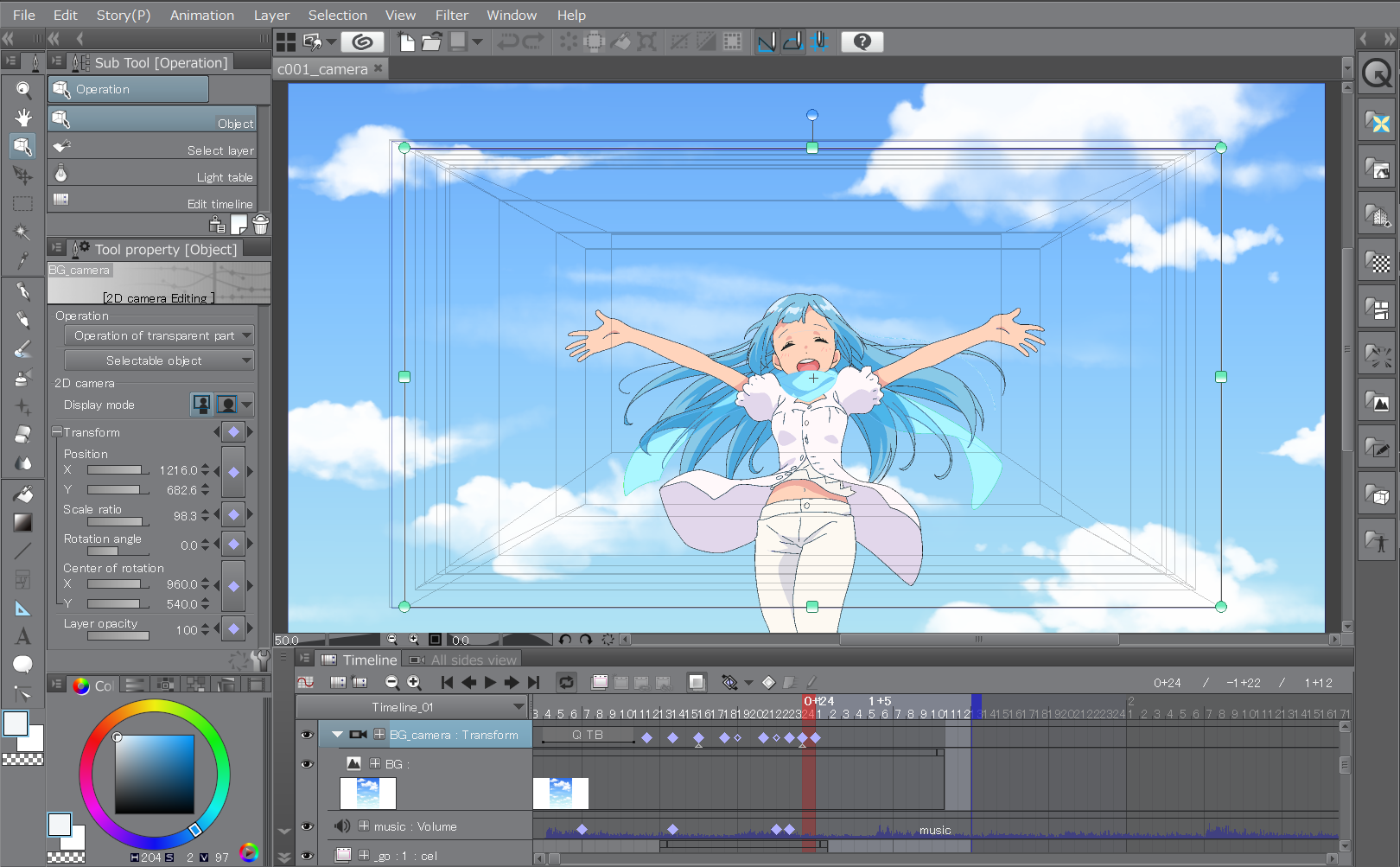
- (Windows/iPad) We have added a camera specification for Toei Animation Digital Exposure Sheet that can be set when creating a track label for a 2D camera folder.
Feature Changes
The following features have been improved.
All Grades
- The final image will be displayed longer at the beginning and end of videos exported from Export timelapse.
- The 10th anniversary app icon and splash screen has been reverted to the usual icon and screen.
- In the Animation menu > Label, the names of Create inbetween track label and Create reverse sheet track label have been changed to Create inbetween track label “○” and Create inbetween track label “●”, respectively.
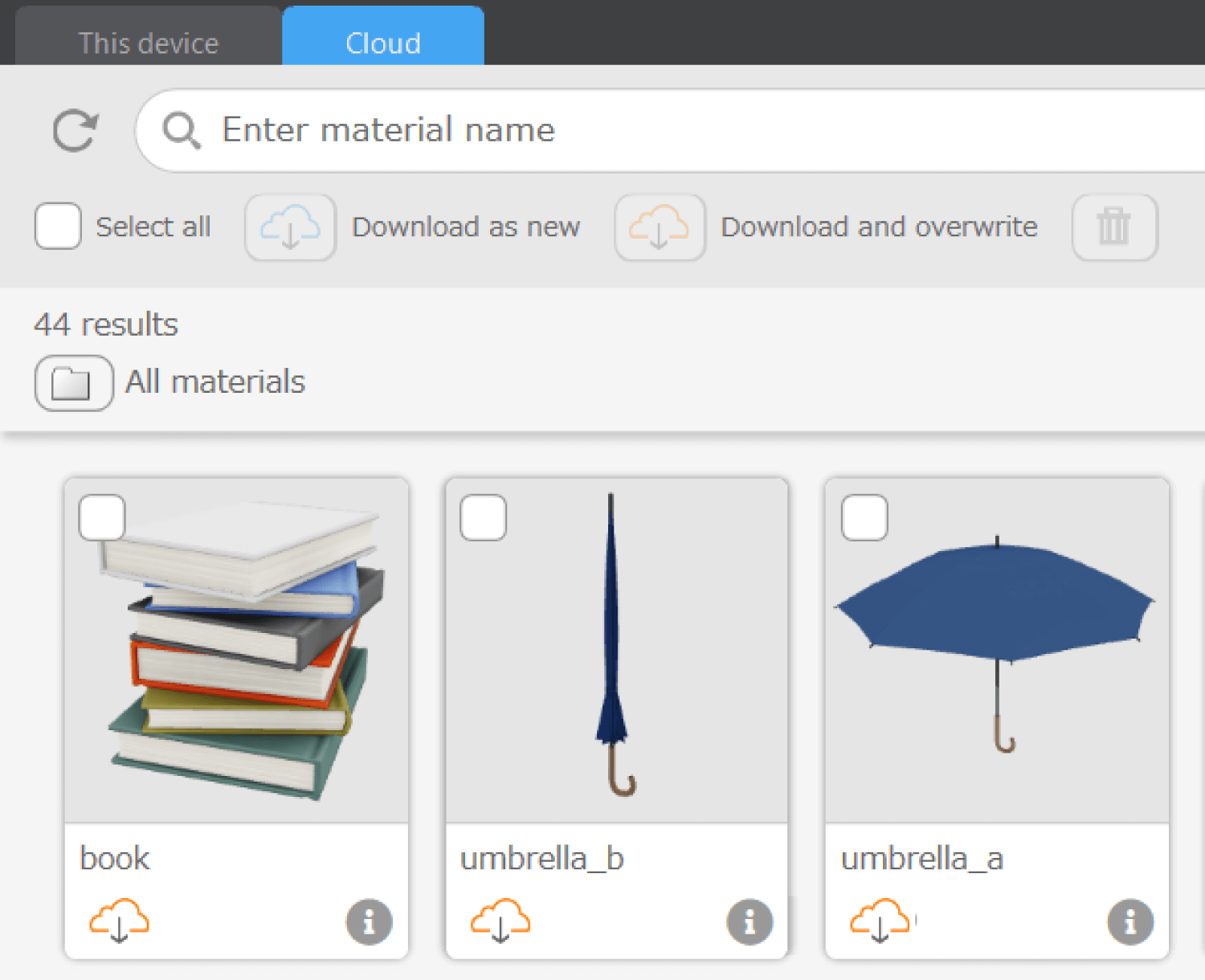
- In the Material palette > Small object folder, Stationary and book has been renamed to Stationery and book.
- (Windows) The default setting of Input frequency under Preferences > Tablet Settings has been changed to Prefer quality.
EX/PRO
- Create new set, Delete set, and Duplicate set have been deleted from the Auto Action palette menu. You can perform the same actions from the Edit set command.
EX
- 2D camera folder information can now be exported to digital exposure sheet files (extension: xdts).
- This does not apply when importing digital exposure sheet files (extension: xdts) from Clip Studio Paint Ver.1.13.0 or later to Ver.1.12.11 or earlier.
Bug Fixes
The following bugs have been fixed.
All Grades
- Fixed an issue where when a specific 3D object material was saved with different Object scale values for X, Y, or Z for the entire material, the placement would shift when the material is reopened.
- Fixed an issue where when editing with the Text tool, even if you click Add font from files > Open Cloud Settings, the cloud settings screen would not open.
- Fixed an issue where the color of the object launcher for 3D materials would not change even when the interface color was changed with Preferences > Interface > Color theme.
- When loading files or materials in Clip Studio format (extension: clip), the app would stop working in some environments.
- (iPad / iPhone / Galaxy / Android / Chromebook) Fixed an issue where when canceling restoration of app settings from the Clip Studio cloud, the settings would be restored up to the point that it was canceled. The app would also not launch correctly on some devices.
- (Galaxy/Android/Chromebook) Fixed an issue where the message dialogs that appear when using Clip Studio would not appear in the center of the screen.
- (iPad/iPhone) Improved scrolling on the Clip Studio screen in iPadOS 16 and iOS 16 devices.
- (iPad/iPhone) Fixed an issue where on iPadOS 16 and iOS 16 devices, Clip Studio Paint would sometimes force-close if the window was closed by key operation.
- (iPhone/Android) Fixed an issue on smartphones where the hints on the gesture pad in Companion Mode may be distorted.
- (mac) Fixed an issue where fonts downloaded from Font Book on macOS Ventura would not appear in the font list of Clip Studio Paint.
- (mac) Fixed an issue where the program would not respond to tapping Cancel in a progress bar dialog.
- (mac) Fixed an issue where after closing the Font list settings dialog, it was not possible to operate anything other than the font list.
- (mac) Fixed an issue with macOS Ventura where the Clip Studio Paint palettes and command bar would not appear after launching Clip Studio Paint from Open in PAINT on the Clip Studio work management screen and opening a file.
- (iPad) Fixed an issue with iPadOS 16 where dragging the title bar of a popup palette to store it in the palette dock would cause the stored palette to disappear.
EX/PRO
- Fixed an issue where the order of auto action sets in the Auto Action palette changed when Clip Studio Paint was restarted.
- Fixed an issue where you could not export an auto action set if the name of the auto action set contained forbidden characters.
- Fixed an issue where if bonus materials for monthly plans were registered in the Material palette in a state where they cannot be used, the materials would not respond if dragged to the Item bank palette does not respond and no error message would appear.
- (Windows/macOS) Fixed an issue where when printing a canvas that includes tones, the image for printing was created with the For comics setting even if Quality in the Printing Preferences dialog was set to For illustrations.
- (Windows/macOS) Fixed an issue where when importing workspace materials from Clip Studio to Clip Studio Paint for the first time, Clip Studio Paint may force-close.
EX
- Fixed an issue where projects with a set printing vendor would have a thicker spine than the set value when viewed in the 3D Preview for Binding dialog.
- Fixed an issue where the update date and time on the project management screen would not update after synchronizing a page that has been edited and updated on another device with Teamwork.
- Fixed an issue with Teamwork where it would be possible to press Sync all pages now in the page management window even when the project is up to date.
- Fixed an issue with Teamwork where if the position of the first page is changed while the file is open on another device, a conflict would occur if the page was edited and saved on the other device.
- (iPad/iPhone) Fixed an issue where when entering Hangul characters in the story editor on iPadOS 16 and iOS 16 or later, if a ligature was typed on the first line of the page, additional text could not be entered until the selection was canceled.
- (iPhone/Android) On some smartphones, tapping [Add 60 minutes] in the trial drawing mode does not remove the function limitation.
- (Windows/iPad) Fixed an issue where when exporting a digital exposure sheet information file (extension: xdts), the start frame of a track with a clip that spans the start frame would be exported as an empty cell.
What's new in Clip Studio
Version 1.13.0 includes the following updates.
Feature Changes
The following features have been improved.
All Grades
- The 10th anniversary app icon and splash screen has been reverted to the usual icon and screen.
- In the Material palette > Small object folder, Stationary and book has been renamed to Stationery and book.
Bug Fixes
The following bugs have been fixed.
All Grades
- Fixed an issue where the Clip Studio login bonus badge would not appear during the login bonus offer.
EX
- Fixed an issue where the update date and time on the project management screen would not update after synchronizing a page that has been edited and updated on another device with Teamwork.
Updates in Version 1.12.11 (released October 25, 2022)
Specification Changes
The following features have been improved.
All Grades
- (iPhone/Galaxy/Android) Tapping Save on the smartphone once the daily hour of free use is over now displays the plan signup screen.
Fixes
The following issues have been fixed.
All Grades
- Fixed an issue where, after setting the Object scale of a new part to a 3D object material to a value other than 100, the parts would become misaligned after saving the file and opening it again.
- Fixed an issue where new camera settings would not be applied as expected after creating multiple cameras on a 3D layer and switching camera settings.
- Fixed an issue where opening .png files would cause the app to crash.
- Fixed an issue where polygon lines would be hidden when reloading or replacing a 3D primitive texture.
- Fixed a bug where if one of the options under Edit > Transform was performed on a layer which had an active layer mask, the layer mask would disappear if it had been set without performing the transformation.
- (Galaxy/Android/Chromebook) Fixed an issue where the app would become unresponsive when using the pen while pressing and holding with a finger.
- (Windows/macOS) Fixed a bug where switching between Tools and Sub Tools would take a long time.
- (Galaxy/Android) Fixed an issue where the Command Bar would not appropriately update when trying to use the Liquify tool on a layer where it cannot be used.
- (macOS) Fixed an issue where pen and brush strokes would not be applied properly when using Sidecar on macOS Ventura.
- (iPhone) Fixed an issue where the canvas would become unresponsive when using touch gestures.
- (iPhone) Fixed an issue where the image quality of the canvas would drop unexpectedly.
EX
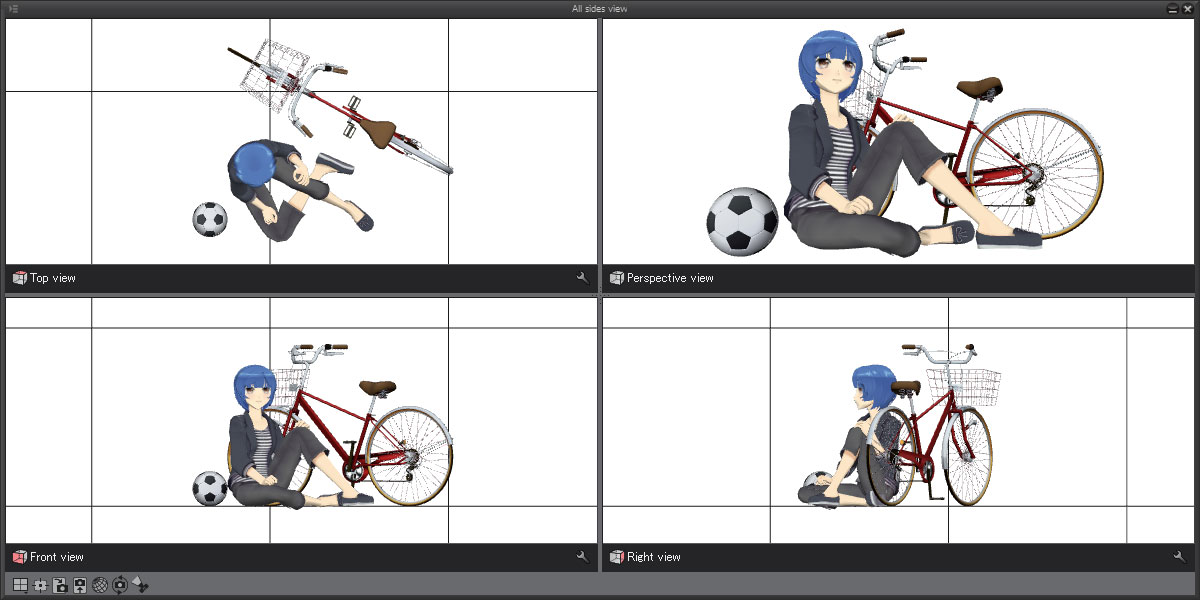
- Fixed an issue where automatic clipping plane settings would not work properly when moving the camera with the Perspective View in the All Sides View palette.
- (iPad/iPhone) Fixed an issue where, on iOS/iPadOS 16.1 or later, text may move up one space during entry of Korean characters in the Story editor when making ligatures at the top of a line.
Fixes in Version 1.12.10 (released October 17, 2022)
The following issues have been fixed.
All Grades
- (iPad) Fixed an issue where the canvas would become unresponsive when using touch gestures.
- (iPad) Fixed an issue where the image quality of the canvas would drop unexpectedly.
Updates in Version 1.12.9 (released October 11, 2022)
The following issues have been fixed.
All Grades
- (iPad) Fixed an issue where the app may become unresponsive when using the canvas or menus.
Updates in Version 1.12.8 (released September 29, 2022)
Fixes
The following issues have been fixed.
All grades
- (Windows/macOS) Fixed a bug where pen pressure would be reduced to the minimum value and the correct level of Stabilization would not change accordingly when switching tools using the Alt or Space keys.
- (Windows/macOS) Fixed a bug in which switching back and forth between Clip Studio Paint and another app would cause it to lag.
Updates in Version 1.12.7 (released September 28, 2022)
Eyedropper revamped
- An easier design for touch gestures, showing the current and new color at once
- The Eyedropper tool has been redesigned so that the current and new drawing colors appear in a circle around the selected area as you drag. The area around the cursor is also enlarged so you can more easily pick colors.
- When using the Eyedropper tool with a pen or a mouse, the circle will appear around the cursor. You can turn off this setting in the Tool Property palette.
- (Windows / iPad / iPhone / Galaxy / Android / Chromebook) When using the Eyedropper tool with a finger, the circle will appear above the finger, showing the tapped area and the current and new colors.
(Windows/macOS) Set shortcut keys no matter your keyboard language
Some of the default shortcuts have been changed, and shortcut key settings for menu commands now match the keyboard layout (compatible with AZERTY layout).
Enhanced 3D Tools
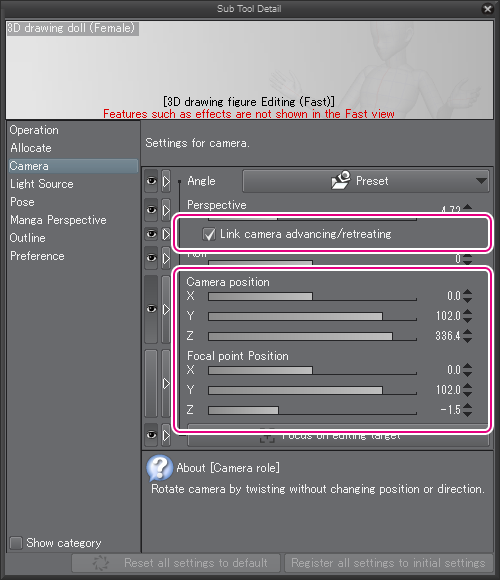
- Save multiple camera angles
The Switch camera setting has been added to the Sub Tool Detail palette when a 3D layer is selected. You can duplicate the current angle to add new camera angles and arrange and save them separately. Then, switch between camera angles as needed.
- Better usability
- You will be able to change the scale of each part of 3D objects. When the part is selected, you can adjust the size with the Object scale setting in the manipulator or the Sub Tool Detail palette.
- You will be able to adjust the width, height, and depth of 3D objects separately using the root manipulator. The size in dimension can also be adjusted from the Sub Tool Detail palette when Fixed ratio is turned off.
- Settings for the movement axis and rotation axis have been added to the Sub Tool Detail palette when a 3D layer is selected. When selecting a 3D material, you can move or rotate around the object's axis, or around the floor-aligned axis as before.
- The Pivot point for multiple objects setting has been added to the Sub Tool Detail palette when a 3D layer is selected. You can change the pivot point when multiple 3D objects are selected, and the objects can be rotated or resized at once around this pivot point.
- Fish-eye perspective
- The Fish-eye perspective setting has been added to the Panorama category for 3D layers. You can apply fish-eye perspective to the panorama image to adjust the viewing angle up to double.
- Export panorama UV maps
- The UV Map setting has been added to the Panorama category in the Sub Tool Detail palette when a 3D layer is selected. You can use this to export a panorama UV map.
- The Export as panorama image setting has been added to the Panorama category in the Sub Tool Detail palette when a 3D layer is selected. You can export a 360° panoramic view of the surroundings as seen from the camera.
(iPhone/Galaxy/Android) Redesigned home screen
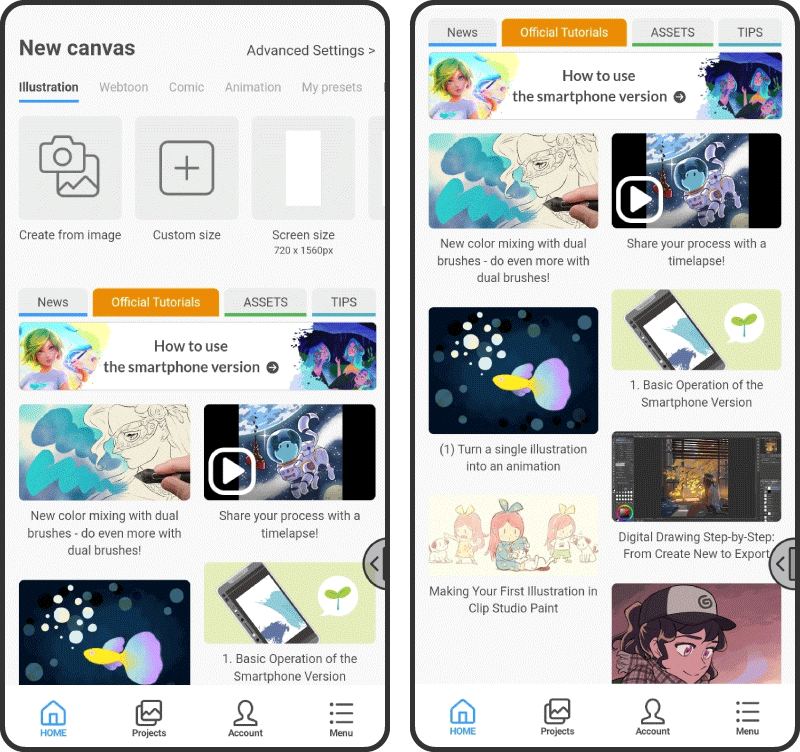
The home page on the smartphone app has been redesigned. You will be able to create canvases and resume existing projects straight away, as well as access the latest news, official tutorials, Assets, and other services to help you in your creation.
Other Improvements and Changes
We have also made some other improvements, specification changes, and bug fixes based on feedback from Clip Studio Paint users.
- You can now adjust the scaling and repetition of textures applied to 3D primitives. The following settings have been added to the Sub Tool Detail palette > Texture settings category: Tiling, Scale ratio, Position.
- When texture files are applied to 3D primitives or panoramas, you can now refresh the texture to reload changes made to the image file in other projects or apps. You can update textures from the Sub Tool Detail palette > Texture > Panorama > Reload.
- In the Sub Tool Detail > Rendering settings dialog for 3D layers, the Shadows follow light source setting has been changed to Shadows. You can change the shadow projection type for the selected layer to Do not cast, Cast directly down, or Follow light source.
- The New 3D layer setting has been added to Preferences > 3D. Here you can set the default shadow projection type for new 3D layers to Don't cast shadows, Cast directly down, or Project on the ground according to light source.
- The Tool Property setting for billboard-type primitives has been changed from Rotate and follow camera to Follow camera, and you can now change it to the following settings: On, Off, Only horizontal makes the billboard rotate to face the camera only in the horizontal direction.
- You can now change the names of 3D materials and cameras in the Object list and Allocate sections of the Sub Tool Detail palette. Double-tap a name in the object list to edit it.
- Duplicate and Delete commands have been added to the Object list and Allocate sections of the Sub Tool Detail palette. Use these to duplicate or delete the selected 3D material or camera. You can also duplicate or delete from the popup menu for the object list.
- When selecting multiple 3D objects, the axis for each material will be shown. These will appear when resizing objects independently with the axis-specific scaling handles, when the movement axis and the rotation axis are set to Object axis in the Sub Tool Detail palette, and when the Pivot point for multiple objects is set to Local pivot points.
- (iPhone/Galaxy/Android) The home page on the smartphone app has been redesigned.
- (Win / iPad / iPhone / Galaxy / Android / Chromebook) When you eyedrop a color from the Sub View palette with your finger, the color picker circle will now appear around your finger. (EX/PRO)
- Added Show color picker circle when using a pen to the Sub View palette menu. When turned on, the color picker circle will appear even when picking colors with a pen. (EX/PRO)
- Fixed an issue where drawings outside the selection area would disappear after creating a selection area and resizing it with the Edit menu > Transform.
Main improvements in Version 1.12.7
Improvements
The following features have been improved.
All Grades
- The Eyedropper tool now has the setting Show color picker circle. This adds a circle with the drawing colors around the cursor.
- The Switch camera setting has been added to the Sub Tool Detail palette when a 3D layer is selected. You can add new camera angles and arrange and save them separately. Then, switch between camera angles as needed.
- The Pivot point for multiple objects setting has been added to the Sub Tool Detail palette when a 3D layer is selected. You can change the pivot point when multiple 3D objects are selected, and the objects can be rotated or resized at once around this pivot point.
- Settings for the movement axis and rotation axis have been added to the Sub Tool Detail palette when a 3D layer is selected. When selecting a 3D material, you can move or rotate around the object's axis or around the floor-aligned axis as before.
- The Fisheye perspective setting has been added to the Panorama category for 3D layers. You can apply fish-eye perspective to the panorama image to adjust the viewing angle up to double.
- The UV Map setting has been added to the Panorama category in the Sub Tool Detail palette when a 3D layer is selected. You can use this to export a panorama UV map.
- The Export as panorama image setting has been added to the Panorama category in the Sub Tool Detail palette when a 3D layer is selected. You can export a 360° panoramic view of the surroundings as seen from the camera.
- In the Sub Tool Detail > Rendering settings dialog for 3D layers, the Shadows follow light source setting has been changed to Shadows. You can change the shadow projection type for the selected layer to Do not cast, Cast directly down, or Follow light source.
- When texture files are applied to 3D primitives or panoramas, you can now refresh the texture to reload changes made to the image file in other projects or apps. You can update textures from the Sub Tool Detail palette > Texture > Panorama > Reload.
- You can now change the scale of each part of 3D objects. When the part is selected, you can adjust the size with the Object scale setting in the manipulator or the Sub Tool Detail palette.
- You can now adjust the width, height, and depth of 3D objects separately using the root manipulator. The size in dimension can also be adjusted from the Sub Tool Detail palette when Fixed ratio is turned off.
- When selecting multiple 3D objects, the axis for each material will be shown. These appear when resizing objects with the axis-specific scaling handles, when the movement axis and the rotation axis are set to Object axis in the Sub Tool Detail palette, and when the Pivot point for multiple objects is set to Local pivot points.
- Polygon has been added as a 3D primitive.
- The Tool Property setting for billboard-type primitives has been changed from Rotate and follow camera to Follow camera, and you can now change it to the following settings: On, Off, Only horizontal. Only horizontal makes the billboard rotate to face the camera only in the horizontal direction.
- You can now adjust the scaling and repetition of textures applied to 3D primitives. The following settings have been added to the Sub Tool Detail palette > Texture settings category: Tiling, Scale ratio, Position.
- You can now import 3D files in glTF format. However, animations, morphs, and node trees with multiple bones are not supported. In addition, the color may be different because the Physically Based Rendering (PBR) parameters are converted to the Clip Studio Paint rendering method.
- Duplicate and Delete commands have been added to the Object list and Allocate sections of the Sub Tool Detail palette. Use these to duplicate or delete the selected 3D material or camera. You can also duplicate or delete from the pop-up menu for the object list.
- You can now change the names of 3D materials and cameras in the Object list and Allocate sections of the Sub Tool Detail palette. Double-tap a name in the object list to edit it.
- The New 3D layer setting has been added to Preferences > 3D. Here you can set the default shadow projection type for new 3D layers to Don't cast shadows, Cast directly down, or Project on the ground according to light source.
- The Import settings for Wavefront OBJ files setting has been added to Preferences > 3D. You can now set Upper axis and Origin point and can import a Wavefront OBJ file with the Z axis facing upwards as is.
- The Privacy Settings screen upon launch has been redesigned.
- Projects that are not set to Teamwork will be displayed with a gray thumbnail in the Manage works screen.
- Added Include fonts in app settings backup to the Cloud Settings in Clip Studio.
- A new notification window will appear after updates to show you the new features and changes.
- Embed ICC Profile was added to the File menu > Export webtoon. Turning on this item embeds the ICC profile when exporting JPEG or PNG files.
- The cloud bar’s available cloud storage display is now more accurate than before.
- The message alerting a syncing conflict with a file on the Clip cloud has been improved.
- (iPad/iPhone/Galaxy/Android/Chromebook) Upon log in the keyboard will now pop up to more easily type in your email address.
- (iPad/iPhone/Galaxy/Android/Chromebook) When you use Clip Studio Paint but are in a restricted mode you will now be alerted with a new explanation.
- (Windows/macOS/iPad/Galaxy/Android) You can now upload your projects to WEBTOON CANVAS from Clip Studio. This feature is not available on smartphone devices.
- (iPhone/Galaxy/Android) The home page on the smartphone app has been redesigned. You will be able to create canvases and resume existing projects straight away, as well as check the latest news.
- (iPhone/Galaxy/Android) The login page on the smartphone app has been redesigned.
- (iPhone/Galaxy/Android) The page that appears if you have not registered a license on the smartphone app has been redesigned.
- (iPad/iPhone) You can now long-press a text box to display the pop-up menu and cut, copy, or paste text.
EX/PRO
- Added Show color picker circle when using a pen to the Sub View palette menu. When turned on, the color picker circle will appear even when picking colors with a pen.
- (Win / iPad / iPhone / Galaxy / Android / Chromebook) When you eyedrop a color from the Sub View palette with your finger, the color picker circle will now appear around your finger.
Feature Changes
The following features have been improved.
All Grades
- The Eyedropper tool now displays a wheel over the cursor that enlarges the drawing underneath and also displays the sampled drawing color and the original drawing color.
- The frequency of color sampling has been readjusted for the Eyedropper tool to move more smoothly with the cursor.
- When you are using Use same sub tool as canvas on the Color Mixing palette, even if it is not a tool that can be used in Color Mixing, you can continue to use touch gestures and modifier keys.
- In the Sub Tool Detail > Rendering settings dialog for 3D layers, the Shadows setting has been changed to Apply light source. When Apply light source is turned off for the 3D layer, the setting will also be disabled for the 3D models on the layer.
- When you have a 3D layer selected and display the Sub Tool Detail palette, the options for Set selected models and Cast shadows on ground will not work if you went to the Rendering settings dialog > 3D layer settings > Shadow > and selected Don't cast shadows.
- The visibility of the manipulator for 3D materials when you have a 3D layer selected and have the Tool Property palette > Display settings for editing > set to Normal has been improved.
- When you have a texture on a 3D primitive and export a UV map from the Tool Property palette, the lowermost layer will be hidden.
- When you export a UV map from the Tool Property palette from a selected 3D primitive, it will not have a Paper layer set and instead will be the color set in the 3D primitive texture as a raster layer.
- When you apply a texture to a 3D primitive it will now automatically hide division lines.
- When you drop a 3D material onto the canvas a 3D layer will be created with the camera angle slightly zoomed out from the material. However, this will not be the case if you are adding to an existing 3D layer.
- The Z will not be displayed in the Tool Property palette for 3D primitives like Plane and Sphere which do not need Z for Number of divisions to be set.
- When you have multiple 3D materials selected from the Sub Tool Detail palette > Object list or Allocate and execute a command from the pop-up menu then the command will be reflected on all currently selected 3D materials.
- The way you save settings for sub tools, etc. has been changed. In addition to the past ways of saving, new ways of saving include when you add a sub tool or when you switch between applications on Windows or mac.
- Privacy Settings have been added. For Windows, you can access it from the File menu, on macOS, iPad, Galaxy, Android, and Chromebook, from the Clip Studio Paint menu, and on iPhone/Android smartphones from the App Settings menu.
- Privacy Settings has been removed from the Preferences dialog.
- The page thickness for Specify spine width has been updated for the pixivFactory option in Fanzine printing vendor which can be set from the New or Change project settings dialog.
- (Windows / iPad / iPhone / Galaxy / Android / Chromebook) When using the Eyedropper tool with a finger, the area above the finger will be shown slightly zoomed and displayed a bit higher and will sample the color of the area pressed.
- (Windows / iPad / iPhone / Galaxy / Android / Chromebook) The Eyedropper tool color circle will now be more restricted to the edges of the canvas and the Color Mixing palette.
- (iPhone/Galaxy/Android) The default is now Light color for the smartphone version in the Preferences dialog > Interface > Interface color.
- (Window/macOS) Some default shortcut keys have been changed.
- (iPad) The shortcut key has changed for Window menu > Canvas. Previous Canvas is Shift+Control+Tab and Next canvas is Control + Tab.
EX
- The LT conversion dialog will now have Depth set by default. This will be the same even when you select Window position in the Reset to original defaults dialog.
Bug Fixes
The following bugs have been fixed.
All Grades
- Fixed an issue where drawings outside the selection area would disappear after creating a selection area and resizing it with the Edit menu > Transform.
- (Windows/macOS) Fixed an issue where the menu command shortcuts and display did not match.
What's new in Clip Studio
Version 1.12.7 includes the following updates.
Main improvements in Version 1.12.7
Improvements
The following features have been improved.
All Grades
- Added Include fonts in app settings backup to the Cloud Settings in Clip Studio.
Feature Changes
The following features have been improved.
All Grades
- (Windows) On Windows 10 and later, Clip Studio web pages will now be viewed in the Edge browser.
Bug Fixes
The following bugs have been fixed.
All Grades
- (macOS) Added Match shortcut keys with keyboard to the Reset to original defaults dialog to address an issue where the names of shortcuts would not match the actual operation in Clip Studio depending on the system language.
Updates in in Version 1.12.6 (released September 2, 2022)
Bug Fixes
The following bugs have been fixed.
All Grades
- (iPad/iPhone) There was an issue with a bug fix in ver. 1.12.5 so the operation was reverted to ver.1.12.3.
Updates in in Version 1.12.5 (released August 30, 2022)
Bug Fixes
The following bugs have been fixed.
All Grades
- (Windows / iPad / iPhone / Galaxy / Android / Chromebook) Fixed a problem in which the Correction setting in the Sub Tool Detail palette was not always applied when drawing with a finger.
- (iPad/iPhone) Fixed a problem that limited the memory size used by the application to a low amount on some devices.
- (iPad) Fixed an issue where Clip Studio Paint would not open on some devices after updating to iPadOS 16.
- (iPad) Fixed an issue where on some devices a drop-down menu would be displayed and could not be hidden unless tapped outside of the drop-down menu.
- (iPad) Fixed an issue where on some devices, after going to Sub Tool palette > Delete sub tool and dragging and dropping a sub tool, the app would stop responding.
- (iPad) Fixed an issue where on some devices, if Assistive Touch was enabled and a sub tool or material was dragged and dropped, the app would stop responding.
- (iPhone) Fixed an issue where on some devices Clip Studio Paint would not work with a mouse.
Fixes in Version 1.12.4 (released August 22, 2022)
Improvements
The following features have been improved.
All Grades
- (Galaxy/Android) You can now switch between smartphone UI and tablet UI when using the Galaxy Z Fold 4.
Updates in Version 1.12.3 (Released June 28, 2022)
Specification changes
The following features have been improved.
All grades
- "Threshold for semi-transparency" has been added to Preferences > 3D. You can set the threshold value for the opacity of semi-transparent textures.
- When using Webtoon preview in companion mode, if "View" is set to "Webtoon", the page spread will be split into separate pages and displayed vertically.
- We have change the names of the Shogakukan manga presets that are listed in the New dialog when Show all comic settings is selected.
Fixes
The following issues have been fixed.
All grades
- Fixed a problem in which shadows were not rendered correctly on certain 3D materials when a 3D layer is selected and "Shadows follow light source" is turned on in the Sub Tool Detail palette > Rendering settings dialog.
- Windows: When the activation code entry screen is opened from the Help menu > “Review/Change License” on devices with multiple displays, the content on the screen would not show at the proper scale.
- iPad: If the name of a file shared to the iPad using AirDrop contains a period other than the extension, the file would not display when dragged and dropped into Clip Studio Paint.
EX/PRO
- Windows / macOS / iPad / Galaxy / Android / Chromebook: After using "Restore initial layout" in the Quick access settings dialog on a device other that a smartphone, even after reconnecting the smartphone in companion mode, the Companion set would remain deleted.
- iPad/iPhone: Tapping on the list of brush tip shapes in the Sub Tool Detail palette > Brush tip > Tip shape > Sub Tool Detail palette would not show tool tips for default materials.
EX
- When a 3D layer is selected and "Shadows follow light source" is turned on or off in the Sub Tool Detail palette > Rendering settings dialog box, the lighting in the “All sides view” palette would not be the same.
- When exporting a PDF file with [Width of spine] turned on for the cover, a black line may appear on the right side of the PDF file.
Updates in Version 1.12.2 (released June 15, 2022)
Fixes
The following issues have been fixed.
All grades
- Galaxy/Android/Chromebook: Fixed a bug that prevented Clip Studio Paint from launching on certain devices.
Updates in Version 1.12.1 (released June 8, 2022)
Fixes
The following issues have been fixed.
All grades
- When lines are selected with the Object sub tool on a vector layer, their position may become misaligned.
- When dragging with the Liquify tool, the warping effect may not apply to the edges of the canvas.
- Windows / macOS / Galaxy / Android / Chromebook: When Operation view is set to Scroll vertically or Scroll horizontally in the Modifier Key Settings dialog, mouse wheel operation is limited to either vertical or horizontal scrolling.
- Windows: When using Create New from Clipboard or Paste, images placed from the clipboard may be misaligned.
Updates in Version 1.12.0 (Released May 26, 2022)
Limited edition 10th anniversary app icon and splash screen
Clip Studio Paint celebrates its 10th anniversary this year on May 31. To show our appreciation to all the creators who have used and supported Clip Studio Paint for all these years, we decided to put on a few anniversary parties - and guess what? You’re all invited! As part of the celebrations, Clip Studio Paint will be getting a special edition version.
Note: if your app icon doesn't change after updating the app, please try restarting your device.
Companion mode support for all platforms
Companion mode, which uses your smartphone as a handheld shortcut remote, is now available on all platforms.
*To use Companion mode, install Clip Studio Paint on both your smartphone and computer or tablet device. If already installed, please make sure that the app is up to date on both devices.
WIP webtoon preview on smartphones
You can now preview in-progress webtoons on smartphones. Edit your work in Clip Studio Paint while checking its appearance with a smartphone. This function can be used when a smartphone is connected in Companion mode.
Added Color Mixing Palette
Added Color Mixing to Companion Mode and the Color Mixing palette to all platforms. Intuitively create and select colors while experimenting with color mixing as if using a digital painting palette.
Exporting text layers in Adobe Photoshop PSD/PSB formats (EX/PRO)
Text layers created in Clip Studio paint can be exported to text layers in Photoshop PSD and PSB formats. Text layer export settings can be configured in the Export Settings dialog from File menu> Save Duplicate and Export multiple pages > Batch export.
Improvements to shadows cast by 3D materials
Added Shadows follow light source to the Rendering settings dialog when selecting a 3D layer. Shadows cast on the surface of a 3D material will correspond to the direction of the light source.
Mode Selector for Companion mode
Added a mode selector to Companion mode. Assigning modifier keys available for the currently selected tools, such as Shift, Ctrl, and Alt, allows you to perform their operations easily and quickly. This method is easier than using the edge keyboard to switch between assigned operations.
Other Improvements and Changes
We have also made some other improvements, specification changes, and bug fixes based on feedback from Clip Studio Paint users.
- We have made speed improvements to the Liquify tool. The display may look coarse while dragging but will improve after the effect is applied. Note that the liquify effect may be slightly different from its equivalent in other apps.
- The default location of the Liquify Sub tool has been changed from the Color Mixing tool Sub tool palette to the Liquify tool on the Tool palette. If updating to Ver. 1.12.0 from Ver. 1.11.6 or later, the location of the Liquify Sub tool will not change.
- Improvements to processing speed when saving a large canvas to the Clip Studio Format (extension: .clip) have been made.
- Added Confirm transformations with double-click or double-tap to Command in the Preferences dialog. Toggling on and off sets whether or not a double-click or double-tap is used to confirm a transformation performed from the items under Edit menu > Transform.
- macOS/iPad: Support for Universal Control added, allowing you to drag and drop files between a Mac and an iPad.
- When Material is selected from Sub Tool Detail palette > Brush shape > Brush tip, tapping or hovering the cursor over the brush tip shape list will display the name of the material used for the brush tip shape.
- Improvements to PNG export speed have been made. You can set the compression level for exporting PNG files from the File section of the Preferences dialog.
- Supports import and export of PNG format files with embedded ICC profiles. EX/PRO
- Windows / macOS / Galaxy / Android / Chromebook: Activate your license by entering your activation code from Review/Change License.
- The file format of the 3D primitive map exported from the Tool Property palette of 3D primitive will be saved as Clip Studio Format (extension: .clip). The texture and crease pattern will export in separate layers. If Color is set, it will be applied to the paper layer.
- Added Fill outside the webtoon view area to View menu > On-screen area settings (webtoon). When turned on, the outside of the display frame for Webtoons is filled in and hidden.
Improvements
The following features have been improved.
All Grades
- You can now preview in-progress webtoons on smartphones. This function can be used when a smartphone is connected in Companion mode.
- Color Mixing area has been added. Intuitively create and select colors while experimenting with color mixing as if using a digital painting palette. It can be used either in companion mode color mixing or in the Color Mixing palette.
- Shadows follow light source has been added to the Rendering settings dialog when selecting a 3D layer. Shadows cast on the surface of a 3D material will correspond to the direction of the light source. If you create a new 3D layer, you can place the 3D material with Shadows follow light source enabled.
- Mode selector has been added to Companion mode. Assigning modifier keys available for the currently selected tool allows you to perform their operations easily and quickly.
- Speed improvements to the Liquify tool have been made. The display may look coarse when using the tool, but will clear up after the effect is applied. Note that the Liquify effect may be slightly different to the equivalent in other apps.
- When a Material is selected from Sub Tool Detail palette > Brush shape > Brush tip, tapping or hovering the cursor over the brush tip shape list will display the name of the material used for the brush tip shape.
- Improvements to processing speed when saving a large canvas to the Clip Studio format (extension: .clip) have been made.
- Added Confirm transformations with double-click or double-tap to Command in the Preferences dialog. When enabled, you can confirm transformations for actions under Edit menu > Transform with a double-click or double-tap.
- Improvements to PNG export speed have been made. You can set the compression level for exporting PNG files from the File section of the Preferences dialog.
- Added Fill outside the webtoon view area to View menu > On-screen area settings (webtoon). When enabled, the outside of the display frame for Webtoons is filled in and hidden.
- ibisPaint work files with a background color will now import the background color as a paper layer in Clip Studio Paint. If the background is transparent, no paper layer will be added in Clip Studio Paint.
- Memory used when exporting PNG format files has been reduced.
- (macOS / iPad / iPhone / Android / Chromebook) Expanded support for Companion mode to all platforms, allowing you to use your smartphone as a handheld shortcut remote.
- (Windows / macOS / Galaxy / Android / Chromebook) You can activate your license by submitting your activation code to Review/Change License .
- (macOS/iPad) Support for dragging & dropping files between devices with Universal Control on Mac and iPad added.
- (Windows) Now supports Windows 11 snap layout.
- (Galaxy) Companion mode can be launched by scanning a QR code.
- (Galaxy) The way that errors for unsupported QR codes are displayed has been changed. Back has also been added to the camera screen.
EX/PRO
- Support for importing and exporting PNG format files with embedded ICC profiles added.
- File menu > Export (Single Layer) now displays the name of the ICC profile to be embedded in the file in the Export settings dialog. The same applies when the Export settings dialog is accessed from the File menu > Export multiple pages > Batch export.
- Embed ICC Profile can now be set from File menu > Export (Single Layer), even if Export settings dialog's Expression color is set to Auto detect appropriate color depth. The same applies when the Export settings dialog is accessed from the File menu > Export multiple pages > Batch export.
Feature Changes
The following features have been changed.
All Grades
- The default location of the Liquify Sub tool has been changed from the Color Mixing tool’s sub tool palette to the Liquify tool in the Tool palette. If updating to Ver. 1.12.0 from Ver. 1.11.6 or later, the location of the Liquify Sub tool will not change.
- The file format of the 3D primitive map exported from the Tool Property palette of 3D primitive will be saved in Clip Studio format (extension: .clip). The texture and crease pattern will export in separate layers. If Color is set, it will be applied to the paper layer.
- The file format of the 3D primitive map exported from the Tool Property palette of 3D primitive will be saved as Clip Studio Format (extension: .clip).
- When 3D primitive is selected, the effect of dragging and dropping an additional 3D primitive from the Material palette has been changed. Newly loaded 3D primitives are added to a 3D layer without replacing existing 3D primitives.
- When selecting a 3D primitive on a 3D layer, manipulators that scale the XYZ axes are now selected over those that scale the entire primitive.
- Tweaks to rendering when a 3D material and a translucent manipulator overlap on a 3D layer have been made.
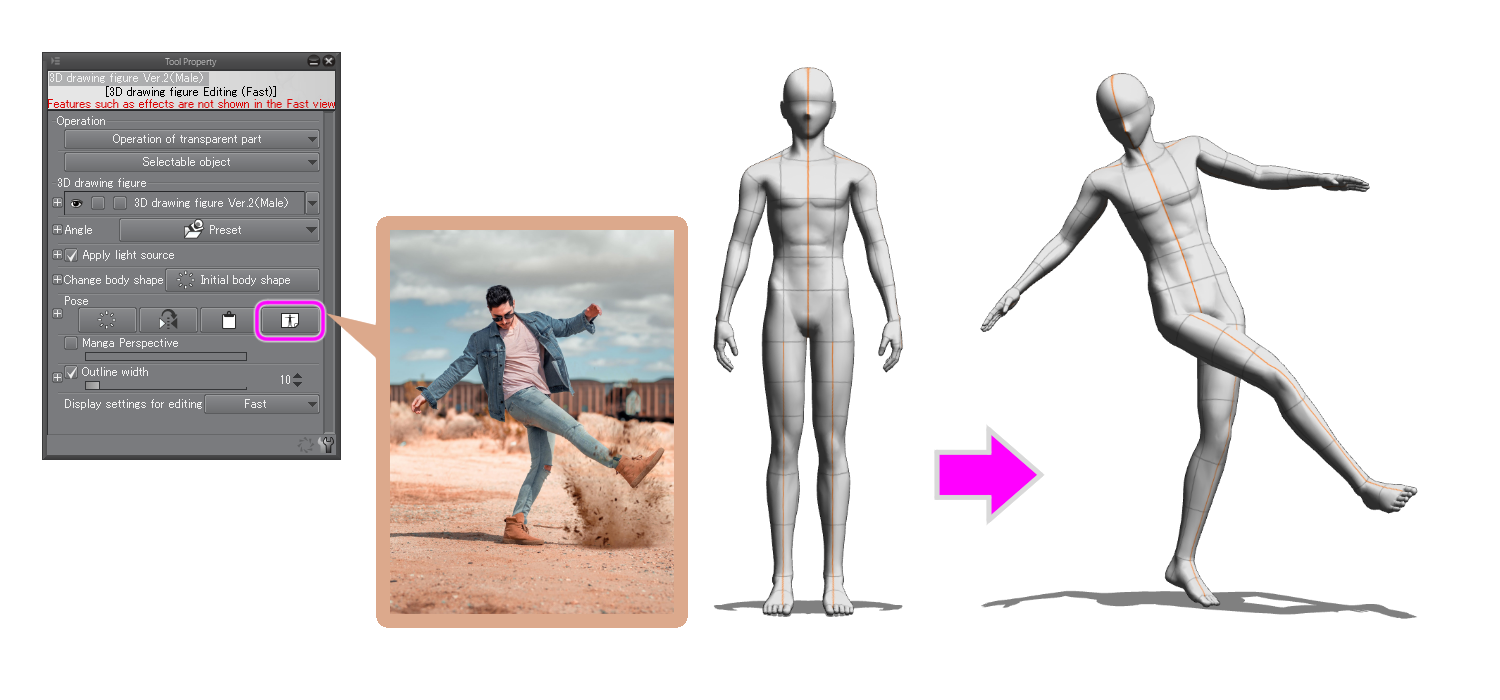
- 3D drawing figures and 3D character materials no longer move to the floor after pose materials are loaded onto them.
- Companion mode connectivity is not possible with Clip Studio Paint versions 1.11.14 or earlier.
- (Windows / macOS / Galaxy / Android / Chromebook) When Preview lines by pressing modifier key (Shift) is enabled in the Preferences dialog, a preview of a straight line is now shown when shift is pressed with the Liquify Sub tool selected.
- (Windows / macOS / Galaxy / Android / Chromebook) The default layout of some of the palette tabs has been updated when activating Restore Basic Layout under Window menu > Workspace. (Excluding smartphone versions.)
- (Windows/macOS/iPad/iPhone) When external 3D data is dragged and dropped onto a Clip Studio Paint canvas, just like when a 3D material is dragged and dropped from the Material palette, a 3D layer will be created on top of the currently selected layer.
- (iPhone/Galaxy/Android) When File menu > Save is selected, the file is saved in the same Clip Studio format (extension: clip) as when the app auto-saves.
- (Windows/Galaxy) A single swipe on the Gesture Pad in Companion mode can now be used to move the canvas, regardless of the touch gesture settings.
- (Galaxy) The button layout when connecting to Companion Mode has been changed.
EX/PRO
- The Use of work term in the New dialog box has been replaced with Project.
DEBUT
- (iPhone/Galaxy/Android) After downgrading to DEBUT, the Selection Launcher and Command Bar are now initialized upon launch.
CLIP STUDIO main update contents
Other minor issues have been fixed.
Updates in Version 1.11.14 (Released March 29, 2022)
Version 1.11.14 includes the following updates.
Improvements
The following features have been improved.
All Grades
- (macOS/iPad/iPhone/Android/Chromebook) Open image on canvas has been added to the command bar of the Sub View palette. You can open the image displayed in the Sub View palette on the canvas. You can also use the command from the Sub View palette menu.
- (iPad/iPhone/Android/Chromebook) Import from camera has been added to the Command Bar of the Sub View palette. You can now import a photo taken with the Camera into the Sub View palette. You can also use the command from the Sub View palette menu.
- (Galaxy/Android/Chromebook) Color emoticons can now be displayed in the text input fields of various dialogs and palettes, as well as in file names.
- (Android) For the Galaxy Fold series, you can now switch between smartphone and tablet UIs.
Bug Fixes
The following bugs have been fixed.
All Grades
- Fixed an issue where panorama materials may not appear after using Undo followed by Redo after adding the material to an existing 3D layer by dragging and dropping.
- Fixed a problem in which grayscale or monochrome images would be imported with the expression color set to Color when imported from File menu > Import > Image.
- Fixed a problem in which the Paint Density setting was not reflected in brush strokes when Color mixing was set to Running color in the Sub Tool Detail palette.
- (iPad/Galaxy/Android/Chromebook) Fixed a problem where workspace materials could not be imported by dragging and dropping from the Material palette to the canvas on some tablet devices.
- (Galaxy/Android/Chromebook) Hover over drawing on applicable devices has been added to the Tool category in the Preferences dialog. When this setting is turned off, it may fix the problem of unintended pen drawing on certain devices.
- (iPad/iPhone) After changing the current monthly plan, the previous plan was shown as "Active" for a certain period of time, but now it will appear as "Cancelled."
- (Windows) Fixed a problem where using integrated graphics for the graphic controller with a multi-display environment may cause Clip Studio Paint to force close if used on the sub-display.
- (macOS) Fixed an issue where using Close with a shortcut key while operating the canvas with a touch gesture would cause the display on the command bar not to update and cease to function.
- (Android) Fixed an issue on Android 11 and later devices that support DeX mode, where some elements would be enlarged if another monitor was connected in DeX mode.
EX/PRO
- Fixed a problem in which Clip Studio Paint would force close when Brush size or other settings in the Tool Property palette were set, and the Object sub tool was used to select a frame border folder or a balloon layer with no lines.
Updates in Version 1.11.13 (released March 21, 2022)
Version 1.11.13 includes the following updates.
Fixes
The following issues have been fixed.
All Grades
- (iPad) Brush rendering was slower compared to previous versions.
Clip Studio Paint Ver. 1.11.12 (Released March 18, 2022)
Version 1.11.12 includes the following updates.
Bug Fixes
The following bugs have been fixed.
All Grades
- (iPad) Fixed an issue where Clip Studio Paint would not work when using an Apple Pencil on a 5th Generation iPad Air.
Clip Studio Paint Ver. 1.11.10 (Released February 25, 2022)
Version 1.11.10 includes the following updates.
Improvements
The following features have been improved.
All Grades
- (Galaxy) You can now switch between smartphone and tablet UIs on Galaxy Fold devices.
Fixes
The following issues have been fixed.
All Grades
- (Windows/Galaxy) Fixed an issue where the Color Wheel in Companion mode would not appear correctly when actions were performed on a computer or tablet.
- (Galaxy) Fixed an issue where the Quick Access palette would not update when switching to another smartphone app and back to Clip Studio Paint while already in Companion mode.
- (Galaxy) Fixed an issue where Companion mode would remain active on smartphones when ending Companion mode and disconnecting from a computer or tablet.
- (Galaxy) Fixed an issue where Companion mode would not update the display from the previous session when reconnecting.
- (Galaxy) Fixed an issue where the display of the original device would not update when connecting a new computer or tablet as the main device.
- (Galaxy) Fixed an issue where the smartphone would vibrate when tapping outside the color selection area of the Color Wheel when in Companion mode.
Version 1.11.9 Fixes (released on February 10, 2022)
Version 1.11.9 includes the following updates
Use your smartphone as a handheld shortcut remote with the all-new Companion mode
Improvements
The following features have been improved.
All Grades
- (Windows/Galaxy) Companion mode has been added, allowing you to use your smartphone as a handheld shortcut remote.
- (Windows/Galaxy) Open image on canvas has been added to the command bar of the Sub View palette. You can open the image displayed in the Sub View palette on the canvas. You can also use the command from the Sub View palette menu.
- (Galaxy) Show canvas on external monitor has been added to the View menu.
- (Galaxy) Import from camera has been added to the Command Bar of the Sub View palette. You can now import a photo taken with the camera into the Sub View palette. You can also use the command from the Sub View palette menu.
Fixes
The following issues have been fixed.
All grades
- (Windows) Fixed an issue where using the Close command with a shortcut key while operating the canvas with a touch gesture would cause the display on the command bar to not update and cease to function.
- (Galaxy) Fixed an issue on Android 11 and later devices that support DeX mode, where some elements would be enlarged if another monitor was connected in DeX mode.
Updates in Version 1.11.8 (released December 21, 2021)
Details
We have fixed the following issue.
All Grades
- Importing 3D Object materials with transparent parts with “Outline width” set in the Tool Property palette caused the transparent parts to be filled with the color of the outline.
EX
- Transparent parts of PDF files that contain transparent elements do not appear white when imported.
Updates in Version 1.11.7 (released December 16, 2021)
Details
We have fixed the following issue.
All Grades
- The app would not launch on macOS devices with certain fonts installed.
Updates in Version 1.11.6 (released December 14, 2021)
The background saving function that was planned for this release will no longer be part of the Ver. 1.11.6 update. We will ensure that this will be included in a future update. We apologize for the delay.
New Liquify Tool
The Liquify sub tool will be added to the Blend tool. You can change the shape of an image by drawing directly on a layer on the canvas like a brush.
Enhanced 3D Tools
- New 3D primitives
- Five types of 3D primitives, such as planes and cubes, will be added to the 3D section of the Material palette. You can combine multiple 3D primitives like blocks to create small items and backgrounds to use as guidelines for your projects.
- You can freely change the dimensions of 3D primitives, as well as the color and texture.
- Flat plane 3D primitives can be set to rotate with the orientation of the camera.
- You can add textures to 3D primitives by dragging and dropping image materials onto the 3D primitive on the canvas. If you drag and drop an image material onto a 3D layer, it will become a flat plane 3D primitive with the texture applied.
- New 360-degree panoramic skydome
New panorama materials for use as 360-degree backgrounds will be added to the 3D section of the Material palette. You can also import photos taken with 360-degree cameras and equirectangular images exported from 3D software and set them as 3D layers or register them as materials.
- You can select and edit multiple 3D materials at once, including the material size, lighting, and shadows.
- The setting Snap to 3D models will be added to the movement manipulator. Turn this on to snap 3D materials to the position and size of other objects as you move, rotate, or scale them. When you snap, you'll see snap effects such as a bounding box.
Easily Import Font Files (PRO/EX)
The command Add font from files will be added to the Font list in the Tool Property palette when the Text tool is selected. You will be able to import font files to Clip Studio Paint to use them.
PDF Import Available on All Devices (EX)
You can now import PDF files from the File menu > Open.
Import Gradient Files from Photoshop (PRO/EX)
Photoshop gradient files (extension: .grd) can be imported from the Edit gradient and Gradient Map dialogs.
(iPhone/Galaxy Phone/Android Phone) Improved Save Process
- You will be able to auto save at set intervals.
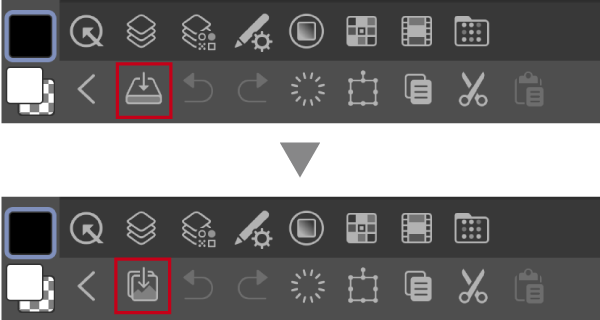
- The Save icon in the command bar will be changed to Export to photo library. This directly saves your work to the photo library of your device.
We will continue to work on improving the UX of the smartphone version.
Other Improvements and Changes
We have also made some other improvements, specification changes, and bug fixes based on feedback from Clip Studio Paint users.
- The color of the manipulator for 3D materials will be changed.
- If you paste an image material onto a 3D layer, it will become a flat plane 3D primitive with the texture applied.
- The option Flip will be added to the Tool Property and Sub Tool Detail palette for the Gradient tool. You can use this to flip the gradient colors.
- (iPad/iPhone/Galaxy/Android/Chromebook) Import from Photo Library will be added to the Sub View palette. You can import photos from your device’s photo library.
- (iPad/iPhone/Galaxy/Android/Chromebook) Export to photo library will be added to the File menu. This saves the image shown on the canvas to the photo library of your device.
Improvements
The following features have been improved.
All Grades
- The Liquify sub tool has been added to the Blend tool. You can change the shape of an image by drawing directly on a layer on the canvas like a brush.
- Primitives has been added to the 3D section of the Material palette. Five types of 3D primitives, such as planes and cubes, have been added to the 3D section of the Material palette. You can combine multiple 3D primitives like blocks to create small items and backgrounds to use as guidelines for your projects. You can freely change the dimensions of 3D primitives, as well as change the color.
- 3D Primitive has been added to the Sub Tool Detail palette. Here you can adjust settings related to 3D primitives such as the number of sub-divisions, wireframe, and opacity.
- You can change the color and texture of 3D primitives. You can drag and drop an image material from the Material palette onto a 3D primitive to apply the texture. You can add textures to 3D primitives by importing image files. A UV map of the 3D primitive can be exported to an image file, and you can also import edited maps.
- For flat-plane 3D primitives, you can turn on the Rotate and follow camera in the Tool Property palette. This will make the 3D primitive rotate with the camera.
- Panoramas has been added to the 3D section of the Material palette. New panorama materials have been added. You can use panorama materials as 360-degree backgrounds on 3D layers.
- A Panorama option has been added to the Sub tool detail palette for 3D materials. You can import images files to use as panorama materials. Images suitable for panoramas are photos taken with 360-degree cameras or equirectangular images exported from 3D software.
- You now can select and edit multiple 3D materials at once, including the material size, lighting, and shadows.
- The setting Snap to 3D models has been added to the movement manipulator. Turn this on to snap 3D materials to the position and size of other objects as you move, rotate, or scale them. You can also rotate in the angle increments set in Rotation step.
- An aligned copy feature for 3D materials has been added. To use this feature, copy and paste a material before moving it to the required position. When you paste the 3D material again, it will be pasted at the same distance between the original and first-pasted material.
- The option Show save status as pop-up has been added to Preferences > File. When this is turned on, the save status will be shown at the top of the canvas when saving.
- If there is a change to the grade or license, the new plan will now be applied immediately upon launching Clip Studio Paint.
- The option Flip has been added to the Tool Property and Sub Tool Detail palette for the Gradient tool. You can use this to flip the gradient colors.
- (iPad/iPhone/Galaxy/Android/Chromebook) Export to photo library has been added to the File menu. This saves the image shown on the canvas to the photo library of your device.
- (iPad/iPhone/Galaxy/Android/Chromebook) Import from Photo Library has been added to the Sub View palette. You can import photos from your device’s photo library.
- (iPhone/Galaxy/Android) On smartphones, an Add to Quick Access button has been added to each menu command. Items selected in the list can be added to the Quick Access palette.
- (iPhone/Galaxy/Android) On smartphones, an Add current sub tool button has been added to the Quick Access palette. This adds the currently selected tool to the Quick Access palette.
- (Galaxy/Android) When you tap a push notification, if the notification leads to a service that requires login, you will be prompted to log in to your Clip Studio account.
EX/PRO
- Photoshop gradient files (extension: .grd) can now be imported from the Edit Gradient and Gradient Map dialogs.
- You can register the following as materials: 3D primitives with edited shapes or textures; layers with multiple 3D primitives.
- The command Add font from files has been added to the Font list in the Tool Property palette when the Text tool is selected. You will be able to import font files to Clip Studio Paint to use them.
EX
- You can now import PDF files from the File menu > Open.
DEBUT
- (iPad/iPhone/Galaxy/Android/Chromebook) The new DEBUT grade has been added.
Feature Changes
The following features have been improved.
All Grades
- The color of the manipulator for 3D materials has been changed.
- If you drag and drop an image material onto a 3D layer, it will be pasted as a flat plane 3D primitive with the texture applied.
- On the Sub Tool Detail palette for 3D drawing figures, the category Body shape has been renamed to 3D drawing figure. The function behaves the same.
- On the Sub Tool Detail palette for 3D materials, the Apply light source setting has been moved to the Shadows category.
- On the Sub Tool Detail palette for 3D materials, the Shadow setting has been renamed to Cast shadows on ground. It has also been moved to the Shadows category.
- On the Sub Tool Detail palette for 3D materials, you can now set Directional light color, Parallel light intensity, Ambient light color, and Ambient light intensity in the Light source category.
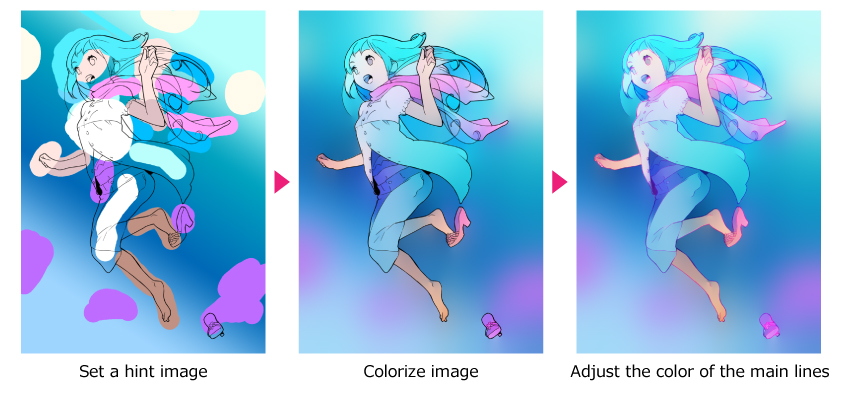
- If you undo after using Edit > Colorize (Technology preview) > Use hint image and colorize or Use more advanced settings, the hint layer will be selected.
- In Preferences > File, the Export category has been renamed to Save.
- (iPhone/Galaxy/Android) On smartphones, files will now automatically save when you return to the Manage works screen.
- (iPhone/Galaxy/Android) Works can now be saved at set intervals on smartphones.
- (iPhone/Galaxy/Android) On smartphones, [Save] in the command bar has been changed to [Export to photo library].
- (iPhone/Galaxy/Android) On smartphones, the design of the opacity slider in the Edit Bar has changed. As the value gets lower, the checkered pattern will become more visible.
- (iPhone/Galaxy/Android) On smartphones, the 3D manipulator has been made smaller.
- (iPhone/Galaxy/Android) On smartphones, the layout of the license registration that appears upon launch has changed.
CLIP STUDIO main update contents
Other minor issues have been fixed.
Updates in Version 1.11.4 (released October 21, 2021)
Bug Fixes
The following bugs have been fixed.
All Grades
- Fixed an issue where merging layers with the Layer menu > Combine selected layers or by Ctrl + clicking thumbnails in the Layer palette, layers would be shown in the merged layer even if hidden on the Timeline palette or with clipping layers.
- Fixed an issue where when using Layer > Convert layer or Combine selected layers would apply the blending mode of layer folders that weren’t selected.
- Fixed a bug where pen pressure applied in dragging an item is applied to the cursor during the entire action when the Change brush cursor setting in Preferences > Cursor details is set to Change size, thickness & direction when pen is hovering.
- Fixed an issue where PNG file would sometimes not be imported at the correct resolution.
- Fixed an issue where text input fields in some dialogs could not be typed in.
- Fixed an issue where the near plane of 3D object materials such as backgrounds would appear far from the camera when the Clipping planes was set to Set automatically when resetting camera in the Rendering settings dialog box.
- Display may become unstable when launching Clip Studio Paint if multiple Color Slider palette tabs are displayed side by side.
- (Windows / macOS / iPad / Galaxy / Android / Chromebook) Fixed an issue on PC or tablet devices where if all the open canvas tabs could not fit in the width of the Canvas window, switching the active canvas would move the tab to the right end.
- (Windows / macOS / iPad / Galaxy / Android / Chromebook) Fixed a bug on Windows and tablet devices that allowed the height of the palette dock to be changed even if Lock palette height is enabled.
- (Windows) Fixed an issue where touch gestures would not work correctly after closing the Help menu > About CLIP STUDIO PAINT screen.
- (iPad) Fixed a bug that caused a lag when using the three-finger tap gesture.
Major fixes in Clip Studio Version 1.11.4
Details
The following issues have been fixed.
- (Windows) Buttons including the login and cloud button do not appear in the menu bar at the top of the Clip Studio launcher.
Updates in Version 1.11.2 (released October 7, 2021)
Update details
Feature Changes
The following features have been improved.
EX/PRO
- (iPad) The iPadOS Home indicator and Multitasking menu will no longer appear if you do not perform any operation with your finger or mouse for a certain period of time.
Bug Fixes
The following bugs have been fixed.
EX/PRO
- The borders of the Frame Border folder may not appear properly.
- (iPad/iPhone) Fixed an issue where Times New Roman appeared multiple times in the font list.
Note: For details on app performance on iPadOS 15 and iOS 15, click here.
Updates in Version 1.11.1 (released September 30, 2021)
Update details
The following issues have been fixed.
EX
- When opening a shared work in Teamwork, a message appears saying "Failed to obtain edit permissions," and the file opens in read-only mode.
Updates in Version 1.11.0 (released September 28, 2021)
Color Mixing for Dual Brushes & New Color Mixing Mode “Smear”
- The default settings of the Wet wash and Thick oil paint Brush-type sub tools have been updated to include Color mixing. Default sub tools with new settings can be downloaded from the Sub Tool palette menu. If updating Clip Studio Paint from Ver.1.10.10 or later, you can download the updated Wet wash and Thick oil paint sub tools from Clip Studio Assets.
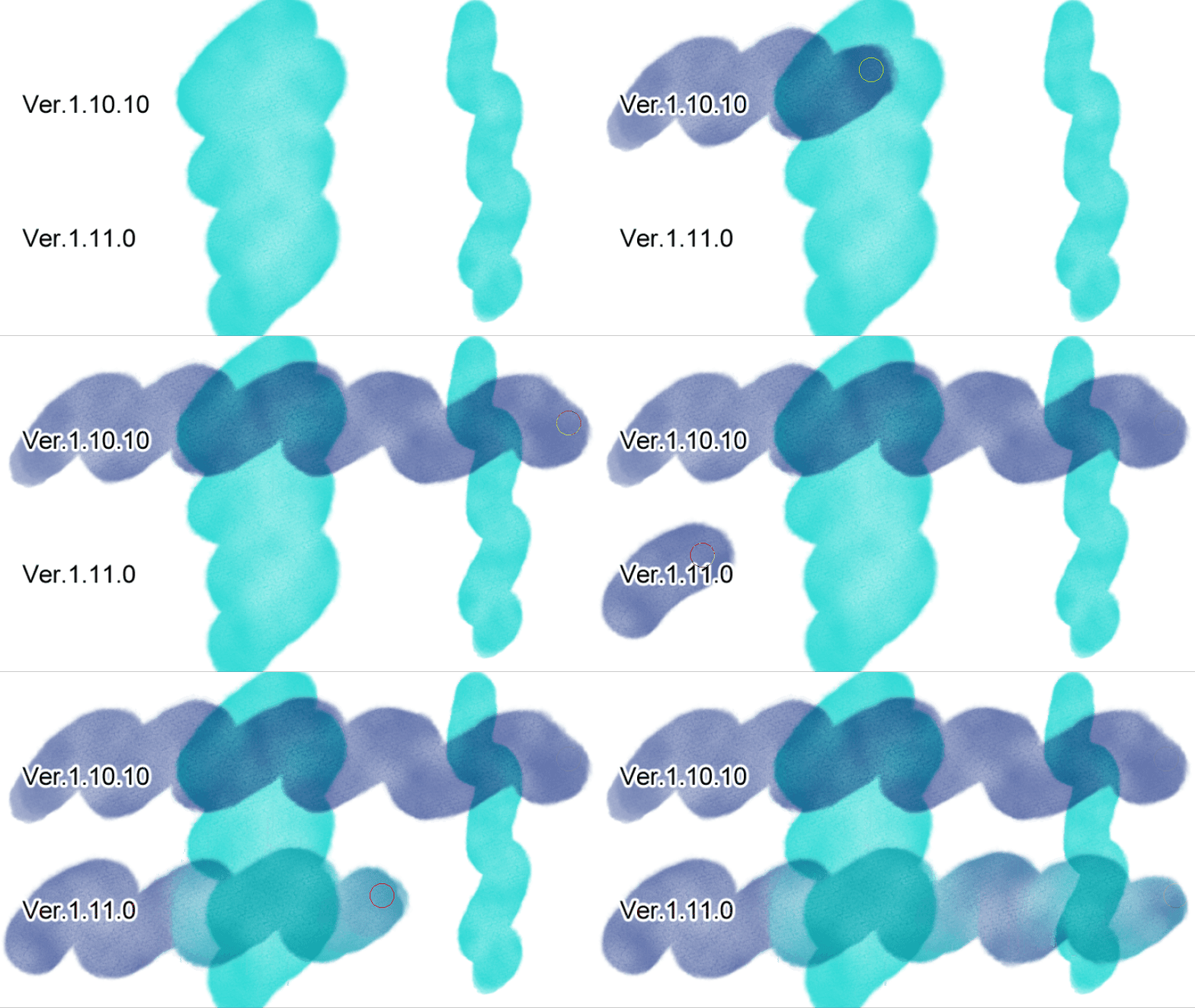
- Color mixing can be used with dual brushes.
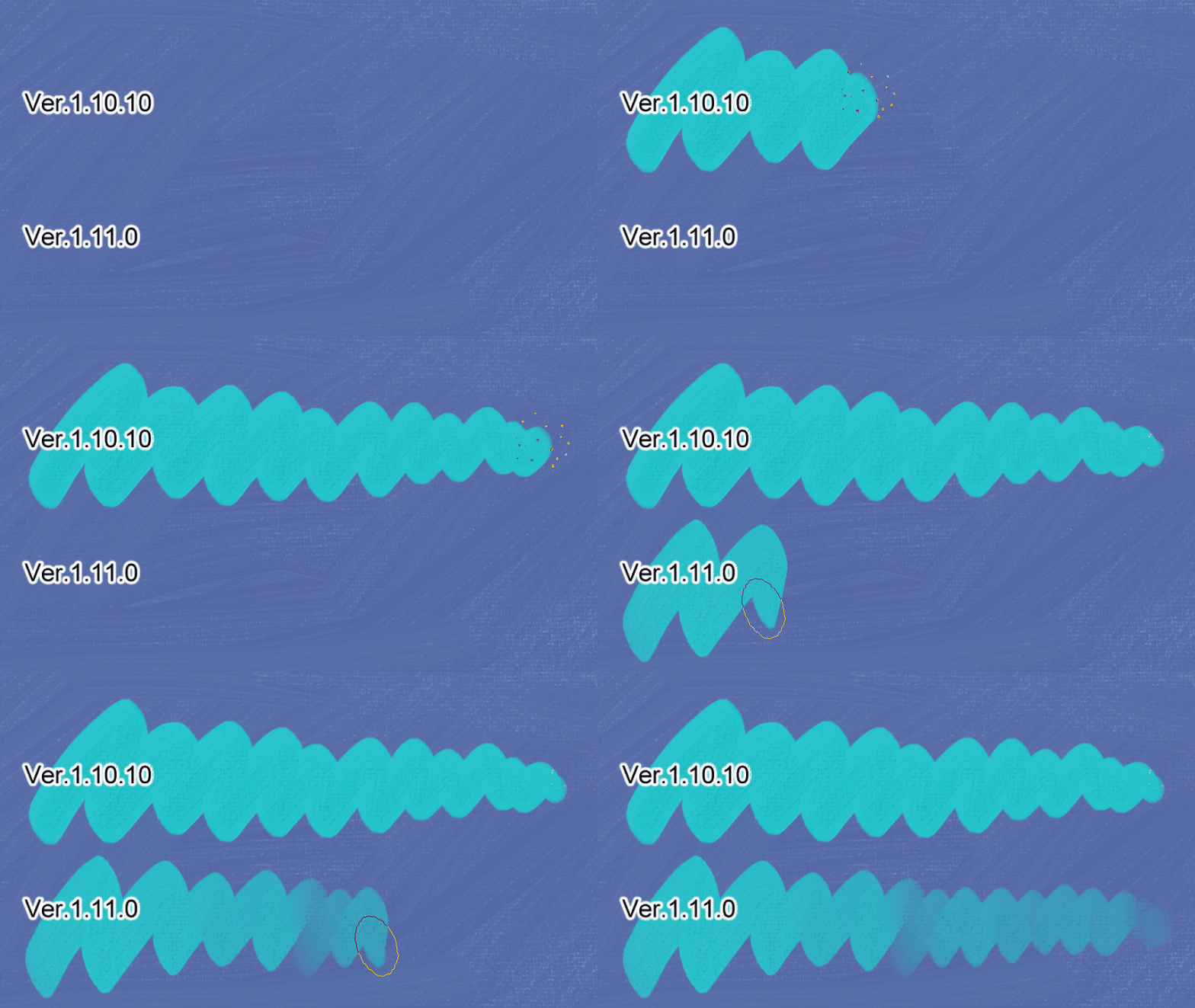
- Smear will be added to Color mixing in the Sub Tool Detail palette for brush-type tools. You can mix colors by using the color of the brush tip shape, as well as set the blending mode.
(macOS) Application Frame on Mac Devices
You can now use application frames. Turn on the application frame from Preferences > Interface > Use application frame.
(Windows) Improved touch gestures
You can now three-finger tap as well as pinch, rotate and swipe, all at the same time. The Gesture configuration category has been added to the Preferences dialog box. Choose the Clip Studio gestures option to use improved touch gestures.
(Windows) Multi-DPI display support
When shown on a display set to different text scaling than the main display, the UI will scale automatically to the appropriate resolution. It even works with multiple monitors with differing text scaling configurations.
(iPad/iPhone/Galaxy/Android) Push notification functionality added
It will now be possible to receive Clip Studio Profile push notifications on your device. Notification settings can be individually switched on or off in the Clip Studio Profile settings.
Reduced file size
The file size when saving in Clip Studio format (extension: .clip) is reduced compared to previous versions.
Clip Studio Paint Logo function added to Timelapse videos
The option Show Clip Studio Paint logo will be added to the File menu > Timelapse > Export timelapse dialog. The Clip Studio Paint logo can be added to your timelapse videos. You can set the logo to be hidden by default.
Other Improvements and Changes
We have also made some other improvements, specification changes, and bug fixes based on feedback from Clip Studio Paint users.
- (iPad/iPhone/Galaxy/Android/Chromebook) The option Show explanation when tapping icon will be added to Preferences > Interface. With this setting, a description of the function will appear when you tap icons in the command bar and so on.
- Import 3D files in format from Ver. 1.10.13 and earlier will be added to Preferences > File. When turned on, you can import files in the legacy format.
- You can now show the Story Editor while working on a project that is shared using the Teamwork function. (EX)
- When the cursor shape is set to Sight or Single pixel dot in Preferences > Cursor, the size of the cursor will adjust depending on your monitor’s settings.
- You can use Merge selected layers to merge multiple non-consecutive layers in the Layer palette. Users of PRO and EX can also use Convert Layer similarly on non-consecutive layers.
- We have redesigned the splash screen that appears when Clip Studio Paint is launched or after selecting About CLIP STUDIO PAINT.
- (Windows/macOS) A splash screen will appear when launching Clip Studio Paint.
- (iPhone/Galaxy/Android) On smartphones, unread notifications and direct messages will be shown as an unread badge on the Login button in the Clip Studio dialog.
- (Windows/Galaxy/Android/Chromebook) The display of some UI elements has been optimized for display on high-resolution devices.
- (Windows/Galaxy/Android/Chromebook) The criteria for snapping to rulers or frames for some tools has been adjusted for high resolution environments. (EX/PRO)
- Fixed an issue where Clip Studio Paint would freeze when text was selected and copied with the Text tool.
- Fixed an issue where Clip Studio Paint would force close if onion skin was turned on when layers were set to Clip to Layer Below without having any layers below.
- When 2-Blend brush tips with Darken is turned on for a dual brush, the setting will be now be implemented for all strokes made with the brush.
- Tilt dynamics > Direction of pen and Pen tilt will now be applied correctly to dual brushes.
- Fixed an issue where if a user moved an image within a selection using the Move layer tool and then used Edit > Transform, the Keep original image setting from the previous transformation would be kept.
- Fixed an issue where Clip Studio Paint would force close if trying to display a color selection palette such as Color Wheel or Color Set.
- Fixed an issue where part of the image would not be displayed if a user moved an image within a selection using the Move layer tool and then confirmed Edit > Transform without transforming anything.
- (iPad/iPhone/Galaxy/Android) Fixed an issue where the app would not respond to taps at the very top of the command bar.
- (iPad/Galaxy/Android/Chromebook) Fixed a problem on tablet devices where notification icons would not appear next to the menu icons for Tutorials / Materials / Files / Support or Open CLIP STUDIO after assigning a shortcut to Help > Show menu and using the Show menu command.
- (iPad/Galaxy/Android) Fixed a problem on smartphones where notification icons would not appear next to the menu icons for Tutorials / Materials / Files / Support or Open CLIP STUDIO.
- (iPad/Galaxy/Android) Fixed a problem on smartphones where notification icons would not appear next to the icons in the command bar for Tutorials / Materials / Files / Support or Open CLIP STUDIO.
- (Windows) Fixed an issue where the app would freeze when importing invalid MP3 files.
- (macOS) Fixed an issue where the app would force close if using Filter > Effect > Remove noise on a Mac device with an Apple M1 chip running macOS 11.4 or higher.
- Fixed an issue where part of the image would not display properly for transformations after moving a layer with the Move Layer tool and changing the expression color on the Layer Property palette. (EX/PRO)
- When an auto action is recorded with Keep original image turned off for transformations, this setting will now be correctly recorded in the auto action. (EX/PRO)
Improvements
The following features have been improved.
All Grades
- It is now possible to turn on Color mixing even when using a dual brush.
- Smear has been added to Color mixing in the Sub Tool Detail palette for brush-type tools. You can mix colors by using the color of the brush tip shape, and set the blending mode.
- The file size when saving in Clip Studio format (extension: .clip) has been reduced compared to previous versions.
- The option Show Clip Studio Paint logo has been added to the File menu > Timelapse > Export timelapse dialog. The Clip Studio Paint logo can be added to your timelapse videos.
- (iPad/iPhone/Galaxy/Android/Chromebook) The option Show explanation when tapping icon has been added to Preferences > Interface. With this setting, a description of the function will appear when you tap icons in the command bar and so on.
- (iPad/iPhone/Galaxy/Android) You can now set up push notifications from Clip Studio Profile to your device.
- (Windows/macOS/iPad/iPhone) In Preferences > Performance > Memory > Memory size to use, we have added a link to a FAQ page explaining this feature.
- (Windows/macOS) The process of importing 3D files has been aligned with other operating systems. Import 3D files in format from ver.1.10.13 and earlier has been added to Preferences > File. When turned on, you can import files in the old format.
- (Windows) The Gesture configuration category has been added to the Preferences dialog box. In Touch gesture settings, you can select Clip Studio gestures. When turned on, you can now three-finger tap as well as pinch, rotate and swipe, all at the same time.
- (Windows) When changing your device display scale settings while Clip Studio Paint is open, Clip Studio Paint will now automatically adjust the size of text and icons to reflect the change.
- (Windows) When palettes and dialog boxes are shown on a screen with different display settings to the main display, Clip Studio Paint will now automatically adjust the size of text and icons to match each display.
- (macOS) You can now use application frames. Turn on the application frame from Preferences > Interface > Use application frame.
EX
- You can now show the Story Editor while working on a project that is shared using the Teamwork function.
Feature Changes
The following features have been improved.
All Grades
- When using File > Export (Single Layer) and the expression color is set to RGB color or CMYK color, Embed ICC profile will be turned on by default.
- The Preferences > Tool > Reduce pen pressure when drawing with finger/mouse at the start and end of brush strokes setting has been updated so that the only pen pressure at the start and end will be reduced, not on other parts of the brushstroke.
- When the cursor shape is set to Sight or Single pixel dot in Preferences > Cursor, the size of the cursor will adjust depending on the monitor settings.
- You can now use Merge selected layers to merge multiple non-consecutive layers in the Layer palette. Users of PRO and EX can also use Convert Layer similarly on non-consecutive layers.
- When the Tilt dynamics of a brush tool are set to Direction of pen, Pen tilt becomes disabled for the Tilt dynamics of the dual brush tip. Similarly, if the Tilt dynamics are set to Pen tilt, Direction of pen becomes disabled for the Tilt dynamics of the dual brush tip.
- We have redesigned the splash screen that appears when Clip Studio Paint is launched or after selecting About CLIP STUDIO PAINT.
- (Windows / macOS / iPad / Galaxy / Android / Chromebook) When using a PC or tablet, the splash screen can now be closed by tapping anywhere else on the screen.
- (Windows / macOS / iPad / Galaxy / Android / Chromebook) When using a PC or tablet, Teamwork cannot be set up on projects that are not set to sync in This device on the Manage works screen in Clip Studio.
- (iPad/iPhone/Galaxy/Android/Chromebook) The correct message will appear when trying to open a page in a project that has been unshared with Teamwork.
- iPad/Galaxy/Android/Chromebook Tablets: We have changed the color of the [Notifications] icon in the Clip Studio dialog.
- (Windows/Galaxy/Android/Chromebook) The display of some UI elements has been optimized for display on high-resolution devices.
- iPhone/Galaxy/Android Smartphones: The Clip Studio dialog Login button now displays an icon for unread notifications and direct messages.
- iPhone/Galaxy/Android Smartphones: We have changed the color and size of the [Notifications] and [Direct Messages] icons in the [User] dialog that appears upon tapping the the Clip Studio dialog’s Login button.
- (Windows/macOS) A splash screen will now appear when launching Clip Studio Paint.
EX/PRO
- After importing Photoshop brushes (.abr files), if Color mixing is turned on in the Sub Tool Detail palette, the default value for Amount of paint will be set to 30.
- (Windows / macOS / iPad / Galaxy / Android / Chromebook) When using a PC or tablet, the Show category checkbox will now appear if there is space when the Sub Tool Detail palette width is adjusted.
- (Windows/Galaxy/Android/Chromebook) The criteria for snapping to rulers or frames for some tools has been adjusted for high resolution environments.
Bug Fixes
The following bugs have been fixed.
All Grades
- Fixed an issue where Clip Studio Paint would freeze when text was selected and copied with the Text tool.
- Fixed an issue where Clip Studio Paint would force close if onion skin was turned on when layers were set to Clip to Layer Below without having any layers below.
- When 2-Blend brush tips with Darken is turned on for a dual brush, the setting will be now be implemented for all strokes made with the brush.
- Tilt dynamics > Direction of pen and Pen tilt will now be applied correctly to dual brushes.
- Fixed an issue where if a user moved an image within a selection using the Move layer tool and then used Edit > Transform, the Keep original image setting from the previous transformation would be kept.
- Fixed an issue where Clip Studio Paint would force close if trying to display a color selection palette such as Color Wheel or Color Set.
- Fixed an issue where part of the image would not be displayed if a user moved an image within a selection using the Move layer tool and then confirmed Edit > Transform without transforming anything.
- (iPad/iPhone/Galaxy/Android) Fixed an issue where the app would not respond to taps at the very top of the command bar.
- (iPad/Galaxy/Android/Chromebook) Fixed a problem on tablet devices where notification icons would not appear next to the menu icons for Tutorials / Materials / Files / Support or Open CLIP STUDIO after assigning a shortcut to Help > Show menu and using the Show menu command.
- (iPad/Galaxy/Android) Fixed a problem on smartphones where notification icons would not appear next to the menu icons for Tutorials / Materials / Files / Support or Open CLIP STUDIO.
- (iPad/Galaxy/Android) Fixed a problem on smartphones where notification icons would not appear next to the icons in the command bar for Tutorials / Materials / Files / Support or Open CLIP STUDIO.
- (Windows) Fixed an issue where the app would freeze when importing invalid MP3 files.
- (macOS) Fixed an issue where the app would force close if using Filter > Effect > Remove noise on a Mac device with an Apple M1 chip running macOS 11.4 or higher.
- (iPad) We have fixed the issue where Clip Studio Paint freezes when using the Apple Pencil on the iPad (9th gen) or iPad mini (6th gen).
PRO/EX
- Fixed an issue where part of the image would not display properly for transformations after moving a layer with the Move Layer tool and changing the expression color on the Layer Property palette.
- When an auto action is recorded with Keep original image turned off for transformations, this setting will now be correctly recorded in the auto action.
CLIP STUDIO main update contents
Improvements
The following features have been improved.
All Grades
- (Windows) On Windows 10 and later, Clip Studio web pages will now be viewed in the Edge browser.
- Windows: On Windows 10 or later, we added [Display pages on Internet Explorer] to [Maintenance Menu] in Clip Studio’s [Settings] menu.
Changes
The following features have been improved.
All Grades
- Windows/macOS: We have changed the color of the [News/Highlights] button.
Other minor issues have been fixed.
Clip Studio Paint Ver. 1.10.14 (Released July 12, 2021)
Bug Fixes
The following bugs have been fixed.
All Grades
- (iPad/iPhone) Fixed an issue where the Allocate to application value would drop when Preferences settings were changed.
EX
- (iPad/iPhone) Fixed an issue where Story > Sort page file names could not be used for files that were saved outside the Clip Studio folder.
Clip Studio Paint EX/PRO/DEBUT Ver.1.10.13 (released June 24, 2021)
Improvements
The following features have been improved.
All grades
- (Windows) Clip Studio now supports [Move user data folder].
What's new in Clip Studio Version 1.10.13
Improvements
The following features have been improved.
All grades
- (Windows) [Open PAINT Backup Data Storage Location] has been added to Clip Studio's [Settings] menu > [Maintenance Menu].
- (Windows) [Move user data folder] has been added to Clip Studio's [Settings] menu > [Maintenance Menu]. You can move the user data folder from the Documents folder.
Updates in Version 1.10.12 (released June 7, 2021)
Update details
The following issues have been fixed.
All grades
- Edits made on other devices were not downloaded automatically and could not be synced even if [Cloud Settings] > [Synchronize works when starting up, logging in, and shutting down] was turned on in Clip Studio.
- If you save a file with a file name that includes the symbols _ or %, a different file may be displayed when you open the file from the Clip Studio > Manage Works screen.
EX/PRO
- (macOS) On macOS 10.13, when importing Ver. 1.5 compatible 3D materials to the canvas, Clip Studio Paint would force-close in some cases.
EX
- When multiple pages are open at the same time in a multi-page document, the displayed page would not be saved when selecting [Next Page] or [Previous Page].
- (Windows/macOS) Loading time took longer than usual when opening a page management file (.cmc) or opening a page from the page management window.
What's new in Clip Studio Version 1.10.12
Update details
The following issues have been fixed.
All grades
- Edits made on other devices were not downloaded automatically and could not be synced even if [Cloud Settings] > [Synchronize works when starting up, logging in, and shutting down] was turned on in Clip Studio.
- If you save a file with a file name that includes the symbols _ or %, a different file may be displayed when you open the file from the Clip Studio > Manage Works screen.
Updates in Version 1.10.11 (released June 1, 2021)
Update details
The following features have been improved.
All grades
(Windows) Text input using IME has been reverted to as it was in Ver. 1.10.6 and earlier.
Updates in Version 1.10.10 (released May 27, 2021)
Major update to brush tools: Explore a wider range of expression!
- Dual brush settings have been added to brush tools, allowing you to combine two types of brush strokes.
- The default sub tool settings have been significantly revamped. In addition, 11 new default sub tools have been added. If updating from an older version, only the new sub tools will automatically be added when you update to Ver 1.10.10. Default sub-tools that have had their names and parameters changed can be added manually from the menu by following the steps here. (See notes)
Pencil
Wet wash
Watercolor splash
Thick oil paint
Brush pen

Dry ink
Watery ink
Wet blotting ink
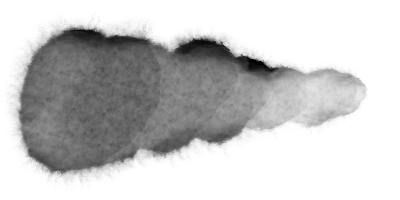
Dappled light

Glitter
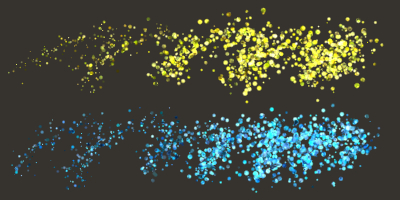
Zipper
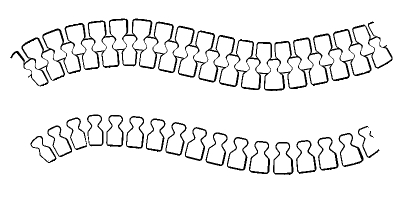
- A setting to change the target color has been added to the Color Jitter setting for brush tools. You can set whether the change in hue, saturation, and brightness applies to the main drawing color, the sub drawing color, or both.
- Added Linked to brush size to the Spray effect setting for brush tools. When this setting is on, the particle size will adjust with the brush size.
- Added Reduce pen pressure when drawing with finger/mouse at the start and end of brush strokes to Preferences > Tool. When using brush tools with your finger or mouse, you can now taper the end and beginning of brush strokes according to your speed.
- Added Brush shape to the list of cursor shapes in Preferences > Cursor. This displays the shape of the brush tip as the cursor image when a brush tool is selected. It can be used together with a center dot or cross, like the Brush Size setting.
- Added the Cursor details category to Preferences. This category includes settings for how the brush cursor changes according to pen input.
We will continue to improve brush features such as dual brush support and color jitter.
Note: If you reset the tools in Clip Studio Paint to default, the sub tools will change.
Default sub tools that have been removed or changed significantly in this update will be released on Clip Studio Assets as a set of prior default sub tools.
New Teamwork feature for working on multi-page projects in teams online (EX)
You can use the Teamwork feature to share multi-page projects with teams online. With this feature, you can assign separate pages to team members. The Teamwork feature can be used on PCs, smartphones, and tablets.
Improvement to 3D Binding Preview (EX)
- You can use the 3D preview for binding on projects without a cover page and regardless of the page start number settings. The 3D preview can be accessed via File > Export multiple pages > 3D Preview for Binding.
- Added Export cover page and back cover page to File > Export multiple pages > Export EPUB data dialog. This exports the cover page and back cover page to a file.
- The cover and back cover are shown on the 3D preview in File > Export multiple pages > 3D Preview for Binding.
- You can view the 3D preview open on the selected pages using File > Export multiple pages > 3D Preview for Binding.
Other Improvements and Changes
We have also made some other improvements, specification changes, and bug fixes based on feedback from Clip Studio Paint users.
- Added Add sub tool to the Sub tool palette. You can use this button to download materials from Clip Studio ASSETS and instantly add them to the Sub tool palette.
- History is now saved when you back up files to the Clip Studio cloud. You can select and download files from your history up to the last 30 days.
- (Windows / macOS / iPad / Galaxy / Android / Chromebook) Added Lock palette position to Window > Fix the width of palette dock. This locks the position of the palette in the palette dock. Other palettes can be stacked in the palette dock. This feature can also be used on tablets and smartphones.
- (Windows / macOS / iPad / Galaxy / Android / Chromebook) Added Lock palette height to Window > Fix the width of palette dock. This locks the palette dock height. This feature can also be used on tablets and smartphones.
- (Windows/macOS) Added Page Reordering to the Story menu. You can switch whether you need to press Ctrl to reorder pages by dragging.
- (Galaxy/Android) Improved palm rejection on some Samsung devices.
- (Windows) The interface of dialogs for browsing folders has been changed to match the dialog for opening files.
- (macOS) You can now import FBX files on macOS devices with Apple M1 chips.
- Fixed an issue where light table layers and onion skin layers would not be shown in timelapse recordings.
- (iPad/iPhone) Fixed a problem where file name order could not be imported when importing multiple files from File > Import.
- (iPad/iPhone) Fixed a problem where file name order could not be imported when importing multiple files by dragging and dropping to Clip Studio Paint.
- (Windows) Fixed an issue where full-width and half-width characters were not switched correctly at the start and end of text input when using Traditional Chinese / Korean IME.
What’s New in Clip Studio Paint?
Version 1.10.10 includes the following updates.
New Teamwork features with Clip Studio Paint
Added Teamwork to settings for multi-page projects that are saved in Manage works > Cloud. You can manage settings such as creating new teams and adding members, as well as sharing projects and assigning pages to team members.
Downloading file history from the cloud
History is saved when you back up files to the Clip Studio cloud. You can select and download files from your history up to the last 30 days.
Updates in Version 1.10.10
Improvements
The following features have been improved.
All Grades
- Dual brush settings have been added to brush tools, allowing you to combine two types of brush strokes. You can use these settings by turning on Dual brush in the Sub Tool Detail palette.
- The default sub tool lineup has changed. To make the most of the improved brush settings, the default settings for existing sub tools have also changed. In addition, new default sub tools have been added.
- A setting to change the target color will be added to the Color Jitter setting for brush tools. You can set whether the change in hue, saturation, and brightness applies to the main drawing color, the sub drawing color, or both.
- Added Linked to brush size to the Spray effect setting for brush tools. When this setting is on, the particle size will adjust with the brush size.
- Added Reduce pen pressure when drawing with finger/mouse at the start and end of brush strokes to Preferences > Tool. When using brush tools with your finger or mouse, you can now taper the end and beginning of brush strokes according to your speed.
- Added Brush shape to the list of cursor shapes in Preferences > Cursor. This displays the shape of the brush tip as the cursor image when a brush tool is selected. It can be used together with a center dot or cross, like the Brush Size setting.
- Added the Cursor details category to Preferences. This category includes settings for how the brush cursor changes according to pen input.
- In the material selection dialog, you can now download materials using Clip Studio ASSETS.
- History is now saved when you back up files to the Clip Studio cloud. You can select and download files from your history up to the last 30 days.
- Added Add sub tool to the Sub tool palette. You can use this button to download materials from Clip Studio ASSETS and instantly add them to the Sub tool palette.
- Files registered to the Item bank palette will now appear in the order they were imported.
- The option Add from default has been added to the context menu when a tool is selected.
- The option Add from default has been added to the context menu when a sub tool is selected.
- (macOS / iPad / iPhone / Galaxy / Android / Chromebook) Use multi-sampling has been added to Preferences > 3D.
- (Windows / macOS / iPad / Galaxy / Android / Chromebook) Lock palette height has been added to Window > Palette dock. This locks the palette dock height. This feature can also be used on tablets and smartphones.
- (Windows / macOS / iPad / Galaxy / Android / Chromebook) Lock palette position has been added to Window > Palette dock. This locks the position of the palette in the palette dock. Other palettes can be stacked in the palette dock. This feature can also be used on tablets and smartphones.
- (Windows / macOS / iPad / Galaxy / Android / Chromebook) The horizontal scroll bar now appears larger in the Page Manager window and Canvas window on interfaces adjusted for touch operation.
- (Galaxy/Android/Chromebook) Outlines of 3D materials will now appear smoother when a 3D layer isn’t selected and when Display settings for editing is set to Normal while editing a 3D material.
- (Galaxy/Android) On some Samsung devices, Increase palm rejection accuracy has been added to Preferences > Touch gesture.
- (macOS) You can now import FBX files on macOS devices with Apple M1 chips.
- (macOS) You can now import 3D materials compatible with Ver 1.5 (.c2fc or .c2fr), .6kt, .6kh, and pose files (.pep) on macOS devices with Apple M1 chips.
EX/PRO
- You can now select KADOKAWA presets from the New dialog box > Show all comic settings.
- You can now select Shogakukan presets from the New dialog box > Show all comic settings.
- When transferring a license to a new device, a pop-up will appear to remind the user that there is a maximum limit for transferring licenses.
- (Windows) The interface of dialogs for browsing folders has been changed to match the dialog for opening files.
EX
- You can use the Teamwork feature to share multi-page projects with teams. With this feature, you can assign separate pages to team members.
- You can use the 3D preview for binding on projects without a cover page and regardless of the page start number settings. The 3D preview can be accessed via File > Export multiple pages > 3D Preview for Binding.
- Added Export cover page and back cover page to File > Export multiple pages > Export EPUB data dialog. This exports the cover page and back cover page to a file.
- The cover and back cover are shown on the 3D preview in File > Export multiple pages > 3D Preview for Binding.
- You can view the 3D preview open on the selected pages using File > Export multiple pages > 3D Preview for Binding.
- A “Do not show again” checkbox has been added to the message “All canvas history will be deleted” that appears when opening the Story editor.
- (Windows / macOS / iPad / Galaxy / Android / Chromebook) You can now hide the scroll bar on the Page Manager window using View > Scroll Bar. (Excluding smartphone versions.)
- (Windows/macOS) Page Reordering has been added to the Story menu. You can switch whether to you need to press Ctrl to reorder pages by dragging.
Feature Changes
The following features have been improved.
All Grades
- When inputting text, if the text cursor goes beyond the range of the canvas, the canvas will scroll to follow the cursor position.
- When setting the angle of a 3D material using the Object Launcher, 3D materials will no longer become extremely large compared to the width of the canvas. In addition, 3D materials inside frame border folders will now be shown within the frame border.
- Changed how clipping planes auto-adjust on 3D layers.
- Changed the design of the progress bar animation.
- The upper limit of file sizes for explanations of materials uploaded to Clip Studio ASSETS has been increased to 10MB.
- If the entire canvas fits inside a webtoon scroll view, the webtoon scroll border will not appear.
- (Chromebook) Thumbnails in the Layer palette and the Timeline palette now appear the same size as the Windows/macOS versions.
- After changing settings in the following dialog boxes, those settings are now saved as soon as the dialog box is closed. If you close the dialog box by clicking [Cancel], the settings will not be saved.
- Preferences
- Command Bar Settings (EX/PRO)
- Quick Access Settings (EX/PRO)
- Selection Launcher settings (PRO/EX)
- Palette Bar settings (Smartphone)
- Edit Bar settings (Smartphone)
- Layout Settings (Smartphone)
- Shortcut key settings
- Air Action settings (Android/Galaxy)
- Modifier Key Settings (EX/PRO)
- CLIP STUDIO TABMATE Settings (Windows / macOS / Android / Galaxy / Chrome)
- Adjust pen pressure
EX/PRO
- Adjusted the values for brush size, particle size, and gap when importing Photoshop brushes that use a circle tip.
- When importing Photoshop brushes with Scattering on, the particle size will be set as Linked with brush size, and the Particle size setting will not be shown in the Tool property palette.
- When importing Photoshop brushes set as Scattering > Both Axes, the Spray deviation in the Sub Tool Detail palette will be set to 50.
- When using the Object tool to select a vector line where the Ink > Blending mode was set to Erase or Erase (compare), the Change brush tip color option will be disabled.
EX
- When the view setting for the Page Manager Window is set to Webtoon, the page number will appear at the top right of the page.
Bug Fixes
The following bugs have been fixed.
All Grades
- Fixed an issue where light table layers and onion skin layers would not be shown in timelapse recordings.
- (iPad/iPhone) Fixed a problem where file name order could not be imported when importing multiple files from File > Import.
- (iPad/iPhone) Fixed a problem where file name order could not be imported when importing multiple files by dragging and dropping to Clip Studio Paint.
- (Windows) Fixed an issue where full-width and half-width characters were not switched correctly at the start and end of text input when using Traditional Chinese / Korean IME.
What’s New in Clip Studio?
Improvements
The following features have been improved.
All Grades
- History is now saved when you back up files to the Clip Studio cloud. You can select and download files from your history up to the last 30 days.
EX
- You can use the Teamwork feature to share multi-page projects with teams. With this feature, you can assign separate pages to team members.
Feature Changes
The following features have been improved.
All Grades
- The upper limit of file sizes for explanations of materials uploaded to Clip Studio ASSETS has been increased to 10MB.
- (Windows/macOS) Changed the design of the progress bar shown when updating the program. This change will apply from the next update.
Updates in in Version 1.10.9 (released April 19, 2021)
Bug Fixes
The following bugs have been fixed.
All Grades
- (Chromebook) Fixed an issue where Clip Studio Paint would not open on some devices with ChromeOS M90.
Updates in in Version 1.10.8 (released March 1, 2021)
Feature Changes
The following features have been improved.
All Grades
- (iPad/iPhone) Clip Studio Paint now complies with App Tracking Transparency on iPadOS and iOS.
Updates in in Version 1.10.7 (released February 4, 2021)
Feature Changes
The following features have been improved.
All Grades
- (Android/Galaxy) Added a new option Display even if [None] is selected when using a pen tablet to Preferences > Cursor > Shape of Cursor. When this setting is turned on, the cursor will be displayed when drawing with a pen on a pen tablet, even if [Shape of Cursor] is set to [None]. When it is turned off, it functions as usual.
Bug Fixes
The following bugs have been fixed.
All Grades
- (Android/Galaxy/Chromebook) Fixed an issue where the application would not respond when using a mouse after using a pen on a pen tablet.
- (Android/Galaxy) Fixed an issue that caused some smartphone devices to launch with the UI for tablets.
EX/PRO
- (Android/Galaxy/Chromebook) Fixed an issue where the application would not respond when registering a 3D layer containing a 3D figure to a template on a large sized canvas.
Clip Studio Paint EX/PRO/DEBUT Ver.1.10.6 Released (December 23, 2020)
Updates in Version 1.10.6
Feature Changes
The following features have been changed.
All Grades
When [Color mixing] in the [Sub Tool Detail] palette of a brush-type tool is enabled and, [Apply by each plot] and [Outline] in [Texture mode] are disabled, drawing will be done without displaying the texture, as in versions prior to Ver. 1.10.3.
Bug Fixes
The following bugs have been fixed.
All Grades
- In Ver. 1.10.5 and later, when using image materials for [Brush tip shape], depending on the [Angle] setting, the [Angle] of the [Brush tip shape] does not display correctly when the canvas is flipped horizontally or vertically.
Updates in Version 1.10.5 (released December 10, 2020)
Support for Android & Chromebooks
With all the features of Clip Studio Paint, you can now create full-scale works of art on all major devices. One hour free per day for smartphones, and up to three months free on your first plan with your other devices. Galaxy users can enjoy six months of free use.
Added Timelapse features to record and export your work production process
These will allow you to record the creation process of your work on a canvas and export it as a timelapse video. You can export in formats compatible for posting on different social media platforms, allowing you to easily share videos of how your work is created.
Additional brush settings have been added, and you can now import Photoshop brush files (.abr).
- Imported brushes can be freely adjusted in the Tool Properties palette and the Sub Tool Detail palette. EX/PRO
Note: Results may differ from Photoshop when using imported Photoshop brushes. We are continuously working on improving brush functionality, including support for dual brushes.
The following settings have been added to the Sub Tool Detail palette to further expand the expressive range of your brushes.
- Color Jitter
Added Change brush tip color, which allows you to vary the hue, saturation, and brightness as you draw, and Randomize per stroke, which randomizes the color of each stroke as you draw. These function according to how Color Dynamics are set, such as to Pen pressure or Random. The existing Blend with sub color has been added as an item to Change brush tip color.
- Flip brush tips horizontally & vertically
Flip Horizontal and Flip Vertical allow the brush tip's angle to be set to flip horizontally or vertically.
- Texture settings Brightness & Contrast
You can now adjust the Brightness and Contrast of a texture before applying it.
- Texture modes
Overlay, Color dodge, Color burn, Hard Mix, and Height have been added to Texture Mode. These apply to a brush’s texture to offer a variety of texture options.
Useful features for webtoon production have been added (EX/PRO)
The following features have been added to make webtoon creation easier.
- New dialog box
Webtoon has been added to Use of work. This creates a canvas for webtoons. (EX/PRO)
Selecting Webtoon under Use of Work allows webtoon works to be split into multiple files. (EX)
- File menu
Export webtoon has been added, allowing webtoons to be divided and exported into specified sizes. The exported size can also be adjusted.
- Story menu
A webtoon item, Change basic work settings, has been added. (EX)
View has been added to the Create story folder dialog box that appears when using Add Page, etc. (EX)
View has been added, and you can choose to view the Story window in Page-by-page or Webtoon format. (EX)
Webtoon reading direction has been added, and you can choose to view the Story window in Page-by-page or Webtoon format. (EX)
- View menu
On-screen area (webtoon) has been added. This provides an on-screen area that shows the area viewable on a smartphone. You can also set the aspect ratio of On-screen area (webtoon).
- Clip Studio SHARE
You can now upload webtoon work files (extension: .clip/.cmc) from Clip Studio.
Easier & more convenient PDF file export function (EX)
- Win/mac: You can now export files in PDF format from File menu > Export multiple pages.
- When exporting PDF files, you can now set Split spread pages in the Batch Export dialog box, which allows you to export without separating the page spreads.
- Compression has been added to the Export PDF format dialog box. You can choose how to compress images in PDFs.
Other Improvements and Changes
We have also made some other improvements, specification changes, and bug fixes based on feedback from Clip Studio Paint users.
- When submitting print documents from Clip Studio SHARE, you can combine TIFF and PDF formats. (EX)
- The scaling process is accelerated when performing Edit menu > Transform > Scale, or Edit menu> Change Image Resolution.
- Win/mac/iPad/Galaxy: Auto-scroll has been added to Story menu > Page Manager Layout. You can toggle auto-scroll on/off, so that the page you are editing appears in the Story window. (EX)
- When setting Dynamics for the Sub Tool Detail Palette's Mixing rate of sub drawing color of brush-type tools, even if Spraying effect > Particle density is set to a value greater than 2, each particle will be drawn in a different color.
- If you turn on Color mixing and set Texture mode to Outline in the Brush-type tool's Sub Tool Detail palette, even if you turn off Apply by each plot, you will still be able to draw as if it were on.
Main improvements in Version 1.10.5
Improvements
The following features have been improved.
All Grades
- Timelapse features have been added.
- Timelapse has been added to the File menu. You can now record and export timelapse videos.
- Record timelapse has been added to the New dialog box.
- Record timelapse has also been added to Edit menu > Canvas Properties. PRO/EX
- Record timelapse has been added to Change basic page settings in the Story menu. EX
- Record timelapse has been added to Change basic work settings in the Story menu. EX
- The scaling process is faster when performing Edit menu > Transform > Scale, or Edit menu > Change Image Resolution.
- A Color Jitter option has been added to the Sub tool detail palette for Brush-type tools. You can set the following items.
- According to how Color Dynamics are set, Change Brush Tip Color allows you to vary the hue, saturation, and brightness as you draw.
- Randomize per stroke randomizes the color of each stroke as you draw.
- Flip Horizontal and Flip Vertical options have been added to the Sub tool detail palette for Brush-type tools. You can set how the brush tip will flip.
- Brightness and Contrast options have been added to the Sub tool detail palette for Brush-type tools. This allows for adjustments to the brightness and contrast of a paper texture image before applying it to a brush.
- Overlay, Color dodge, Color burn, Hard mix, and Height options have been added to the Sub tool detail palette for Brush-type tools under Texture mode.
- You can now upload vertical scrolling works, such as webtoons, from Clip Studio SHARE.
- Galaxy: The right mouse button and mouse wheel operation are now supported.
- Galaxy: Also, when you connect the pen tablet and press the pen's button, it now acts as a side switch modifier key.
EX/PRO
- It is now possible to import Photoshop brush files (extension: .abr) from the Import sub tool in the Sub tool palette menu.
- New features have been added to aid the creation of webtoons.
- Webtoon has been added to Use of work in the New dialog box. You can create a canvas for Webtoons. PRO/EX
- Selecting Webtoon under Use of Work in the New dialog box allows webtoon works to be split into multiple files. EX
- View has been added to the New dialog box under Use of work when Show all comic settings is selected. You can choose Page-by-page or Webtoon. EX
- Webtoon Export was added to the File menu. Webtoons can be divided and exported into specified sizes. The exported size can also be adjusted.
- Webtoon has been added to Change basic work settings in the Story menu. EX
- View has been added to the Create story folder dialog box that appears when selecting Story menu > Add Page, etc. EX
- View has been added to the Page Manager section of the Story menu. View has been added, and you can choose to view the Story window in Page-by-page or Webtoon format. EX
- Webtoon reading direction has been added to the Page Manager section in the Story menu. You can select the reading direction when the Story window is displayed as Webtoon. EX
- On-screen area (webtoon) has been added to View menu. This provides an on-screen area that shows the area to be displayed on a smartphone.
- On-screen area settings (webtoon) has been added to the View menu. You can also set the aspect ratio of the on-screen area settings of a webtoon.
EX
- When exporting PDF files, you can now set Split spread pages in the Batch Export dialog box, which allows you to export without separating the page spreads. You can export without splitting 2-page spreads.
- Compression has been added to the Export PDF format dialog box. You can choose how to compress images in PDFs.
- When submitting print documents from Clip Studio SHARE, you can combine TIFF and PDF formats.
- Win/mac: You can now export files in PDF format from File menu > Export multiple pages.
- Win/mac/iPad/Galaxy: Auto-scroll has been added to Story menu > Page Manager Layout. You can toggle auto-scroll on/off, so that the page you are editing appears in the Story window.
Feature Changes
The following features have been improved.
All Grades
- The Sub tool detail palette’s Mixing rate of sub drawing color has been changed to Change Brush Tip Color and is in the Color Jitter category for Brush-type tools.
- When setting Dynamics for the Sub Tool Detail Palette's Mixing rate of sub drawing color of brush-type tools, even if Spraying effect > Particle density is set to a value greater than 2, each particle will be drawn in a different color.
- If you turn on Color mixing and set Texture mode to Outline in the Brush-type tool's Sub Tool Detail palette, even if you turn off Apply by each plot, you will still be able to draw as if it were on.
- When dragging and dropping 3D files and 3D materials onto the canvas, the 3D model is now placed at the mouse cursor's position, even when creating a new 3D layer.
- iPhone/Galaxy: An Internet connection is now required to use Clip Studio Paint free for one hour on a smartphone.
- Galaxy: Folder thumbnails are now displayed in the File operation/Share dialog box based on the file names in ascending order.
What’s New in Clip Studio?
Bug Fixes
The following bugs have been fixed.
All Grades
- When performing Restore App Settings in Clip Studio, Brush tip shape in Brush Tools may not display correctly.
Microsoft and Windows are registered trademarks or trademarks of Microsoft Corporation in the United States and other countries.
macOS, iPad, iPhone, iCloud, and iCloud Drive are trademarks or registered trademarks of Apple Inc. in the United States and other countries.
Galaxy is a trademark or registered trademark of Samsung Electronics Co., Ltd.
Clip Studio Paint EX/PRO/DEBUT Ver.1.10.3 (for macOS) Released (November 11, 2020)
The Mac OS version now supports Apple M1 chip (Apple Silicon) powered Macs
- You can export multiple pages & images faster & draw more comfortably on Apple M1 chip Macs.
Fixes in Version 1.10.3
Improvements
The following features have been improved.
All Grades
- The Mac OS version now supports Apple M1 chip powered Macs, running as a native app.
Details
The following issues have been fixed.
All Grades
- (macOS) Repeated strokes with a brush or pen may prevent the stroke from drawing correctly on the Mac OS version.
Clip Studio Paint EX/PRO/DEBUT Ver.1.10.2 Released (October 22, 2020)
Fixes in Version 1.10.2
Details
We have fixed the following issue.
All Grades
- Win/mac/iPad/Galaxy: When the width of the Tool palette is changed so that the tools display in two rows, the tools will no longer display in one row the next time it is launched.
- Win/iPad/iPhone/Galaxy: Fixed a problems where the cursor for the acquired color does not appear when tapping on the canvas with a finger using the Eyedropper tool.
- Win/Galaxy: Fixed a problem where the application would close when using the Eyedropper tool with a finger.
- Win: Fixed a problem where the keyboard could not be used to navigate the File menu if it was selected holding the Alt key.
- Win: Fixed an issue where figures and selections could not be created when operating the Lasso or Rectangle sub tools with a finger.
- Win/Galaxy: When Shape of cursor in the Preferences dialog box is set to None, the cursor will no longer appear.
EX
- Win: Fixed a problem where Korean characters would be duplicated when typing in the story editor.
Clip Studio Paint EX/PRO/DEBUT Ver.1.10.1 Released (October 2, 2020)
Fixes in Version 1.10.1
Details
We have fixed the following issue.
All Grades
- Fixed an issue where the application would close unexpectedly when canceling text input with the Text tool.
Clip Studio Paint EX/PRO/DEBUT Ver.1.10.0 Released (September 30, 2020)
Import/Export and Copy & Paste SVG Format (EX/PRO)
- You can now import SVG-format files from software such as Adobe Illustrator and export vector layers as SVG files.
- (Windows/macOS) You can now copy images from Adobe Illustrator and paste their lines and fills converted to SVG data into Clip Studio Paint as vector lines.
- (Windows/macOS) You can copy vector layers in Clip Studio Paint as SVG format and paste them into Adobe Illustrator with control point data.
New Ruler commands added (EX/PRO)
- The Draw along ruler command has been added to the Layer menu. When this setting is on, you can draw following the ruler shown on the canvas.
- The Ruler from vector command has been added to the Layer menu. Using this command, you can create a ruler from the image on the selected vector layer.
(iPad) Support for Scribble function with Apple Pencil (EX/PRO)
The Apple Pencil's Scribble feature can be used on iPadOS 14 and later to convert handwriting to text.
Note: This feature is only available for English and Chinese (Traditional and Simplified) due to the capabilities of the iPadOS feature.
(iPad) Compatibility with mouse and trackpad input (EX/PRO)
You can now connect and use a mouse and trackpad. You can display preview lines while drawing and set modifier keys to mouse buttons.
Other Improvements and Changes
We have also made some other improvements, specification changes, and bug fixes based on feedback from Clip Studio Paint users.
- When importing ibisPaint files, layer folders from ibisPaint will now be imported.
- The setting Correct velocity input has been added to the Sub tool detail palette for brush tools. When turned on, the Velocity dynamics input used for varying brush size, opacity, etc., will be consistent across different devices. This is different from the existing Velocity setting.
- Brushes with textures will now draw more smoothly.
- The font list will load more quickly.
- (Windows/macOS) The application icon has been changed.
- The Change curve type setting has been added to the Sub tool detail palette for the Simplify vector line tool and similar tools. When simplifying vector lines, you can now change the type of line, for example, to a cubic bezier line. (EX/PRO)
- When using Restore app settings in Clip Studio and backing up from a different OS to the current device, the pen pressure settings will not be applied to the current device.
- (iPad/iPhone/Galaxy) When using the Tool palette with a stylus or finger, you can now swipe sideways to change the order of tools, swipe vertically to scroll through the palette, and long-press to open the context menu.
- (macOS/iPad/iPhone) Fixed an issue where the Save command in the Command Bar would not function if the Layer color in the Layer palette was clicked. (EX/PRO)
- (macOS) Fixed an issue where the Create New from Clipboard and Paste commands would not work for content copied from other software.
- (iPad) Fixed an issue where the app would freeze if the user clicked outside of the dialog box when choosing a save location.
- Fixed an issue where the application would close if snapping to guides or a grid using the Polygon tool. (EX/PRO)
Main improvements in Version 1.10.0
Improvements
The following features have been improved.
All Grades
- The setting Correct velocity input has been added to the Sub tool detail palette for brush tools. When turned on, the Velocity dynamics input used for varying brush size and opacity, etc., will be consistent across different devices. This is different to the existing Velocity setting.
- It is now possible to import layer folders when importing an ibisPaint artwork file.
- Brushes with textures will now draw more smoothly.
- The font list will load more quickly.
- You can now scroll through the Tool palette.
- (Windows/macOS) The application icon has been changed.
- (macOS) Canvas scaling and rotation are now smoother.
- Changes to the canvas resolution will also be applied quicker. The following operations have been sped up.
- Edit menu > Change Image Resolution
- When Process when scaling is set to For comic in the File menu > Export (Single Layer) dialog box
- File menu > Export multiple pages > 3D Preview for Binding (EX)
- When Process when scaling is set to For comic in the File menu > Export multiple pages > Batch export dialog box
EX/PRO
- Vector has been added to the File menu > Import. This allows you to import SVG format files from Adobe Illustrator or other software as a vector layer.
- Export vectors has been added to the File menu. Vector layers can be exported as SVG files.
- (Windows/macOS) The option When SVG code is saved to clipboard has been added to the Command section of Preferences. You will be able to copy images from Adobe Illustrator and paste their lines and fills converted to SVG data into Clip Studio Paint as vector lines.
- (Windows/mac) Copy vectors as SVG was added to the Edit menu. You can copy vector layers in Clip Studio Paint as SVG format and paste them into Adobe Illustrator with control point data.
- The Change curve type setting has been added to the Sub tool detail palette for the Simplify vector line tool and similar tools. When simplifying vector lines, you can change the type of line, for example to a cubic bezier line.
- Draw along ruler has been added to the Layer menu > Ruler/Frame. You can instantly create lines from a ruler on the canvas.
- Ruler from vector has been added to the Layer menu > Ruler/Frame. Using this command, you can create a ruler from the image on the selected vector layer.
- (iPad) You can now connect a mouse or trackpad to operate the software. The following settings are now available on the iPad version.
- Preferences > Tool > Options > Preview lines by pressing modifier key (Shift)
- Modifier Key Settings > Refine > Mouse
- Sub Tool Detail palette > Continuous curve > Show line preview
- (iPad) The Apple Pencil's scribble feature can be used on iPadOS 14 and later.
EX
- When editing text with the Story Editor, you can select all text using the Edit menu > Select All.
- When editing text with the Story Editor, you can now use the Home and End keys to move the cursor to the start or the end of the textbox, respectively.
Feature Changes
The following features have been improved.
All Grades
- When temporarily switching to the Zoom tool while using the Selection tool to move an image within a selection area, the image movement will be left unconfirmed.
- We have adjusted the area determined as the start point of drawing when using the Polyline or Continuous curve sub tools and clicking to confirm the start point.
- When using Restore app settings in Clip Studio and backing up from a different OS to the current device, the pen pressure settings will not be applied to the current device.
- When launching Clip Studio Paint, your Preferences settings will be saved.
- You can now scroll through the menu bar on tablet devices where the menu bar is cut off.
- We have adjusted the degree of movement required to drag items in the Timeline palette.
- Privacy Settings has been added to the Preferences dialog box.
- (Windows/iPad/iPhone/Galaxy) For the Text sub-tool, in the Modifier Key Settings dialog > Settings for each process of tool, the default setting of the single swipe gesture has been changed to None. You can now start typing text with your finger when using Scribble on the iPad.
- (iPad/iPhone/Galaxy) Google Analytics Settings has been deleted from the Clip Studio dialog > Settings menu. You can adjust these settings from the Preferences dialog box in Clip Studio Paint from Ver. 1.10.0 onward.
- (iPad/iPhone/Galaxy) When using the Tool palette with a stylus or finger, you can now swipe sideways to change the order of tools, swipe vertically to scroll through the palette, and long-press to open the context menu.
- (iPhone/Galaxy) When button names are shown in the Quick Access palette, tool tips will no longer appear when clicking the buttons.
EX/PRO
- We have adjusted the detection range when using the Object tool to select rulers and vectors.
- We have adjusted the detection range when using drawing tools to snap to rulers. The detection range has similarly been adjusted for snapping to guides and comic frames.
- When using a drawing tool, the maximum value of the Vector magnet setting in the Sub tool detail palette > Correction has been increased from 100 to 200.
EX
-
The default settings when creating a multi-page file have been changed to left binding and starting the first page on the right.
Bug Fixes
The following bugs have been fixed.
All Grades
- Fixed an issue where the mouse cursor would not display at the correct resolution.
- (macOS/iPad/iPhone) Fixed an issue where the Save command in the Command Bar would not function if the Layer color in the Layer palette was clicked.
- (iPad/Galaxy) Fixed an issue where the checkbox settings in the Reset to original defaults dialog box would not be changed correctly when using a stylus.
- (macOS) Fixed an issue where the Create New from Clipboard and Paste commands would not work for content copied from other software.
- (iPad) Fixed an issue where the app would freeze if the user clicked outside of the dialog box when choosing a save location.
EX/PRO
- Fixed an issue where the app would stop working if a large image was imported to the Material property dialog box that appears when selecting an option under the Edit menu > Register Material.
- Fixed an issue where the application would close if snapping to guides or a grid using the Polygon tool.
Main improvements in Clip Studio Version 1.10.0
Improvements
The following features have been improved.
All Grades
-
A button has been added to check your Clippy token balance when logged in.
- (Windows/macOS/iPad/iPhone) It is now possible to restore the app settings backed up by Clip Studio Paint for Galaxy to other operating systems.
Feature Changes
The following features have been improved.
All Grades
- (Windows/mac) The registration wizard for the 30-day free trial has been updated.
-
(Windows/macOS) The Clip Studio application launcher has been updated. A notification mark will now appear in the launcher when an update is available. You can click this icon to be taken to the page to update the software.
Bug Fixes
The following bugs have been fixed.
All Grades
- (macOS) Fixed an issue where Clip Studio would force close after launching.
Microsoft and Windows are registered trademarks or trademarks of Microsoft Corporation in the United States and other countries.
macOS, iPad, iPhone, iCloud, and iCloud Drive are trademarks or registered trademarks of Apple Inc. in the United States and other countries.
Clip Studio Paint EX/PRO/DEBUT Ver.1.9.11 Released (April 28, 2020)
Fixes in Version 1.9.11
Details
The following issues have been fixed.
All grades
- Fixed an issue where the [Start from current size when changing brush size by dragging on canvas] setting in [Preferences] > [Tools] would not be applied.
EX/PRO
- [iPad/iPhone] Unable to login from Clip Studio.
Clip Studio Paint EX/PRO/DEBUT Ver.1.9.10 Released (April 16, 2020)
Fixes in Version 1.9.10
Details
The following issues have been addressed.
EX/PRO
- Fixed an issue where transformations were not applied to lines and rulers drawn on vectors when selected with the [Object] sub-tool and transformed with [Free Transform], [Distort], [Skew], or [Perspective].
- [iPad/iPhone] Fixed an issue where materials would not download from Clip Studio Assets.
Clip Studio Paint EX/PRO/DEBUT Ver.1.9.9 Released (April 9, 2020)
What’s New in Clip Studio Paint? (Updated April 9, 2020)
Version 1.9.9 includes the following updates.
Improved editing of Bezier curves (EX/PRO/DEBUT)
The Continuous curve sub tool has been improved, and the appearance of control points has been updated.
- The Bezier curve sub tool has been added to the Figure tool
- You can use the following operations when editing shapes.
- Hold the Ctrl key and drag to move control points
- Hold Ctrl and click and empty space to confirm the shape
- (Windows/mac) Click outside the canvas window to confirm the shape
- Hold the Alt key and click or drag control points to switch corner shapes or to delete control points
- Click or drag on the line to add control points
- When editing a cubic Bezier curve, hold the space bar and drag to move the anchor point and direction point simultaneously
- Double-click or double-tap to confirm the shape (can be toggled on/off in Preferences)
- Drag control points while holding Shift to change the rotation angle incrementally.
Paste from the clipboard to the center of the canvas (EX/PRO/DEBUT)
The command Paste to shown position has been added to the Edit menu. This allows you to paste items from the clipboard to the middle of the canvas window.
Other Improvements & Changes
We have also made some other improvements, specification changes, and bug fixes based on feedback from Clip Studio Paint users.
- Added Handle size setting to Preferences > Tool category. This setting adjusts the size of handles and control points shown when selecting a line or ruler on a vector layer and when drawing with Figure tools such as the Continuous curve sub tool.
- Anchor points for corners on cubic Bezier lines can now be moved while maintaining the straight lines on either side.
- In Preferences > Tool category, the setting Auto-scroll at edge of canvas while dragging has been changed to Auto-scroll at edge of canvas. For auto-scroll operations, you can choose from None, Drag, or Drag with mouse. On the iPad and iPhone versions, Drag with mouse is not available.
- In the Sub tool detail palette for the Continuous curve sub tool, the Show line preview setting has been added. If the Curve is set to Cubic Bezier and the specification method is set to By drag, a preview line will appear while drawing the line.
- When drawing a cubic Bezier curve with tools such as the Continuous curve sub tool, you can hold down the Alt key to change the angle of the anchor point. You can drag to adjust the shape of the following section, not the current section. Also, you can switch between sharp corners or smooth curves at anchor points by pressing or releasing the Alt key while dragging.
- When drawing a line with tools such as the Continuous curve sub tool, you can create corners by clicking the next point, or smooth curves by click-dragging.
- (iPad/iPhone) In the font list shown in the Tool Property palette, the option Find not in this list has been changed to Add fonts from device. The location of the button has also changed. The function is the same.
- When using Switch corners in the Tool property palette of the Control point sub tool to click an anchor point on a cubic Bezier curve, the anchor point and the shape of the line will both adjust accordingly. (PRO/EX)
- When using Switch corners in the Tool property palette of the Control point sub tool and dragging anchor points or direction points on a cubic Bezier curve, you can change the curve shape. (PRO/EX)
- When using Add control point in the Tool property palette of the Control point sub tool and dragging on cubic Bezier curve, you can move the added direction point. (PRO/EX)
- We have changed the color and shape of control points that appear when clicking a line on a vector layer with the Object or Control point sub tools. (PRO/EX)
- (iPad/iPhone) We have fixed an issue where PDF export would not work properly (File > Export multiple pages > .pdf (PDF format)). (EX)
What’s Coming to Clip Studio?
Ver.1.9.9 will include some minor bug fixes and improvements.
The new update will include more than 50 other improvements and bug fixes.
Microsoft and Windows are registered trademarks or trademarks of Microsoft Corporation in the United States and other countries.
macOS, iPad, iCloud, and iCloud Drive are trademarks or registered trademarks of Apple Inc. in the United States and other countries.
Main improvements in Version 1.9.9
Improvements
The following features have been improved.
All Grades
- A new Bezier curve sub tool has been added to the Figure tool.
- You can now move the control points of the line being created with the Continuous curve sub tool by holding the Ctrl key while drawing. You can also confirm the line by clicking an empty space while holding the Ctrl key. This operation is the same when drawing lines with sub tools in the Figure tool, Balloon tool, Ruler tool, and Frame border tool groups.
- When drawing with figure tools such as the Continuous curve sub tool, you can switch between creating corners or smooth curves by holding Alt and clicking or dragging when creating control points. This feature only works when control points are visible with the Preferences > Figure tool guidelines setting.
- You can now add and delete control points while drawing with figure tools such as the Continuous curve sub tool. You can toggle this setting on and off in the Sub tool detail palette with the Add/delete control points while drawing setting.
- When editing a cubic Bezier curve with the Object or Continuous curve sub tools, you can hold the space bar and drag to move anchor points and direction points simultaneously
- Handle size has been added to the Tool category in the Preferences dialog box. This setting adjusts the size of handles and control points shown when selecting a line or ruler on a vector layer and when drawing with Figure tools such as the Continuous curve sub tool.
- The option Confirm shape with double-click or double-tap has been added to Preferences > Tool. This setting determines whether or not double-clicking will confirm shapes created with tools such as the Continuous curve tool.
- The command Paste to shown position has been added to the Edit menu. This allows you to paste items from the clipboard to the middle of the canvas window.
- We have improved visibility of nodes in the following dialog boxes
- Edit menu > Tonal Correction > Level Correction
- Layer menu > New Correction Layer > Level Correction
- View menu > Color profile > Preview Settings
- We have adjusted the color of indicators in the Tool property palette and Sub tool detail palette to improve visibility.
- In Preferences > Tool category, the setting Auto-scroll at edge of canvas while dragging has been changed to Auto-scroll at edge of canvas. For auto-scroll operations, you can choose from None, Drag, or Drag with mouse. On the iPad and iPhone versions, Drag with mouse is not available.
- Clip Studio Support now appears when you click the Help menu > Support.
- (Windows/iPad/iPhone) You can now two-finger tap to undo the most recent control point when drawing with the Continuous curve sub tool.
- (Windows/macOS) In the Sub tool detail palette for the Continuous curve sub tool, the Show line preview setting has been added. If the Curve is set to Cubic Bezier and the specification method is set to By drag, a preview line will appear while drawing the line.
- (Windows/macOS) The Register License and Verify License commands have been removed from the Help menu (the Clip Studio Paint logo menu on macOS) and replaced with Get License and Review/Change License. You can change the current license from Review/Change License.
- (iPad/iPhone) We have improved how the status of material downloads and uploads appears in the Communication Management dialog in Clip Studio.
- (iPad/iPhone) The Wacom Stylus SDK has been updated to Ver. 2.2.4.
EX/PRO
- We have improved visibility of sliders in the Approximate Color palette when using the light interface.
- (iPad/iPhone) If using an annual or monthly plan for Clip Studio Paint PRO/EX, a login screen will appear after you update to Ver. 1.9.9, prompting you to log in to your Clip Studio account. Simply log in once to continue using the app as usual.
- (iPad/iPhone) The Review/Change License command has been added to the Clip Studio Paint logo menu (App Settings menu on iPhone). Here you can change the current license.
EX
- The color of selected elements in the Batch process dialog box has been changed to improve visibility.
- We have improved visibility of the Story Editor when using the dark interface.
Feature Changes
The following features have been improved.
All Grades
- When making a closed shape with figure tools such as the Continuous curve sub tool set to cubic or quadratic Bezier mode, the first and last anchor points will now connect in a more natural way than before.
- When drawing a cubic Bezier curve with tools such as the Continuous curve sub tool, you can hold down the Alt key to change the angle of the anchor point. You can drag to adjust the shape of the following section, not the current section. Also, you can switch between sharp corners or smooth curves at anchor points by pressing or releasing the Alt key while dragging.
- When drawing with the Continuous curve sub tool with the Curve set to cubic Bezier and the specification method set to By drag, you can adjust the shape of closed lines by moving the first anchor point.
- When drawing a line with tools such as the Continuous curve sub tool, you can create corners by clicking the next point, or smooth curves by click-dragging.
- You can now use the Step of angle setting when drawing with the Continuous curve sub tool set to Spline, Quadratic Bezier, and Cubic Bezier. You can use this to move the line with the mouse or pen according to a specified angle.
- You can no longer delete control points while dragging with the Continuous curve sub tool even by pressing the Delete or backspace keys.
- In Preferences > Tool category, the setting Use simple display for lines being created with the figure tools has been changed to Figure tool guidelines. You can set whether to or not to show control points, as well as choose between simple view or a line preview.
- We have changed the shape of control points that appear when creating a line with the Continuous curve sub tool.
- We have increased the size of the cross icon that appears when dragging with tools such as the Rectangle selection tool and Copy stamp tool
- In the Adjust pen pressure dialog, the Check adjusted settings button that appears after clicking Adjust pen pressure now appears highlighted. You can also now proceed to the next step in the Adjust pen pressure dialog by pressing the Enter key.
- If using Clip Studio Paint on an OS that will no longer be supported in the future, a message will appear prompting you to check the system requirements.
- (Windows/macOS) When double-clicking to confirm a line created with tools such as the Continuous curve sub tool, the double-clicked spot will become part of the curve.
- (Windows/macOS) When drawing with figure tools such as the Polyline sub tool, you can click outside the canvas window to confirm the line.
- (iPad/iPhone) In the font list shown in the Tool Property palette, the option Find not in this list has been changed to Add fonts from device. The location of the button has also changed. The function is the same.
- (iPad/iPhone) For the following dialog boxes, the command Purchase app / Change grade or payment plan will no longer be available.
- Shortcut settings dialog box
- Command Bar Settings dialog box
- Quick Access Settings dialog
- Selection Launcher Settings dialog box
- (macOS) After setting up Accessibility preferences on macOS 10.15 and using Edit > Obtain screen color or Obtain screen color by hiding windows, a message will appear prompting you to allow the app to record the screen.
EX/PRO
- We have changed how control points are created when drawing with the Continuous curve sub tool with the Curve set to Cubic Bezier and the specification method set to By drag. The anchor points are created along the line. When you drag an anchor point with the Object sub tool, the position of the direction point will also adjust accordingly with the line. Dragging direction points now behaves the same way as holding alt and dragging a corner point in previous versions.
- In the Tool Property palette for the Control point sub tool, the Process setting now appears as radio buttons instead of a drop-down menu.
- When using Add control point mode of the Control point sub tool and clicking to add a control point, the control point will be created on the existing line rather than the position clicked.
- When using Switch corners mode of the Control point sub tool to click an anchor point on a cubic Bezier curve, the anchor point and the shape of the line will both adjust accordingly.
- When using Switch corners mode of the Control point sub tool and dragging anchor points or direction points on a cubic Bezier curve, you can change the curve shape.
- When using Add control point mode of the Control point sub tool and dragging on a cubic Bezier curve, you can move the added direction point.
- When using the Control point sub tool on a vector layer, the vector path and control points of closed Bezier curves will appear when hovering the mouse over the line.
- When using Split line mode of the Control point sub tool, the line will split at the clicked anchor point.
- We have added a border to the cross symbol that appears when selecting a gradient layer with the Object sub tool.
- We have changed the color and shape of control points that appear when clicking a line on a vector layer with the Object or Control point sub tools.
- When editing a cubic Bezier curve with the Object sub tool, you can hold Shift while dragging a direction point to drag it in 45-degree intervals around the anchor point.
- If you press Alt when creating a line with the Special ruler sub tool, a “┌” symbol will appear beside the cross icon.
- When importing 3D files with parent-child elements, the child nodes will now rotate accordingly when parent nodes are rotated.
Bug Fixes
The following bugs have been fixed.
EX/PRO
Fixed an issue where the display and operation of the canvas would become sluggish when the [View] menu > [Color Profile] > [Preview] is enabled.
EX
(iPad/iPhone) We have fixed an issue where PDF export would not work properly (File > Export multiple pages > .pdf (PDF format)).
Main improvements in Clip Studio Version 1.9.9
Improvements
The following features have been improved.
All Grades
(Windows/macOS)- We have improved how the status of material downloads and uploads appears in the Communication Management dialog in Clip Studio.
Clip Studio Paint EX/PRO/DEBUT Ver.1.9.7 Released (Dec. 19, 2019)
Improvements
The following features have been improved.
All Grades
- The color of the Selection Launcher buttons has been changed to improve visibility.
- The color of clips on the Timeline palette has been changed to improve visibility.
- The color of icons now changes depending on the selected background color.
- The design of some icons has been changed.
- Animation folders
- Gradient tool
- Cursor icons on the canvas
- (iPad/iPhone) You can now open files managed by a page management file (extension: .clip, .lip) as single pages if you cannot get access permissions for the page management file.
- (iPad/iPhone) When launching Clip Studio Paint or re-displaying the Edge keyboard toggle button, the button will appear in the same place as the last time it was used.
EX
- The Print style setting has been added to the Layer menu > New Layer > Clip Studio SHARE > Foil layer dialog box. You can now add embossing effects to the foil when viewed in Clip Studio SHARE. In the Foil layer dialog box, the color and shape of the light that appears on the foil preview has been changed.
Corrected Content
The following problems have been fixed.
All Grades
- (iPad/iPhone) We have fixed a bug with file recovery for resolving conflicts created by working on the same file on different devices.
The update includes several other minor bug fixes.
Clip Studio Paint Ver. 1.9.6 (Dec. 13, 2019)
Main improvements in Version 1.9.6
Bug Fixes (DEBUT/PRO/EX)
The following bugs have been fixed.
All Grades
- (iPad) We have fixed an issue where images could not be selected from the Photo Library.
- (iPad/iPhone) We have fixed an issue where image quality would decrease if shrinking an image when sharing with File > Quick Share.
- (iPad/iPhone) We have fixed an issue on iPadOS and iOS 13 where the Files app would close and Clip Studio Paint would crash if users tried to open files by long-pressing in the Files app and clicking Share > Save image from the context menu.
Clip Studio Paint Winter Update (Dec. 5, 2019)
What’s New in Clip Studio Paint?
Version 1.9.5 includes the following updates.
Redesigned User Interface (EX/PRO/DEBUT)
- The interface has been redesigned to improve visibility of text and icons. As well as improved balance between the background color and text color, the new interface also features new icons for better visibility and ease of use. You can change the color of the interface in Preferences.
- When the dark interface is used, the thumbnails in the Material palette are easier to see. The background color of the material thumbnails will change depending on the interface color.
(iPad) Directly Import from & Save to the Files App1 (EX/PRO)
- You can now set your Clip Studio Paint app to manage files through the Files app for iOS and iPadOS. You will now be able to share files across devices through the Files app.
Files saved in Clip Studio Paint will be stored in a “Clip Studio” folder in the “On My iPad” section.
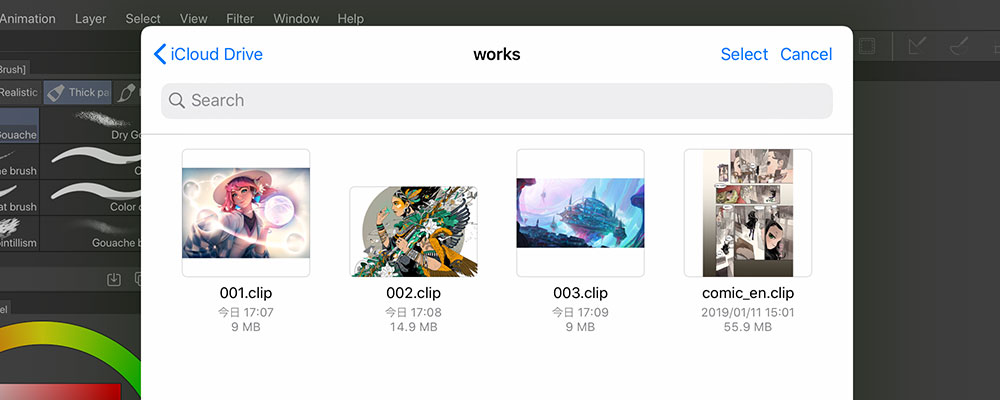
Open from the Files app
Save to the Files app
- You can now open files from and save to other cloud services through the Files app.
Note: We are aware of an issue with DropBox where files may get duplicated when repeatedly overwritten.
You need the latest iPadOS to open multi-page files stored in other cloud services. Multi-page files can currently only be opened from iCloud Drive.
Please copy files over when using a cloud service other than iCloud Drive. Click here for more details.
- On iOS 12 and later, you can now view Clip Studio format images (.clip) and Clip Studio Paint files (.lip) as image thumbnails in the Files app as well as preview them with QuickLook.
(Windows/mac) New License Registration Process (EX/PRO/DEBUT)
When users open Clip Studio Paint for the first time to register a license, they will be prompted to login to a Clip Studio account to continue. Users who have already registered their license can continue to launch the program as usual.
Other Improvements and Changes
We have also made some other function improvements, specification changes, and bug fixes based on feedback from Clip Studio Paint users.
- (iPad) The Quick Share command will be added to the File menu. You can share the current canvas and export and share videos when the timeline is active.
- (iPad) The command Create new from photo library will be added to the File menu. You can select images from the Photos app to create a new canvas.
- Default presets for new illustration files will be changed or added. (EX/PRO/DEBUT)
- (Windows/mac) Stabilization settings are now applied to swipe gestures. (EX/PRO/DEBUT)
- The following options will be added to the Sub Tool Detail palette when a 3D drawing figure or 3D character is selected with the Object tool: Lock/release joint, Release all joints, Register right hand pose as material, Register left hand pose as material (EX/PRO)
- The Physics simulation option will be added to the Sub Tool Detail palette when a 3D character is selected with the Object tool (EX/PRO)
The new update will also include more than 40 other improvements and bug fixes.
1 About compatibility with the Files app
To use the Files app directly with Clip Studio Paint, your device needs to be running on iOS 12 or later. As the app has been updated in line with the current OS, we cannot guarantee that Clip Studio Paint for iPad Ver. 1.9.5 and later will work correctly on iOS 11 and earlier. Please ensure you are using iOS 12 or later on your iPad to use the latest version of Clip Studio Paint.
You will still be able to use Clip Studio Paint for iPad on devices that currently run on iOS 11.
Microsoft and Windows are registered trademarks or trademarks of Microsoft Corporation in the United States and other countries.
Mac, macOS, iPad, iCloud, and iCloud Drive are trademarks or registered trademarks of Apple Inc. in the United States and other countries.
Main improvements in Version 1.9.5
Improvements
The following features have been improved.
All Grades
- The user interface has been completely redesigned with new icons and color schemes.
- When the dark interface is used, the thumbnails in the Material palette are easier to see. The background color of the material thumbnails will change depending on the interface color.
- The transformation handles that appear when using the Object tool are now easier to adjust with fingers.
- Text in dialogs and pop-up messages no longer have line breaks in the middle of words.
- Default presets for new illustration files have been changed or added.
- The following settings have been added to the Tool Property palette when selecting a 3D object with the Object tool: Material, Layout, Movable parts, Initial pose. These settings configure how to display the 3D object.
- Reset buttons for scale and rotation have been added to the Sub Tool Detail palette when selecting a 3D drawing figure or 3D character with the Object tool.
- The Tapered Pen, Tapered Pencil, and Tapered Watercolor sub tools have been added to the Pen, Pencil, and Realistic Watercolor tools, respectively.
These tools have starting/ending effects such as tapering to mimic drawing with a brush even when using your finger or a mouse.
- (Windows/iPad) Stabilization settings are now applied to swipe gestures.
- (Windows/mac) The license registration wizard has been updated. Users will need to log in with a Clip Studio account when registering the software.
- (iPad) Quick Share has been added to the File menu. This allows you to share the current canvas. When the timeline is enabled, you can convert the file to a video and share it.
- (iPad) You can now directly open files stored in the Files app and save to the Files app.
- (iPad) On iOS 12 and later, you can now view Clip Studio format images (.clip) and Clip Studio Paint files (.lip) as image thumbnails in the Files app as well as preview them with QuickLook.
- (iPad) When searching for a file in Manage Works in the Clip Studio dialog box, the option Show all files with this label will appear in the file list. Tap this to reset the search.
- (iPad) Settings for viewing the edge keyboard have been added to Preferences > Interface. In addition to the previous view settings, we have added options for toggling the keyboard with a button or disabling the edge keyboard.
EX/PRO
- The following options have been added to the Sub Tool Detail palette when a 3D drawing figure or 3D character is selected with the Object tool: Lock/release joint, Release all joints, Register right hand pose as material, Register left hand pose as material.
- The Physics simulation option has been added to the Sub Tool Detail palette when a 3D character is selected with the Object tool.
- The Register Material option has been added to the Sub Tool Detail palette when a 3D figure is selected with the Object tool. This option saves the current body shape as a material.
- A Color option has been added to the Sub Tool Detail palette for the Text tool and the Object tool when selecting and editing text. You can use this setting to change the color of the text.
Feature Changes
The following features have been improved.
All Grades
- In the Material property palette, the options for Specify overlay have been changed to radio buttons.
- In the Tool Property palette, options for layers to exclude from reference are now shown as a drop-down list with checkboxes.
- When the dark interface is used, the brush previews in the Brush Size palette and Sub Tool palette are shown in white. Similarly, the brush tip and brush shape previews will be shown in white in the Tool Property palette. However, the stroke preview will be shown in the drawing color as in previous versions.
- The order of buttons in the command bar for editing folders in the Material palette has been changed to Create a material folder,Delete the selected material folder and Change the name of the selected material folder.
- We have changed the text that appears in the search box for importing materials in the Material palette.
- We have changed the layout of the Tool Property palette when selecting a 3D layer with the Object sub tool.
- In the Layer palette, the position of Change palette color has been changed.
- (Windows/iPad) When Preferences > Touch gesture > Single Swipe is set to Use the same tool with fingers and pen, you can now create guides by swiping the ruler at the edge of the canvas.
- (Windows/iPad) The option Don’t use tools with fingers has been removed from Preferences > Touch gesture > Single Swipe. In Touch gesture, the setting Use tools with finger has been added. You can use the checkboxes to use the same settings as Don’t use tools with fingers.
- (Windows/mac) The command Graphics Performance Check has been removed from the Help menu.
- (iPad) A “Clip Studio” folder now appears under On My iPad in the Files app. Files saved in the Clip Studio Paint app will be stored here.
- (iPad) The command File operation/Share has been deleted from the File menu.
- (iPad) You can now switch tools with a long press even when Use the same tool with fingers and pen is turned on in Preferences > Touch gesture > Single Swipe.
- (iPad) The option Single Swipe/Long press under Preferences > Touch gesture has been changed to Single Swipe.
- (iPad) The design of the Material palette in Clip Studio Paint and the Manage materials screen in Clip Studio has been made consistent.
- (iPad) The command Create new from photo library will be added to the File menu. You can select images from the Photos app to create a new canvas.
- (iPad) The command Save file from photo library will be deleted from the File menu.
- (iPad) In the Manage works screen in Clip Studio, the command Share has been changed to Share file in the menu that appears with each work.
- (iPad) In the Manage works and Manage materials screens, the name of the This device tab has been renamed to In this app.
EX/PRO
- (Windows/mac) In the following dialog boxes, the Browse button has been changed from text to an icon.
- Migrate tool preference from IllustStudio dialog box
- Migrate tool preference from ComicStudio 4.0 dialog box
- In Edit > Advanced Fill, exclude from reference options are now shown as a drop-down with checkboxes.
- The Sub Tool Detail palette can now be shrunk smaller.
- When the dark interface is used, the brush tip and brush shape previews will be shown in white in the Sub Tool Detail palette. However, the stroke preview will be shown in the drawing color as in previous versions.
- We have changed how colors are chosen in the following settings: Edge color, Layer color, Sub color, and Area Color. Clicking the color indicator opens the Color settings dialog box where you can set the color. Clicking Fill will change the color to the current drawing color.
EX
- In the following dialog boxes, the Browse button has been changed from text to an icon.
- New dialog box (excluding when Illustration is set as the Use of work)
- Batch export dialog box
- Image sequence export settings dialog box
- Export animation cels dialog box
- Install path settings for OpenToonz dialog box
- OpenToonz scene file export settings dialog box
- Create story folder dialog box
- Prepare group work data dialog box
- Obtain group work data dialog box
What’s New in Clip Studio Ver. 1.9.5?
Improvements
The following features have been improved.
- Text in dialogs and pop-up messages no longer have line breaks in the middle of words.
- When searching for a file in Manage Works in Clip Studio, the option Show all files with this label will appear in the file list. Tap this to reset the search.
Feature Changes
The following features have been improved.
- We have changed the text that appears in the search box in the Manage materials screen.
- The design of the Material palette in Clip Studio Paint and the Manage materials screen in Clip Studio has been made consistent.
Clip Studio Paint Fall Update (Version 1.9.4) (Sept. 26, 2019)
Note: Features marked withEX or PRO can only be used in EX or PRO.
* Some bugs have been confirmed when using Clip Studio Paint Ver.1.9.3 or earlier with macOS Catalina (10.15) scheduled to be released in the near future. If you plan to update your macOS, please update Clip Studio Paint to Ver.1.9.4.
Note: The iPad version will be available on the AppStore as soon as the review is complete.
Main updates in Version 1.9.4
Improved Page Management Tools (EX)
・ Import multiple pages at once
・ Select page management files (extension: .cmc)
- For more details, please see here.
New Settings For Stabilization by Speed (EX/PRO/DEBUT)
A new option has been added to the existing Adjust by speed setting. You can now choose to adjust the stabilization level to increase when drawing slowly to avoid small jitters. This setting can be adjusted in Sub Tool Detail > Correction.
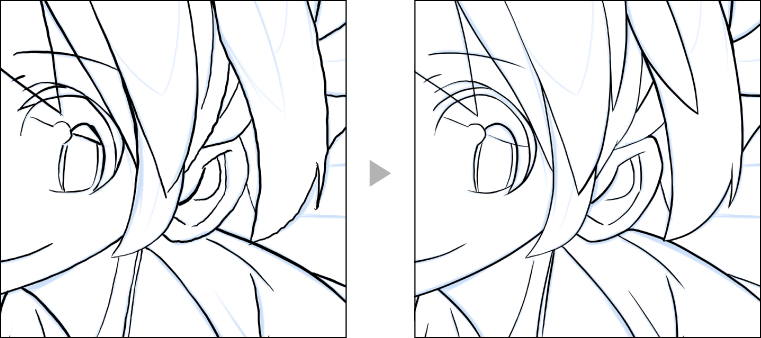
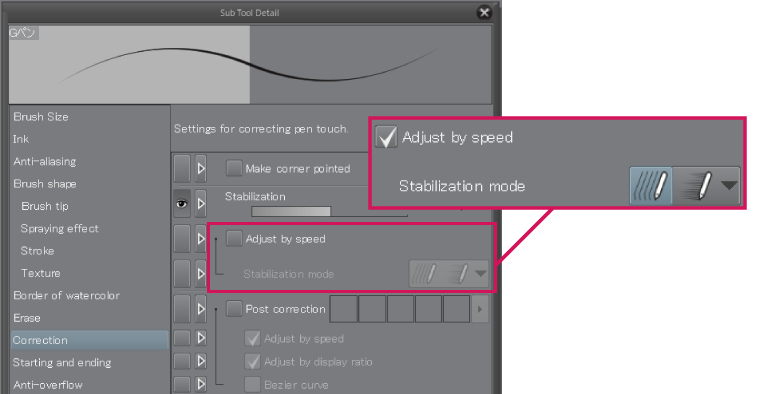
(macOS) Support for Sidecar (EX/PRO/DEBUT)
Version 1.9.4 will support the new Sidecar feature for macOS 10.15 Catalina to be released by Apple in Oct. 2019. You will be able to connect your iPad to a Mac for drawing and painting in Clip Studio Paint. While using Sidecar, you’ll also be able to use the Clip Studio Tabmate.
Note: Sidecar can be used with the latest iPad OS.
To use Sidecar, you need to sign in with the same Apple ID on iPad and Mac.
When using Sidecar, you can use a three-finger swipe to undo or redo.
New Artistic Filter (EX/PRO/DEBUT)
Example using Color and lines mode
Other Improvements and Changes
What’s Coming to Clip Studio?
Ver.1.9.4 will include some minor bug fixes.
What’s Coming to Clip Studio Share?
Enhanced 3D Reader and Effects
Clip Studio Share will be updated with better features for sharing and reading stories in the 3D viewer, including more effects to view artwork.
Improved Reading Experience
We will update the viewer used for sharing on social media such as Twitter to offer a better reading experience and make it easier to share your stories and comics. Improvements and changes will continue in addition to the above content.
Clip Studio Paint Version 1.9.4 includes the following new features and improvements from previous versions.
Improvements (DEBUT/PRO/EX)
Improvements (PRO/EX)
Improvements (EX)
Feature Changes (DEBUT/PRO/EX)
Feature Changes (PRO/EX)
Feature Changes (EX)
Bug Fixes (DEBUT/PRO/EX)
CLIP STUDIO PAINT Version 1.9.3 release notes (07/24/2019)
Corrections of Version 1.9.3
*Features marked with [EX] or [PRO] can only be used in EX or PRO.
Bug Fixes(DEBUT/PRO/EX)
Bug Fixes(EX)
CLIP STUDIO PAINT Version 1.9.2 release notes (July 17, 2019)
There is an issue with Ver.1.9.1 update of Clip Studio Paint EX/PRO/DEBUT (Windows) released on 7/17 in which the window position is not retained when maximizing then exiting Clip Studio Paint from other than the main monitor. This will be corrected in Ver.1.9.2. (Edited June 19th, 2019)
We have confirmed that in Ver 1.9.1(win/mac), there is an issue where files will not open completely when Clip Studio Paint is opened for the first time after being updated.
Please use the following steps to resolve this issue. We apologize for any inconvenience.
https://tips.clip-studio.com/en-us/articles/1901
Clip Studio Paint Version 1.9.2 (Windows/macOS/Ipad) has been released as of 7,17, 2019. Please update your Clip Studio to Version 1.9.2.
Main updates in Version 1.9.2
*Features marked with [EX] or [PRO] can only be used in EX or PRO.
Corrections of Version 1.9.2
[Windows/mac] We have confirmed in Ver. 1.9.1 that the application will not open correctly when:
1. the "Getting Started" tour is being displayed when first opening Clip Studio Paint,
and
2.Clip Studio Paint is opened with the following methods or settings;
Due to this, the "Getting Started" tour has been changed to not be displayed when first opening Clip Studio Paint.
The "Getting Started" tour can be accessed from the [Help] menu > [Getting Started].
CLIP STUDIO PAINT Version 1.9.1 release notes (July 17, 2019)
Main updates in Version 1.9.1
*Features marked with [EX] or [PRO] can only be used in EX or PRO.
New Text Transform Features (EX/PRO/DEBUT)
Improved Transformation Tool (EX/PRO/DEBUT)
Example: Rotating image and text layers together
New “Smart Smoothing” Technology Preview Feature¹ (EX/PRO/DEBUT)
- This feature uses AI (deep learning) technology to reduce jaggies and noise caused by changing the resolution or resizing images.
Better Management of the Material Palette
New “Getting Started” Tour (EX/PRO/DEBUT)
A “Getting Started” tour will appear on new installations and after updates. (Windows/macOS) Once displayed, it will not appear again until the next update. You can view the “Getting Started” tour again from the Help menu.
Other Improvements & Changes
We have also made function improvements, specification changes, and bug fixes based on your feedback.
What’s Coming to Clip Studio?
The following updates are planned for Ver. 1.9.1.
New Material Management Functions for the Cloud
A new tab will be added for switching the “Manage materials” page between your current device and the cloud. You will be able to manage local materials as well as materials saved to the cloud.
[iPad] Post Materials from iPad to Clip Studio Assets
A material management screen will be added to the iPad version, and users will be able to publish materials to Clip Studio Assets.
View the Latest News in the Clip Studio Start Screen
The new update will also include more than 50 other improvements and bug fixes.
What’s Coming to Clip Studio Share?
New 3D Book Viewer Function
When reading a story with pages (left-to-right or right-to-left), you will be able to switch from the typical 2D view to a 3D book reader.
The 3D book viewer includes a rough paper texture and semi-transparent paper effect, so you can read online in a way that’s remarkably similar to a physical book.
The viewer has been designed to be as easy to read as possible even when viewing in 3D as well.
*1 About technology preview functions
Technology preview functions are released for users to test out before the official release. They may change when they are officially released.
*2 Regarding the end of providing export functions for Kindle publishing on macOS:
From Ver. 1.9.1, the Kindle Publishing format .mobi will be unavailable on Clip Studio Paint on macOS. In macOS 10.15, planned to be released in fall 2019, 32-bit applications will no longer be supported. Clip Studio Paint uses the application KindleGen provided by Amazon Services International, Inc. to export e-book data (.mobi) for Kindle publishing. KindleGen is a 32-bit application, and according to Amazon Services International, Inc., there are no plans for a 64-bit application. Regrettably, this means we will no longer be able to offer this function on macOS. We apologize for any inconvenience caused, and we appreciate your understanding.
If you are using macOS, please use the File menu > Export multiple pages > Export EPUB data from now on. We have added a new option to export for the Kindle format. Files will now be exported in EPUB format, which is optimized for the Kindle format. You will be able to access your past Kindle format files in Clip Studio.
What’s new in Version 1.9.1
Improvements (DEBUT/PRO/EX)
Improvements (PRO/EX)
Improvements (EX)
Feature Changes (DEBUT/PRO/EX)
Feature Changes (PRO/EX)
Feature Changes (EX)
What’s New in Version 1.9.1
Improvements
Feature Changes
CLIP STUDIO PAINT Version 1.9.0 release notes (4/10/2019)
Main updates in Version 1.9.0
*Features marked with [EX] or [PRO] can only be used in EX or PRO.
Corrections(DEBUT/PRO/EX)
CLIP STUDIO PAINT Version 1.8.8 release notes (3/5/2019)
Main updates in Version 1.8.8
*Features marked with [EX] or [PRO] can only be used in EX or PRO.
Clip Studio Paint EX/PRO/DEBUT Ver.1.8.8 (Windows/macOS/iPad) has been released. This update is a bug fix to address an issue where materials would not be pasted to the correct location when dragged and dropped on the canvas. We apologize for any inconvenience caused by this bug.
Version 1.8.6 was released on February 28, but it came to our attention that the new pen pressure wizard was appearing on start-up for people who did not need it.
Please follow these instructions to revert to the default pen pressure settings.
you will be able to revert to previous pen pressure settings if you have backed up your app settings with the Clip Studio cloud. If you have not backed up your settings, it is not possible to automatically revert the settings. Please see here for instructions on how to revert to settings backed up on the cloud.
CLIP STUDIO PAINT Version 1.8.7 release notes (3/2/2019)
Main updates in Version 1.8.7
*Features marked with [EX] or [PRO] can only be used in EX or PRO.
On February 28, we released Clip Studio Paint Ver. 1.8.6 (Windows/macOS/iPad). It has come to our attention that the new pen pressure wizard was appearing for users who do not need to adjust pen pressure settings. We have now released Ver. 1.8.7 (Windows/macOS/iPad) with adjustments to avoid unintentionally changing pen pressure settings.
Corrections of Version 1.8.7
Changes of specification (DEBUT/PRO/EX)
Changes of specification (PRO/EX)
CLIP STUDIO PAINT Version 1.8.6 release notes (2/28/2019)
Main updates in Version 1.8.6
*Features marked with [EX] or [PRO] can only be used in EX or PRO.
We have added twelve new brushes to achieve more realistic and traditional finishes.
(iPad) We have improved file management for sharing multi-page works through the cloud.
The technology preview feature*1, Pose Scanner, has been added.
*1 About technology preview functions
These are preview functions that you can try out before their official release. These functions may change when they are officially released.
You can now show vector paths.EX PRO
Corrections of Version 1.8.6
Improvements (DEBUT/PRO/EX)
Improvements (PRO/EX)
Improvements (EX)
Changes of specification (DEBUT/PRO/EX)
Changes of specification (PRO/EX)
Changes of specification (EX)
[iPad]
CLIP STUDIO PAINT Version 1.8.5 release notes (12/13/2018)
Corrections of Version 1.8.5
*Features marked with [EX] or [PRO] can only be used in EX or PRO.
Corrections
CLIP STUDIO PAINT Version 1.8.4 release notes (11/29/2018)
Main updates in Version 1.8.4
*Features marked with [EX] or [PRO] can only be used in EX or
PRO.
Animation features have had a major update.
You can now add audio files to the timeline for sound effects or background music.
The command [Colorize (Technology preview)] has been added to the [Edit] menu. This feature automatically colorizes line art. You can choose from several colorize options: [Colorize all], [Use hint image and colorize], and [Use more advanced settings].*1*2
A [Remove tones (technology preview)] feature has been added. With this feature, you can remove screentones from raster layers that have both main lines and screentones, leaving only the main lines.
Alternatively, you can convert the screentones to grayscale. With this function, you can avoid moiré caused when scanning black-and-white images, and more easily convert black-and-white manga and comics to color.
EX
*1*2
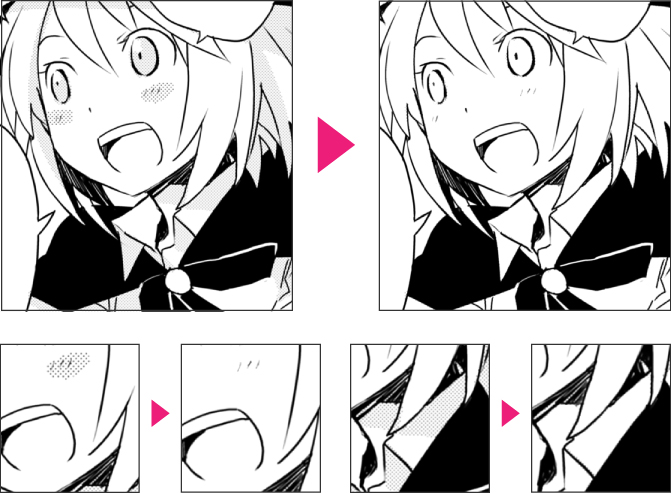
*1 About technology preview functions
These are preview functions that you can try out before their official release. These functions may change when they are officially released.
*2 About the Colorize and Remove Tone features
These features send the image data to an AI server using the network connection. This image data sent to the server is handled with the utmost security and privacy, and is not associated with personal information. Copyright holders retain all rights of such data. The image data is not released to external parties. For more information, see our
Terms of Service.
Corrections of Version 1.8.4
Improvements (DEBUT/PRO/EX)
Improvements (PRO/EX)
Improvements (EX)
Changes of specification (DEBUT/PRO/EX)
[iPad]
CLIP STUDIO Version 1.8.4 release notes (11/29/2018)
Main updates in Version 1.8.4
CLIP STUDIO PAINT Version 1.8.2 release notes (9/20/2018)
Corrections of Version 1.8.2
Changes of specification (DEBUT/PRO/EX)
Corrections (DEBUT/PRO/EX)
CLIP STUDIO PAINT Version 1.8.0 release notes (8/30/2018)
Main updates in Version 1.8.0
*The features marked with EX or PRO can be used only in [EX] or [PRO].
Corrections of Version 1.8.0
Improvements (DEBUT/PRO/EX)
Changes of specification (DEBUT/PRO/EX)
CLIP STUDIO PAINT Version 1.7.8 release notes (7/5/2018)
Main updates in Version 1.7.8
*The features marked with EX or PRO can be used only in [EX] or [PRO].
Corrections of Version 1.7.8
Improvements (DEBUT/PRO/EX)
Improvements (PRO/EX)
Improvements (EX)
CLIP STUDIO Version 1.7.8 release notes (7/5/2018)
Main updates in Version 1.7.8
CLIP STUDIO PAINT Version 1.7.4 release notes (4/26/2018)
Main updates in Version 1.7.4
*The features marked with EX or PRO can be used only in [EX] or [PRO].
The 3D drawing figure functions have been completely changed.
3D drawing figure-Ver.2 (Male) and 3D drawing figure-Ver.2 (Female) have been added.
[Windows/macOS/iPad] You can now use the cloud service.
The cloud service is an online service that allows you to share your works, materials, and app settings across different devices.
You can now manage your works from the [Manage works] screen. You can manage works on your device and in the cloud.
[iPad] We are now offering a new PRO grade and annual subscription plan for the iPad version. EXPRO
A new PRO grade is now available for the iPad.
What's more, we are now offering an annual subscription plan for both PRO and EX grades, so you can save up to 53% per year.
Subscribers to the EX grade on iPad will be able to use up to 100GB of cloud storage (from May 8).
Monthly and annual subscribers to the EX grade on iPad will be able to use up to 100GB of cloud storage (from May 8).
* You will be able to use the same CLIP STUDIO account for the iPad version and the PC version (regardless of the grade on PC).
* Multi-page files can only be opened in EX.
* Also applicable to current subscribers and six-month free trial users.
You can now switch between display options for each palette dock by clicking the area where the icon is displayed. Tab display is available in addition to pop-up display.
The option [Add initial tools] has been added to the [Tool] palette menu. This allows you to add tools to the initial settings.
The option [Add initial sub tools] has been added to the [Sub Tool] palette menu. This allows you to add sub tools to the initial settings.
Corrections of Version 1.7.4
Improvements (DEBUT/PRO/EX)
Improvements (EX)
Changes of specification (DEBUT/PRO/EX)
Changes of specification (EX)
In addition, 30 other bugs were addressed.
CLIP STUDIO PAINT Version 1.7.3 release notes (1/25/2018)
Corrections of Version 1.7.3
Improvements (DEBUT/PRO/EX)
Corrections (EX)
CLIP STUDIO PAINT Version 1.7.2 release notes (12/15/2017)
The following issues have been addressed.
For users who cannot start the application after updating it to Ver 1.7.1, please use the latest Ver 1.7.2. If Ver 1.7.1 can be used normally, there is no need to update. We apologize for the inconveniences.
CLIP STUDIO PAINT Version 1.7.1 release notes (12/13/2017)
Main updates in Version 1.7.1
*The features marked with EX or PRO can be used only in [EX] or [PRO].
The [Quick Access] palette has been added. EXPRO
Menu commands, Auto Action, Sub tools, Drawing color etc. can be registered and executed directly from the [Quick Access] palette.
The latest info is displayed in CLIP STUDIO.
Information for ASSETS and ASK, as well as the official Facebook and Twitter's latest posts can viewed via the CLIP STUDIO application.
Adjust touch gesture operations. [Win]
A [Touch gesture] category has been added to the [Preferences] dialog box.
Make detailed adjustments, such as toggling touch gesture operations on and off.
Three new brushes have been added as initial tools.
[Real G-pen] has been added to the [Pen] tool, the [Real pencil] and [Design pencil] to the [Pencil] tool.
A Canvas restoration function has been added.
[Enable canvas restoration] has been added to the [Preferences] dialog under [File].
When enabled, canvas information is saved at regular intervals for restoration purposes. Should CLIP STUDIO PAINT close abnormally while editing a canvas, the canvas will be automatically restored at the next launch.
Corrections of Version 1.7.1
Improvements (DEBUT/PRO/EX)
Improvements (PRO/EX)
Improvements (EX)
Changes of specification (DEBUT/PRO/EX)
Changes of specification (PRO/EX)
Changes of specification (EX)
In addition, 30 other bugs were addressed.
CLIP STUDIO Version 1.7.1 release notes (12/13/2017)
Main updates in Version 1.7.1
CLIP STUDIO PAINT Ver.1.6.8 (Windows) release notes (10/12/2017)
The following problems have been fixed for the Windows 10 Fall Creators Update in Ver. 1.6.8.
CLIP STUDIO PAINT Version 1.6.7 release notes (9/7/2017)
Main updates in Version 1.6.7
*The features marked with EX or PRO can be used only in [EX] or [PRO].
It is now possible to upload materials to ASSETS.
You can now share your original materials with the world.
For details on how to make materials, please see the following.
Workspaces can be registered as material now. EXPRO
Palette Layout, Shortcut Settings, Command Bar Settings, and Unit Settings of preferences can be registered to Workspace materials.
Registered materials can not only be added to the [Material] palette, but also be distributed through CLIP STUDIO ASSETS.
Workspace materials registered in CLIP STUDIO ASSETS can be imported and applied to your preferences. Palette layouts can be adapted without having to change shortcut settings because settings to reflect are decided upon initial import. It is now easier to customize an original workspace.
Compatible with operations using Surface Dial.
With the Surface Dial it’s possible to magnify and rotate canvases, undo, adjust brush size, move along timelines, and rotate the parallel line ruler.
[All sides view] palette EX
With the [All sides view] palette, it is now possible to verify 3D layers from 4 different direction. Aside from confirming the placement of 3D materials, the position of the focal point and camera can also be adjusted.
Color setting method from dialog and palette has been modified.
Conventionally, where the default dialog for the OS being used was displayed, now a unique [Color settings] dialog will be displayed instead.
In the [Color settings] dialog, there are various options for selecting colors such as color wheel and color sets.
New parameters have been added to the camera feature. EXPRO
[Link camera advancing/retreating], [Camera position] and [Focal point Position] options were added. The display settings for the camera position and perspective can be edited in more detail.
Animated sticker (APNG) files can now be exported.
You can now export in APNG format using [Export animation]. Products such as Line Animated Stickers can be created.
*The animation will play if viewed on an APNG supporting browser such as “Firefox”.
Page file names can now be revised automatically. EX
[Sort page file names] has be added to the [Story] menu. For pages managed in the [Page Management] window, file names can be revised to the same number as the [Page Management] window’s page number.
*File name cannot be revised when Group work function is enabled.
[Tone effect in case of scaling down] has been added to preferences. EXPRO
You can select whether to display a scaled down pattern of tone, or gray scale when lowering magnification factor of the canvas.
Now officially supports macOS Sierra.
[mac] Modification of OS and application has been conducted to resolve several malfunctions confirmed in macOS Sierra. Check the following page for more details.
OpenToonz Scene file has been added to the Export animation feature. EX
Cels and Timelines created in CLIP STUDIO PAINT can be exported as an OpenToonz Scene File.
*OpenToonz Scene File export feature is available on macOS and Windows 64bit.
Half color has been added to the display methods of the light table.
[Color], [Half color], [Monochrome] can be selected from when layers are registered to [Animation cels] palette. When Half color is selected, it is possible to conduct same display as Stylos’s halftone.
These display methods are also available with Onion skin.
[Light table] category has been added to [Preferences].
Initial settings when light table layers are registered to [Animation cels] palette.
Layer thumbnail is now displayed in timeline palette. EX
Since a layer thumbnail is now displayed in timeline palette of animation window, it is now easier to distinguish timeline information and display switching cels. View settings can be changed in palette menu.
Main improvements in Version 1.6.7
PRO/EX
EX
CLIP STUDIO Version 1.6.7 release notes (9/7/2017)
Main updates in Version 1.6.7
CLIP STUDIO PAINT Version 1.6.2 release notes (2016/12/14)
Main features of CLIP STUDIO PAINT Ver.1.6.2
*The features marked with EX or PRO can be used only in [EX] or [PRO].
We have launched CLIP STUDIO ASSETS, a new service where you can download over 8,000 free materials
This handy feature allows you to search for and download free materials that will help you with your work, including tones, brushes and 3D data.
Blending modes have been added.
Layer blending modes have been added for a wider range of expression styles.
New blending modes :
Vivid light, Linear light, Pin light, Hard mix, Exclusion, Darker color, Lighter color, Division, Hue, Saturation, Color, Brightness
Normal

The set layer is simply placed on top of the layer below.
Pin light

Blends by replacing colors in the image depending on the colors in the set layer.
Exclusion

The less bright color values are subtracted from the brighter color values and the difference is displayed, but the colors are blended with a lower contrast.
Hue

The hue of the set layer is applied while maintaining the brightness and saturation of the layer below.
Division

The RGB values of the layer below are divided by the brightness of the set layer.
Brightness

The brightness of the set layer is applied while maintaining the hue and saturation values of the layer below.
The opacity of the brush can be adjusted according to pen pressure
An effect source can now be set for the brush opacity. You can create a brush where the pen pressure is set as the effect source, so that the opacity changes with the pen pressure.
Compatible with retina display (MacOS Version)
Applications and canvases can be displayed in the resolution of the retina display.
Canvases are displayed at a higher resolution in the retina display than in previous versions. As a result, processes such as transformation operations and 3D layer editing processes may take longer than usual.
The file format of 3D data has been changed and the operability of 3D layers has been improved
The file formats of 3D characters, 3D backgrounds, etc. that can be loaded in CLIP STUDIO PAINT have been changed. This is accompanied by an improvement of the functions and operability of 3D layers, including fast view for 3D editing, rendering settings and improvements to the manipulators.
3D materials in software from Ver. 1.6.0 onward are in the new data format.
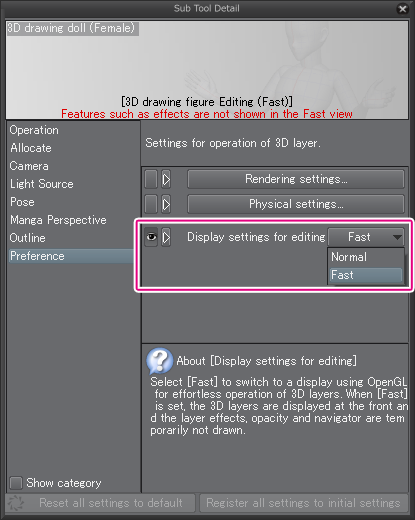
Fast view
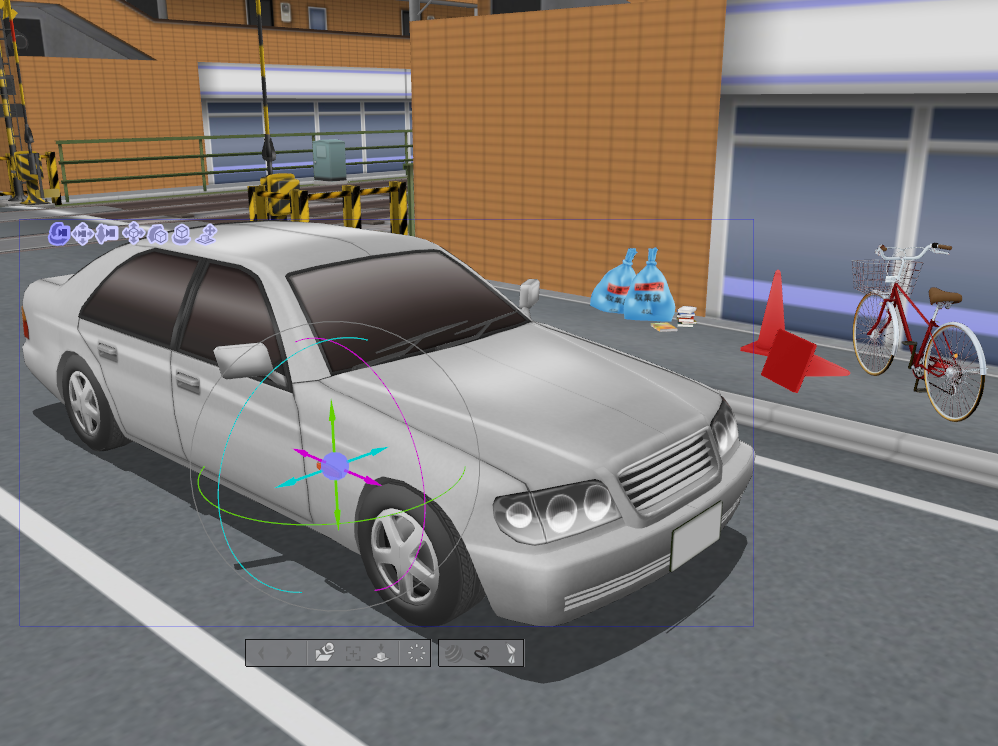
Improvements to Manipulators
*3D materials that you have added or created by yourself prior to this update can still be used, but they will be handled on a different layer from 3D data in the new format, and the two types cannot be linked. General 3D data such as lwo and obj files will be loaded in the same layer as the new format and can be operated in the same way as the new format.
File size reduced EXPRO
Saving of monochrome layers has been optimized. The file size of monochrome works is now 10-20% smaller than standard works.
*We plan on making CLIP files even more user-friendly in future, including further lightening of CLIP files containing color layers and removal of caching for high speed displays to optimize commissioning.
A preview display can now be selected when creating figures
Actual settings such as line color and width can now be viewed in the preview while drawing figures, etc.
[Selection] has been added to the [Output range] settings EX
[Selection] has been added to [Output range] in the dialog displayed when the [File] menu -> [Export (Single Layer)] is selected. A rectangular image with the width and height of the selected area can be exported.
Operation of the timeline is now easier
Various functions have been added for easier operation of the animation function timeline: the view can be split into two levels from the timeline palette menu, a light table can be operated and there are functions such as cel specification, Play/Stop and playback settings.
Animations can now be registered as materials EXPRO
Animation has been added to the material types. Clips selected in the [Timeline] palette can be registered as animation materials.
MP4 files can now be exported
Movie files in MP4 format (extension: mp4) can now be exported from [Export animation].
The initial values of several settings have been changed
Several initial settings have been changed, such as the software interface color and undo count.
If you have never changed the preferences, the new values may be applied after updating. These can be reverted to the previous settings by changing the settings.
Corrections of Version 1.6.2
Improvements
Changes of specification
Corrections
Problems confirmed with Ver.1.6.2
CLIP STUDIO PAINT Version 1.5.4 release notes (2016/03/15)
Main features of CLIP STUDIO PAINT Ver.1.5.4
*The features marked with EX or PRO can be used only in [EX] or [PRO].
Reducing file size
The standard file format has been changed to CLIP STUDIO FORMAT (extension: clip). Files in CLIP STUDIO FORMAT are lighter than those in the old CLIP STUDIO PAINT format (extension: lip), meaning that they load and save more quickly.
※The file sizes of existing lip format will be reduced using [Save as...] in Version 1.5.4.
※The specifications of files in CLIP STUDIO PAINT format (extension: lip) and page management files (extension: cmc) has been changed. Files saved in the latest version cannot be opened in Ver. 1.4.4 or earlier or CLIP STUDIO PAINT.
Increased text options EXPRO
[Wrap text at frame], [Align frames], [Edge], [Edge color], [Background color] and [Opacity] have been added to [Tool Property] in the [Text] sub tool. You can add edges or background color to text, and wrap text according to the frames.
A work with multiple pages as a separate file can now be saved EX
All works from multiple pages can now be saved as separate files using [File] menu → [Save as]. You can save page management files (extension: cmc) with a different name, and each page is saved in CLIP STUDIO FORMAT (extension: clip).
New [Create Folder and Insert Layer] menu
[Create folder and insert layer] has been added to the [Layer] menu. This allows you to create a new layer folder and store the selected layers in that folder.
[Set as draft layer] and [Change layer color] have been added to the [Layer] palette EXPRO
[Set as draft layer] and [Change layer color] have been added to the [Layer] palette. These operations can be performed on the [Layer] palette.
Moving illustrations and animation can now be created
You can create animation and moving illustrations using easy pens and brushes and handy coloring tools. When you're done, you can export your work as a movie or animated GIF.
You can create full animation in PAINT EX, while PRO and DEBUT allows you to create short animation or moving illustrations with up to 24 frames.
[Create moving illustration] has been added to the [New] dialog
[Create moving illustration] has been added to the [New] dialog. You can now create an animation up to 24 frames long. This can be configured using [Illustration] in [Use of work] when using PRO/EX. It can be configured in the normal [New] dialog when using Debut.
Light table and centerfold
You can register your pictures to a light table and refer to them while drawing. Simply press a key on the keyboard to check the motion between the pictures, just like flipping through paper drawings.
Onion skin
You can check your animation by viewing the surrounding pictures as translucent layers. Various settings can be specified, such as the number of pictures to be displayed and the color in which they are displayed.
Timeline
Set the display order and speed in the timeline. You can play your animation immediately and check the actual motion.
[Animation] has been added to [Use of work] in the [New] dialog EXPRO
[Animation] has been added to [Use of work] in the [New] dialog. Items related to animation such as Timeline and Template can be configured.
You can customize settings for your work and workflow, such as the resolution and size of the cel and the layer structure, then register those settings as a template to be used again.
Export animation
[Export animation] has been added to the [File] menu. Canvases for which the Timeline is enabled can be exported as a movie file or animated GIF, or the individual frames can be exported as an image sequence.
Corrections of Version 1.5.4
Improvements
Changes of specification
Corrections
[Mac] CLIP STUDIO PAINT Version 1.4.4 release notes (2015/12/17)
Corrections for Version 1.4.4
Corrections
Problems confirmed with Version 1.4.4
We have confirmed that problem occurs in the following issues and we will make improvement in the next version.
We appreciate your patience for the time being.
CLIP STUDIO PAINT Version 1.4.1 release notes (2015/07/09)
Main features of CLIP STUDIO PAINT Ver.1.4.1
*The features marked with EX or PRO can be used only in [EX] or [PRO].
[Contour line paint] tool has been added.
You can make smooth gradient by clicking an area between two-color lines.
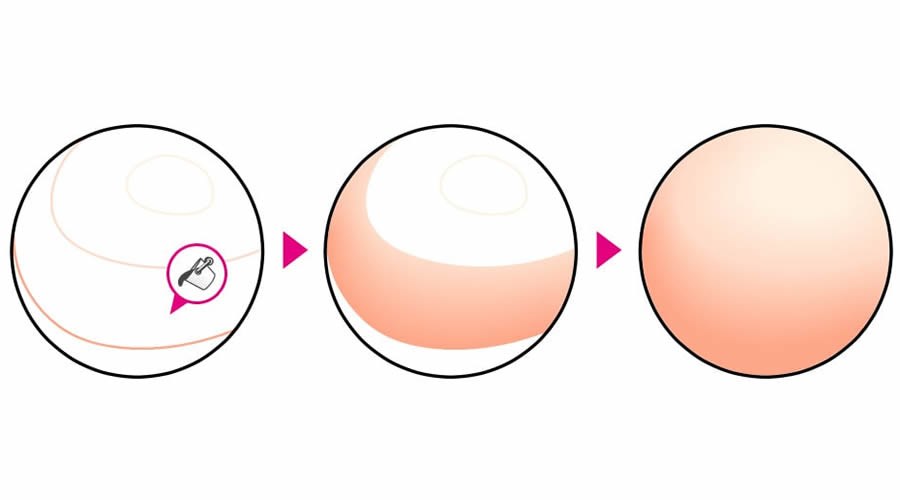
[Export in Kindle format] has been added to [File] menu. EX
Work made with CLIP STUDIO PAINT can be exported in Kindle format.
EPUB data can be exported. EX
It is exported from [File] menu > [Binding export] > [Export EPUB data].
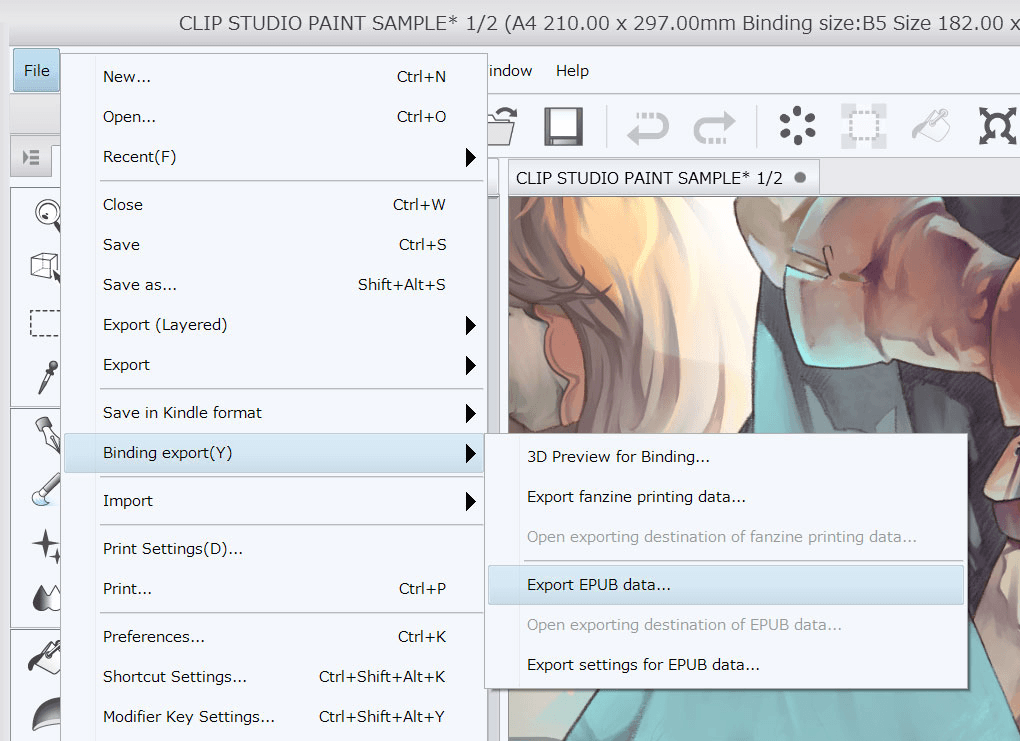
Corrections for Version 1.4.1
Improvements
Changes of specification
Corrections
Problems confirmed with Version 1.4.1
We have confirmed that problem occurs in the following issues and we will make improvement in the next version.
We appreciate your patience for the time being.