iPad for Drawing: How to Choose the Best Model [2026]
![iPad for Drawing: How to Choose the Best Model [2026]](https://www.clipstudio.net/wp-content/uploads/2026/04/ArtRocket_ipad2026_en-475x237.png)
Ultimate guide to choosing the best iPad for drawing and digital art! Compare models for beginners and pros, plus buying tips and accessories.
Introduction
The iPad is a popular series of tablets released by Apple.
The dedicated Apple Pencil is highly sensitive to pen pressure, realistically reproducing the thickness and opacity of your lines.
Because it feels just like drawing on paper with a real pen or pencil, it’s incredibly popular among digital artists!
However, since performance and price vary depending on the model, it’s easy to get lost wondering, “Which iPad is right for me?”
Since it’s a big purchase, you definitely want to avoid getting a model that lacks the performance you need or has features you can’t fully utilize.
In this article, I’ll help beginners choose the perfect iPad by comparing four models: the iPad Pro, iPad Air, iPad, and iPad mini!
I’ll explain the features of each model, along with tips like understanding iPad specs and what to look out for when buying.
Which iPad is Best? Let’s Compare!
First, let’s compare which iPad suits you best based on the kind of illustrations you want to draw.
It’s important to choose a model that fits not only your performance needs, but also your budget.
The most expensive model isn’t always the best fit for everyone.
Take a good look at the comparisons, find a model that matches your workflow, and then dive into the details.
| Choose by Your Workflow! iPad Comparison Chart | |
|---|---|
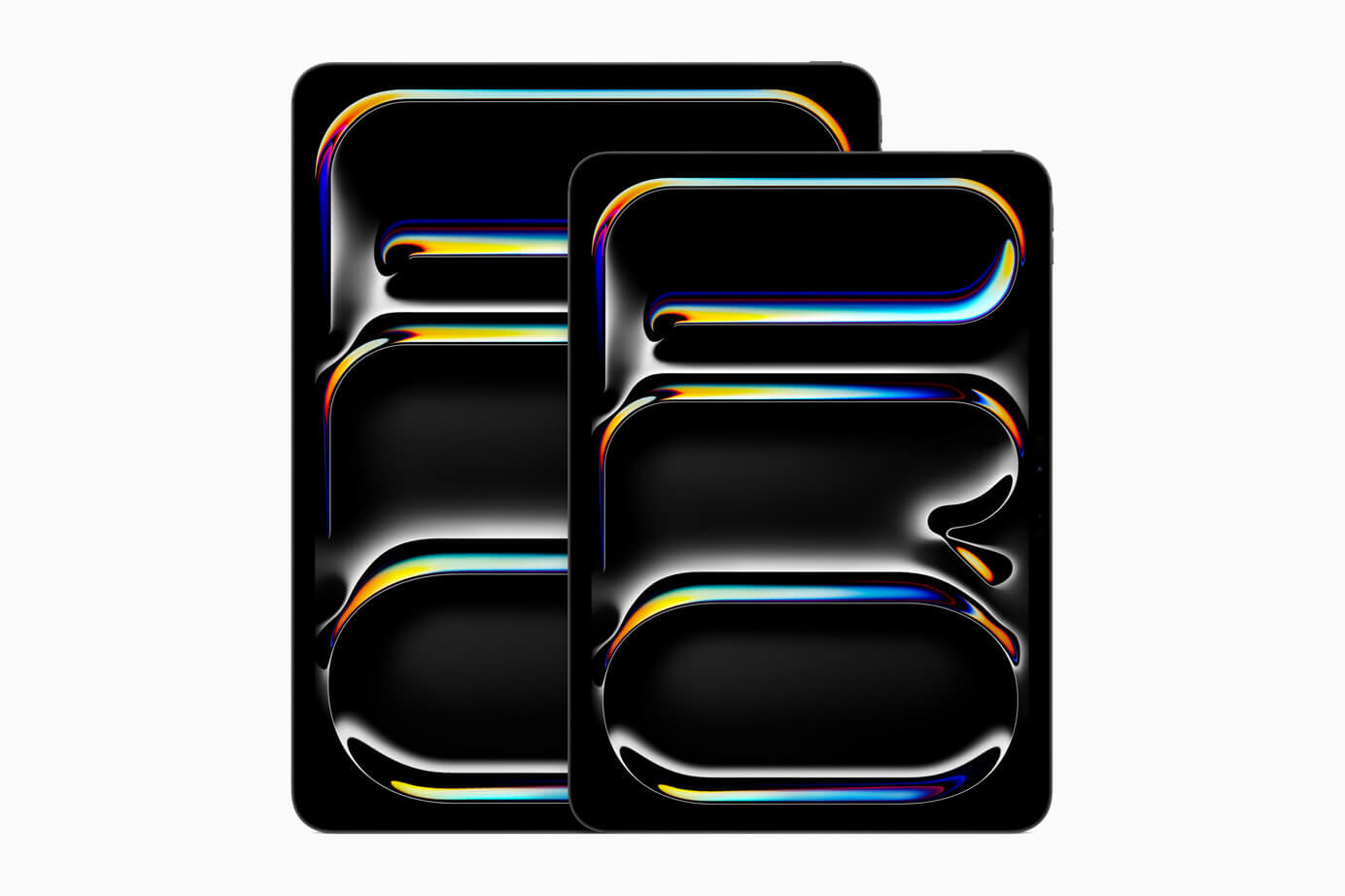 iPad Pro ・13-inch (from $1299) ・11-inch (from $999) | 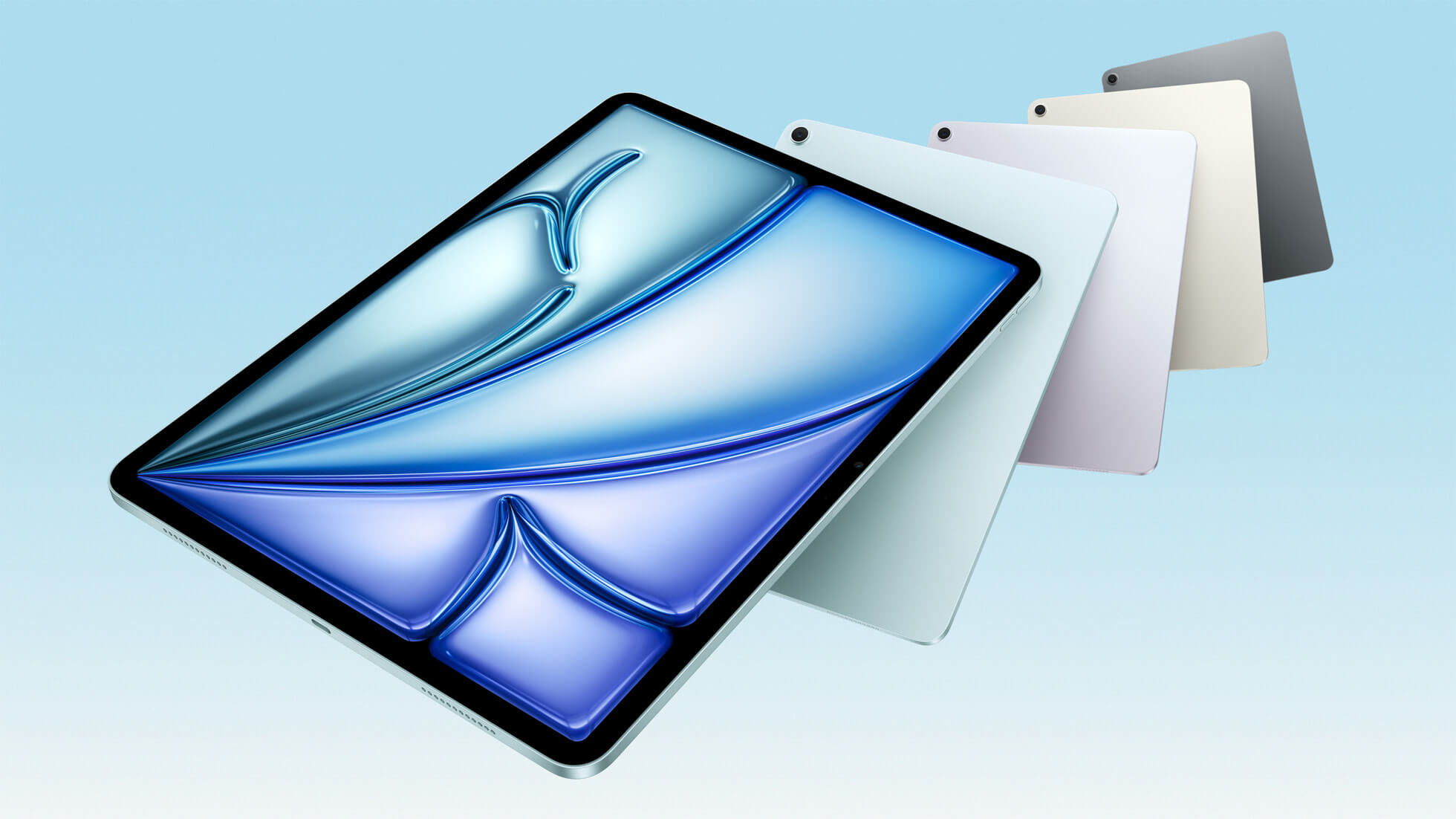 iPad Air ・13-inch (from $799) ・11-inch (from $599) |
| – For those who want to focus on professional-level creation – For those who want to create 3D art and animations alongside illustrations Equipped with the M5 chip, boasting the fastest processing speed in the iPad lineup. Drawing on large canvases is super smooth, making it highly recommended for those who want to maximize their workflow efficiency! | – For those who draw daily as a hobby, like creating fanzines or art for social media – For those who also want to enjoy movies and games on a large screen Powered by the M4 chip. While slightly less powerful than the iPad Pro, it’s highly recommended for hobbyist artists. It has plenty of performance for creating illustrations with many layers or drawing comics. |
| →1. iPad Pro | →2. iPad Air |
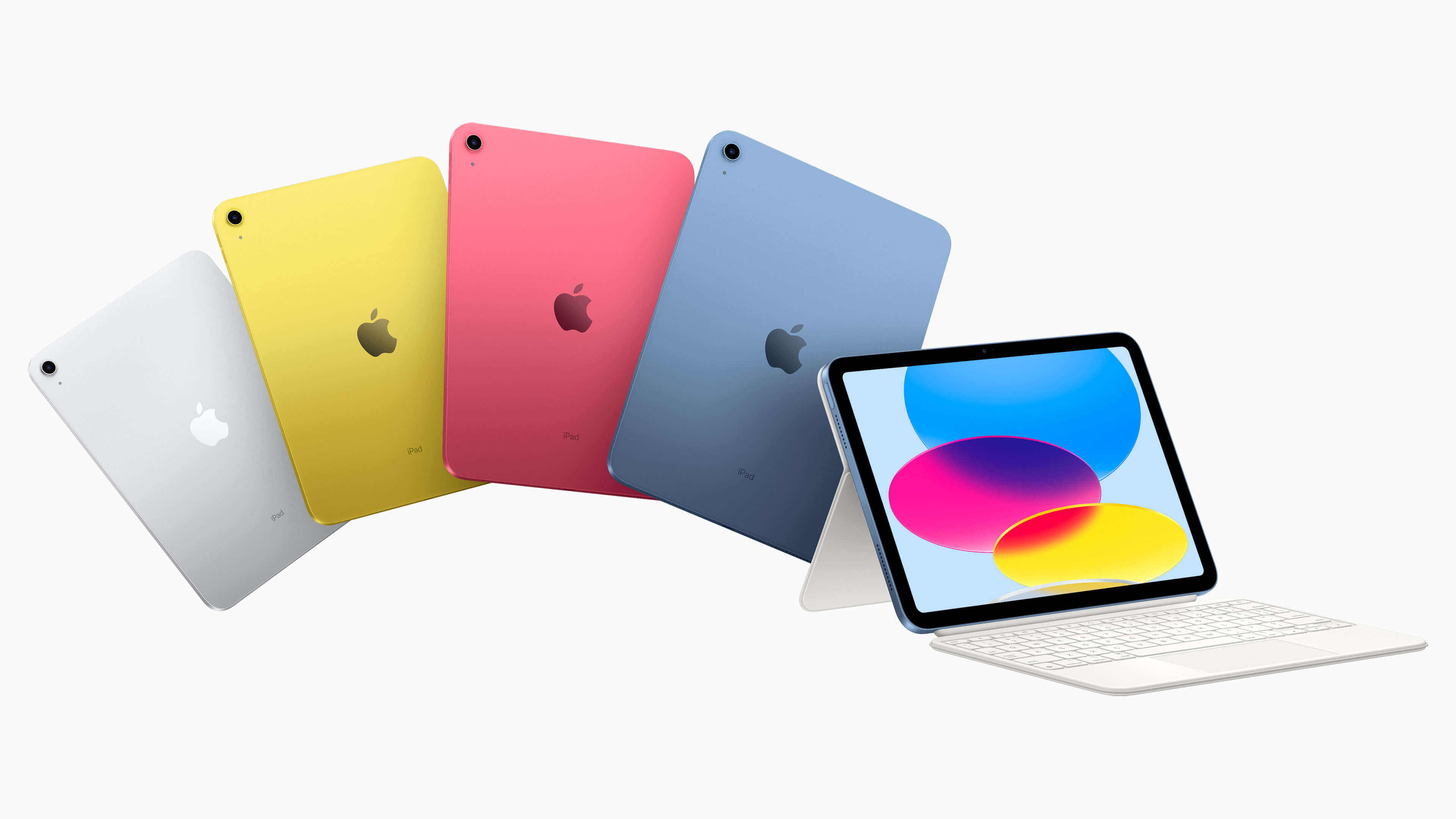 iPad ・11-inch (from $349) |  iPad mini ・8.3-inch (from $499) |
| – For those who draw simple illustrations with fewer details – For those who want to take notes or write on the go While the processing speed is lower than the others, it offers more than enough performance for simple drawings and note taking. | – For those who want to use it for doodling and brainstorming – For those who want to use it outdoors, as it’s incredibly lightweight at under 300g Offers better processing speed and battery life than the iPad (A16). The screen is small, but it’s perfect for jotting down ideas and quick sketches. |
| →3. iPad | →4. iPad mini |
Basic Info and Recommended Points for Each iPad
1. iPad Pro
Dimensions
- 13-inch: 215.5 x 281.6 x 5.1 mm
- 11-inch: 177.5 x 249.7 x 5.3 mm
Price (As of April 2026, researched by the Art Rocket Editorial Team)
- 13-inch: From $1299
- 11-inch: From $999
Compatible Apple Pencils (As of April 2026, researched by the Art Rocket Editorial Team)
- Apple Pencil Pro: $129
- Apple Pencil (USB-C): $79
Recommended Points!
The iPad Pro is loved by many professional manga artists and illustrators.
You can choose from four storage options: 256GB, 512GB, 1TB, and 2TB.
If you’re drawing as a hobby, 256GB is plenty, but if you’re creating art for work, I recommend going for 512GB or more.
Models with 512GB or less feature 12GB of RAM and the Apple M5 chip (9-core CPU, 10-core GPU), ensuring smooth performance even for creating comics with many layers or animation projects.
With its large screen, you get a spacious canvas to draw on.
Other Points to Note
It comes with a higher price tag, but the M5 chip handles heavy tasks like drawing on massive canvases effortlessly.
However, for everyday use or casual hobby drawing, the performance might be a bit overkill.
It’s a good idea to think about the kind of artwork you want to create before buying, so you can choose the specs that best match your needs.
Also, you can expand your storage by upgrading to iCloud+, but keep in mind that this requires a monthly subscription fee.
Recommended Apps
Professional-grade software like Adobe Photoshop and Clip Studio Paint are highly recommended.
2. iPad Air
Dimensions
- 13-inch: 214.9 x 280.6 x 6.1 mm
- 11-inch: 178.5 x 247.6 x 6.1 mm
Price (As of April 2026, researched by the Art Rocket Editorial Team)
- Device (13-inch): From $799
- Device (11-inch): From $599
Compatible Apple Pencils (As of April 2026, researched by the Art Rocket Editorial Team)
- Apple Pencil Pro: $129
- Apple Pencil (USB-C): $79
Recommended Points!
It’s more affordable than the iPad Pro, yet offers a spacious workspace and a high-resolution display that renders color gradients beautifully.
You can choose from 128GB, 256GB, 512GB, and 1TB storage options.
With 12GB of RAM, it runs just as smoothly for illustration work as the iPad Pro.
Plus, it’s equipped with the upgraded Apple M4 chip (8-core CPU, 9-core GPU), offering better processing performance than previous iPad Air models.
Other Points to Note
If you include the Apple Pencil Pro, the total cost will exceed $900, but the device itself is significantly less than the iPad Pro.
While it might fall slightly short of the iPad Pro in terms of color gamut and parallax, it still packs plenty of power to handle everything from hobbyist drawing to professional-level illustration.
Despite the name “Air,” it’s actually 38g heavier and 1mm thicker than the 13-inch iPad Pro.
Since it no longer supports the Apple Pencil (2nd generation) used up to the 5th generation, you’ll need to buy a new Apple Pencil if you’re upgrading to this latest iPad Air.
Recommended Apps
Feature-rich art tools like Clip Studio Paint, Procreate, and Adobe Fresco are great choices.
3. iPad
Dimensions
- 11-inch: 179.5 x 248.6 x 7 mm
Price (As of April 2026, researched by the Art Rocket Editorial Team)
- Device: From $349
Compatible Apple Pencils (As of April 2026, researched by the Art Rocket Editorial Team)
- Apple Pencil (1st generation): $99
- Apple Pencil (USB-C): $79
Recommended Points!
It’s the most reasonably priced model in the iPad lineup, and you can get it along with an Apple Pencil for around $500.
This makes it a fantastic choice if you want to try out Apple products for the first time.
It only comes in an 11-inch display, but that’s a perfectly adequate size for drawing illustrations.
While the 10th generation only offered up to 256GB of storage, you can now choose up to 512GB.
It also comes in a fun variety of colors: silver, blue, pink, and yellow.
Other Points to Note
It features the A16 chip (5-core CPU, 4-core GPU), which has lower processing power compared to the iPad Air’s M4 chip (8-core CPU, 9-core GPU).
So, while it’s more than capable for standard drawing, it might struggle with massive files or highly complex tasks.
Since it lacks a fully laminated display (which eliminates the gap between the touch panel and the LCD), you might notice a slight gap between your pen tip and the screen.
Recommended Apps
Basic illustration tools like ibisPaint, MediBang Paint, Pastela, and Clip Studio Paint (Simple Mode) are highly recommended.
4. iPad mini
Dimensions
- 8.3-inch: 134.8 x 195.4 x 6.3 mm
Price (As of April 2026, researched by the Art Rocket Editorial Team)
- Device: From $499
Compatible Apple Pencils (As of April 2026, researched by the Art Rocket Editorial Team)
- Apple Pencil Pro: $129
- Apple Pencil (USB-C): $79
Recommended Points!
As the name suggests, the iPad mini is light and compact.
It’s super portable, making it easy to whip out and draw during your spare time or on a small café table.
Spec-wise, it’s powered by the A17 Pro chip (6-core CPU, 5-core GPU), handling light to medium tasks smoothly.
You can choose up to 512GB of storage, so you can save plenty of photos and illustrations without worrying about running out of space.
Other Points to Note
Including the Apple Pencil Pro, the total price is over $600, which is slightly more expensive than the larger iPad (11th generation).
It’s perfectly fine for hobbyist drawing, but because of the small screen, it might not be the best fit if you like to draw with long, sweeping strokes.
Also, when using apps with a lot of interface elements (like buttons and panels), your drawing space can feel a bit cramped.
Recommended Apps
Lightweight and efficient apps like Procreate, Clip Studio Paint (Simple Mode), and Concepts are great choices.
New iPads Aren’t the Only Option
Right after a new model is released, older generation iPads become a great catch!
While older models might be discontinued at the Apple Store, you can often find them at electronics retailers for a nice discount.
You can check the main differences from the latest models on Apple’s official website, making this a highly recommended route if you want to save some money.
Recommended Apple Pencils
If you want to draw illustrations, I highly recommend using an Apple Pencil.
While you can draw with your finger on an iPad, an Apple Pencil detects pen pressure and tilt, allowing you to delicately express the tapering of lines and the shading of colors.
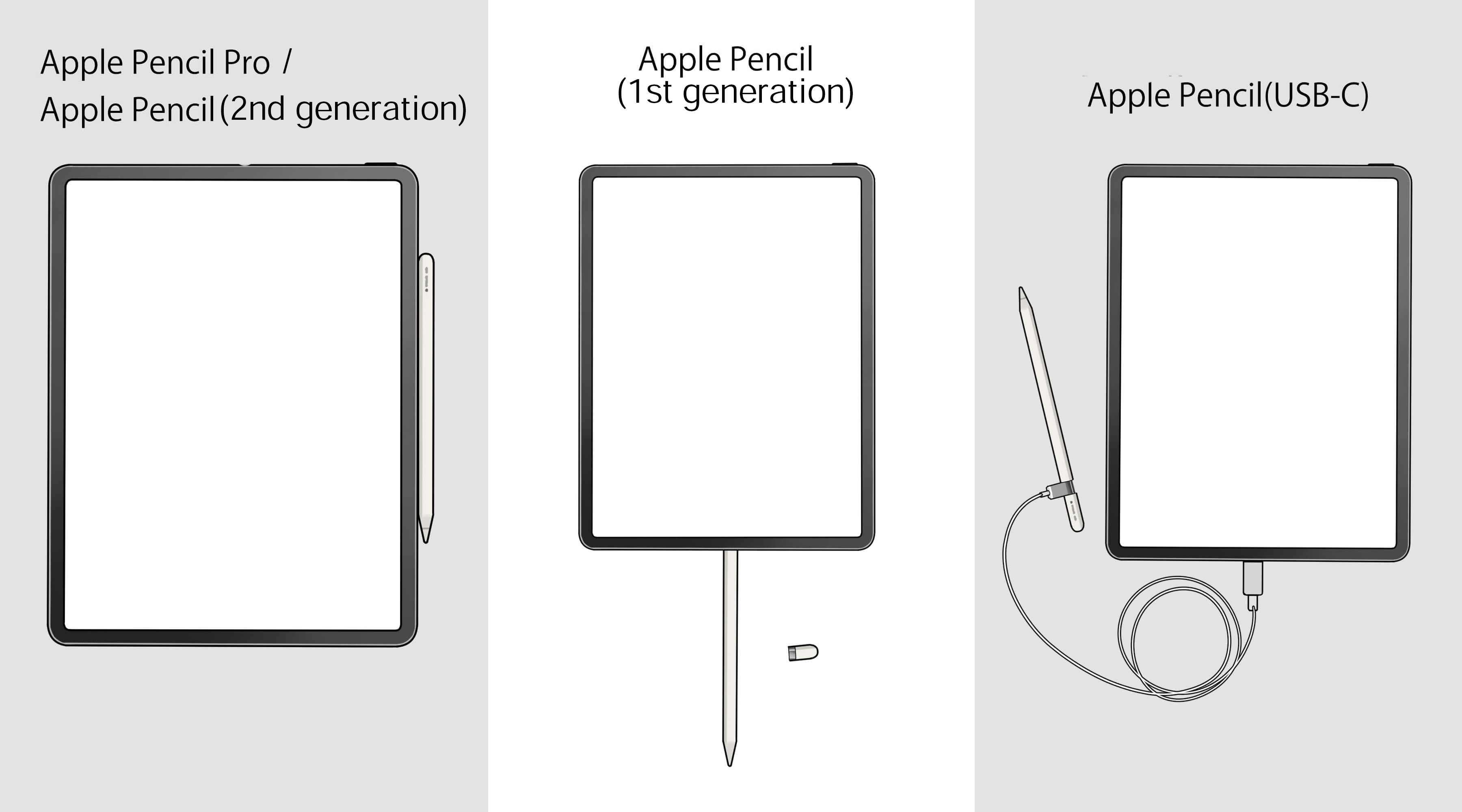
There are four types of Apple Pencils: the 1st generation, 2nd generation, USB-C, and Pro. The compatible pencil depends on your iPad model.
If you’re using the latest iPad models introduced in this article, I generally recommend the Apple Pencil Pro. Since the iPad (A16) doesn’t support the Pro, the Apple Pencil (1st generation) (requires a dedicated adapter) is a good choice.
The Apple Pencil (USB-C) is compatible with many models, but since it lacks pressure sensitivity, it’s not ideal for serious digital art.
| Pen Features | Apple Pencil Pro | Apple Pencil (USB-C) | Apple Pencil (2nd generation) | Apple Pencil (1st generation) |
| Pressure sensitivity | ○ | × | ○ | ○ |
| Tilt sensitivity | ○ | ○ | ○ | ○ |
| Squeeze | ○ | × | × | × |
| Barrel roll | ○ | × | × | × |
| Haptic feedback | ○ | × | × | × |
- Pressure sensitivity: This is a crucial feature for drawing. The thickness and opacity of your lines change depending on how hard you press the pen against the screen. It allows you to express everything from light touches to strong strokes, enabling delicate artwork.
- Tilt sensitivity: This detects the angle of your pen to change the line thickness and density. It’s great for creating gradients that look like real watercolor or pencil.
- Squeeze: When you squeeze the barrel with your fingers, a palette appears near the pen tip. This lets you quickly switch tools, line thickness, and colors, giving your workflow a nice boost.
- Barrel roll: Simply rotating the pen barrel changes the angle of your drawing tool. You can add variety to the thickness and shape of your lines without changing your pen pressure.
- Haptic feedback: This feature sends a slight vibration to your hand when you perform actions like double-tapping. You can feel when you switch tools, which helps prevent accidental inputs.
The pen features you can use depend on the drawing app. In particular, new features like Squeeze and Barrel Roll are currently only supported by a limited number of apps.
Apps that currently support these features include Clip Studio Paint, Adobe Fresco, and Freeform (which is handy for doodles and notes).
To make the most of your pen’s features, it’s a good idea to check beforehand if your favorite app supports them!
Another major difference is how they charge.
- Apple Pencil Pro / Apple Pencil (2nd generation): These attach magnetically to the side of your iPad, allowing for easy, wireless charging.
- Apple Pencil (1st generation): You remove the cap and plug it into the iPad’s Lightning connector to charge.
- Apple Pencil (USB-C): You slide open the end of the pen and charge it using a USB-C cable.
Why Not Consider an Android Tablet?
In addition to iPads, it’s also a great idea to look into Android tablets.
They come in a wide range of prices, making it easier to keep costs down, and they’re very intuitive if you already use an Android smartphone.
Galaxy Tab S11 (Samsung)
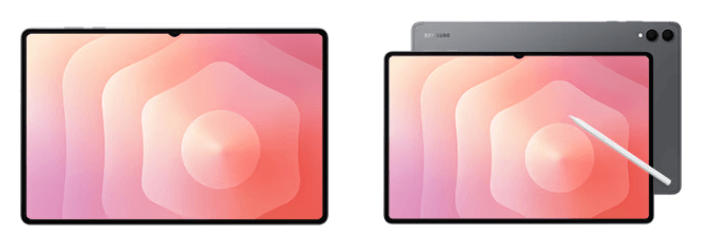
Dimensions
- 11.0-inch: 165.3 x 253.8 x 5.5 mm
Price (As of April 2026, researched by the Art Rocket Editorial Team)
- Device: From $1,199.99
Recommended Points!
Getting a water-resistant 11-inch large screen with an included stylus pen at this price point is incredibly appealing.
The stylus supports pressure and tilt sensitivity, offering a smooth drawing experience with no noticeable lag, even when drawing long, sweeping circles.
Plus, first-time users can enjoy Clip Studio Paint for Galaxy free for 6 months!
Wacom MovinkPad 11 (Wacom)

Dimensions
- 11.45-inch: 266 x 182 x 7 mm
Price (As of April 2026, researched by the Art Rocket Editorial Team)
- Device: $449.95
Recommended Points!
Weighing just 1.3lbs, it’s lightweight and easy to carry. The anti-glare screen provides a natural drawing feel, much like drawing on paper.
The included Wacom Pro Pen 3 requires no batteries or charging. It supports 8,192 levels of pressure sensitivity, naturally reproducing the subtle nuances of your lines.
Furthermore, it comes pre-installed with a 2-year license for Clip Studio Paint DEBUT, so you can start creating serious art right out of the box!
Kamvas Slate 11 (HUION)
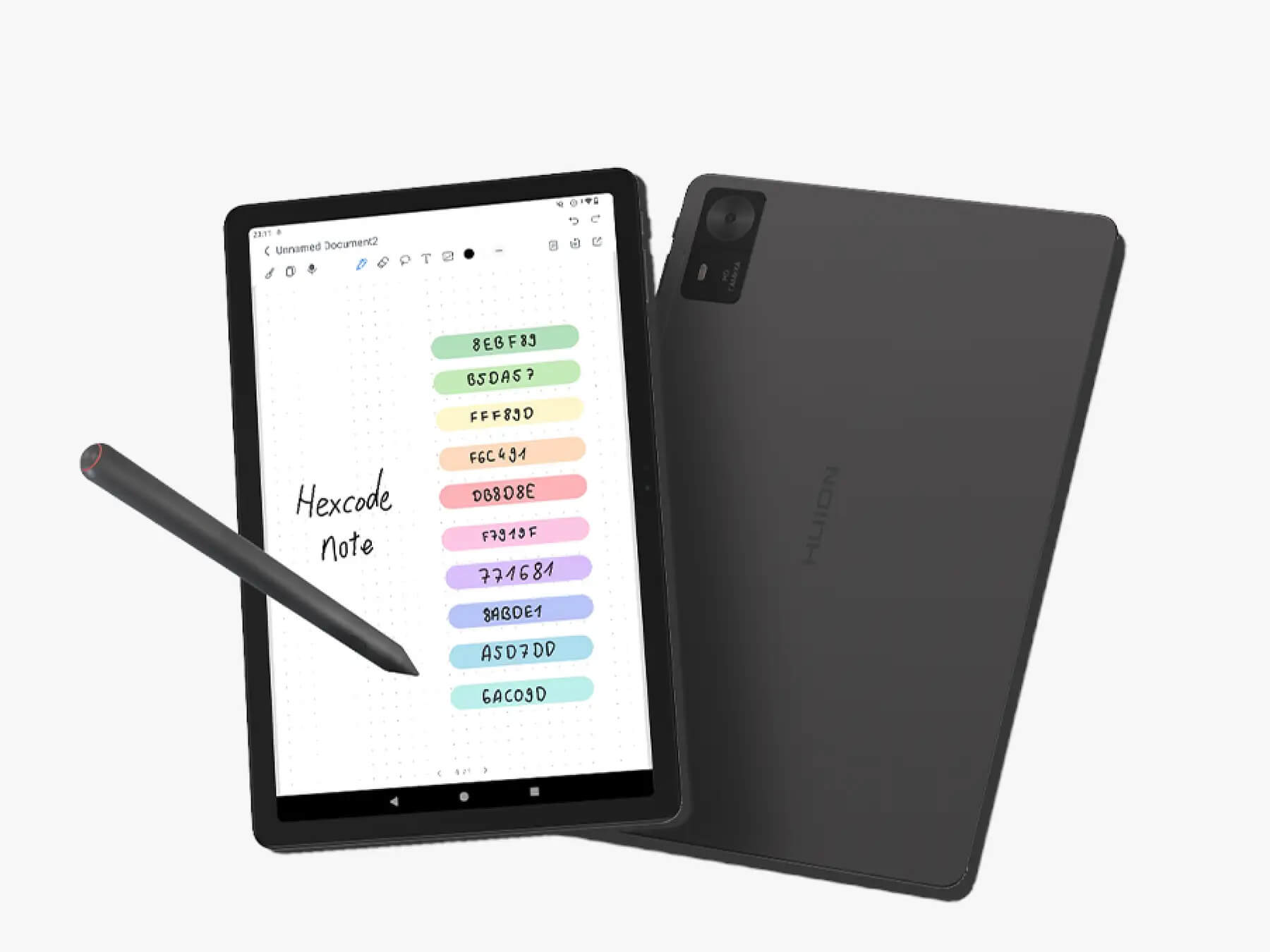
Dimensions
- 11-inch: 256.8 x 168.3 x 7.5 mm
Price (As of April 2026, researched by the Art Rocket Editorial Team)
- Device: $329
Recommended Points!
It comes with 128GB of storage, which can be expanded up to 1TB using a MicroSD card.
The anti-glare screen reduces reflections, making it easy on the eyes and providing a smooth, pleasant drawing texture.
It comes with a generous set of accessories, including the tilt-sensitive H-Pencil, a leather case, cables, and a drawing glove—a fantastic bundle for beginners!
Plus, various drawing apps are pre-installed, and you can use ibisPaint and Clip Studio Paint (for first-time users) free for 3 months.
Guide to Checking iPad Specs
Whether you’re buying an iPad, a pen display, or a PC, the first thing you should do is check the specs.
“Specs” refer to the device’s performance, generally covering the CPU, GPU, memory (RAM), and storage.
The higher the specs, the better the processing power.
- CPU: The CPU is the “brain” of the computer that handles data processing.
Also known as a processor, a higher score means faster processing speeds.
For drawing illustrations, I recommend a CPU with at least 5 cores, ideally 7 cores or more.
For iPads, the Apple M-series chips are the CPUs developed by Apple.
- GPU: The GPU acts like the “workers” carrying out tasks based on instructions from the CPU.
A higher-performance GPU allows for smoother video editing and 3D creation.
You might also see terms like multi-core (dual-core, quad-core, octa-core, etc.). These can handle multiple tasks simultaneously, offering higher processing performance than a single-core processor.
Check out this link for the recommended specs to run Clip Studio Paint smoothly:
- Memory (RAM): The larger the main memory of your device, the smoother it will run.
For creating illustrations, 8 to 16GB is recommended.
Also, since you can’t upgrade the RAM on most tablets later, you’ll need to buy a new device if you start experiencing lag due to insufficient memory.
- Storage: Storage is the capacity for saving your data.
The larger the capacity, the more data you can save, expanding what you can do with your device.
If you’re just saving photos and music, 64GB or more is fine. For illustration work, 128GB or more is sufficient, but if you’re a pro or using it for work, I recommend 512GB or more.
Storage is listed from largest to smallest as TB (Terabyte), GB (Gigabyte), and MB (Megabyte). 1TB = 1000GB, and 1GB = 1000MB.
Check Before You Buy! AppleCare+ and Smart Buying Tips
Once you’ve decided, “This is the one I want!”, here are a few points you should check before making your purchase.
Peace of Mind with AppleCare+
Normally, when you buy an Apple product, it comes with a free 1-year warranty called AppleCare.
However, since the standard AppleCare only covers manufacturing defects and natural failures, it’s a good idea to get AppleCare+ for extra peace of mind.
AppleCare+ covers accidental damage that isn’t included in the free warranty, helping to reduce repair costs and financial stress.
Since an iPad is a pricey investment, you definitely want to minimize the risk of hefty repair bills or loss.
Depending on how you made your purchase, you can pay for AppleCare+ either upfront or via a monthly or annual subscription.
If you pay upfront, the coverage lasts for two years. If you choose the subscription, it will automatically renew until you cancel it.
Timing is also important—you need to sign up for AppleCare+ within 60 days of purchasing your iPad.
*Enrollment deadlines and conditions may change, so please check Apple’s official website for the latest details.
Smart Buying Tips by Store
Apple Store
If you’re a student, you can get a great deal at the Apple Store for Education.
The Apple Store for Education is a discount service offered on Apple’s official website.
You may need to verify your eligibility with an active school email or other documentation during checkout. Verification and eligibility varies by country, so please check the Sales Policies for the Apple Store for Education for more information.
Electronics Retailers
If you regularly collect reward points, this is a great option. You can earn points on your iPad purchase to use later, or use your existing points to lower the cost of the iPad.
Used Devices
The biggest appeal here is definitely the low price.
Since you can buy them significantly cheaper than brand-new models, it’s a very attractive option if you’re on a tight budget.
However, used items often have degraded batteries or cosmetic scratches, and in most cases, they don’t come with a warranty. Be sure to check the condition carefully before buying.
Recommended Accessories to Upgrade Your Workspace
Here are some items I recommend picking up together with your tablet to boost your workflow efficiency!
One-Handed Devices (Shortcut Remotes)
A one-handed device is an auxiliary input tool where you can customize the buttons to perform frequently used actions (like changing brush size, auto-selecting, etc.) with just one hand.
By customizing it to fit your workflow, you can draw with your dominant hand while executing multiple shortcuts with your other hand, which is a huge help for speeding up your process.
Clip Studio Paint also offers its own dedicated one-handed device called the Clip Studio Tabmate 2.
While the previous generation wasn’t compatible with iPads, the Tabmate 2 can now connect via Bluetooth!
You can check out more details here.
Screen Protectors
These films protect your tablet’s screen from scratches and dirt.
There are anti-fingerprint types that resist smudges and oils, and anti-glare types that reduce reflections to improve visibility.
If you use a “paper-like” film, you can replicate the tactile feel of drawing on paper with a pencil.
Also, make sure to check the size beforehand, as screen protectors vary depending on your screen size.
They usually cost around $13 to $25.
Tablet Stands
Using a stand while drawing allows you to adjust your viewing angle, which helps reduce strain on your neck and shoulders.
Since iPads don’t come with a built-in stand, I highly recommend buying one separately.
If you carry your iPad around a lot, a lightweight, foldable stand or a cover with a built-in stand is super convenient.
You can easily find them online from about $15.
However, cheaper ones might wobble while you draw, so it’s a good idea to check the reviews before buying.
Also, always double-check that the stand is compatible with your specific model!
(Produced by the Art Rocket Editorial Team)
If you’ve found the iPad you want but are wondering, “Which app should I use to draw?”, check this out:
20 Best Free/Paid Drawing Apps for iPad (2026)